Showing posts with label dead. Show all posts
Showing posts with label dead. Show all posts
Sunday, January 1, 2017
Intex Aqua 4 5E After Flash Dead Solution here tested
Intex Aqua 4 5E After Flash Dead Solution here tested
Hello every one intex aqua 4.5e after flash dead issue ? dont worry here simple solution if you better understand this tutorial because first time i flash device then it dead so i am confuse then i search in internet then i found this solution and i also use this tutorial and i was got success so you can also use this tutorial if your device dead after flash but remember be carefully use i suggest first read carefully full tutorial after following step by step so you fill easy to use, before use some impotent notes first of must be working well micro usb cable, must be working well device or pc usb socket and also must be installed usb drive in computer
This flash file tested by me without any error working well, you can use this flash file when your device hang on logo problem, restarting problem, security lock problem, password lock problem, pattern lock problem etc software related problem and you can use this tutorial without any box and this is free for all who know about software in mobile, impotent for flashing first must check your micro usb cable if not good then you cant flash it so check micro usb cable second check your device battery that is impotent for flashing if your device battery low so stop your device between flash so this is impotent for flash, before you flash save your data like contact, photos, videos etc because this is factory flash file so you cant save after full flash so must remember all are impotent notes.
Download Link
Intex Aqua 4.5E Firmware Download here
preloader_vsun71_e_kk Download here
SP_Flash_Tool_v5.1343.01 Flash tool Download here
Intex Aqua 4.5E Flashing USB Driver Download here
Required for flash:
- Intex Aqua 4.5E device with well battery charged
- Preloader_vsun71_e_kk file
- Android USB Driver
- Micro usb cable
- Computer or Laptop
Procedure:
- Download Intex Aqua 4.5E firmware, Preloader file, SP_Flash_Tool_v5.1343.01 or USB Flashing driver from above link
- Extract to desktop or as you like path (must be installed winrar software in your computer)
- Copy preloader_vsun71_e_kk.bin file
- Open Intex_Aqua_4.5E_V06_Indian_SER firmware folder and Paste Copied file there and do overwrite
- Now SP_Flash_Tool_v5.1343.01 folder and choose flash_tool.exe file and open it
- Click on Scatter-loading button and choose MT6571_Android_scatter.txt file
- Double click on Download button
- Press and hold Volume Up button and insert usb cable
- Wait until driver install, if driver installed in your computer then downloading automatically start
- Wait until full install android os
- Congratulation you are done
Screenshot:


Available link for download

Tuesday, September 27, 2016
Micromax Canvas A1 AQ4501 Dead After Flash Solution tested
Micromax Canvas A1 AQ4501 Dead After Flash Solution tested
Micromax Canvas AQ4501 Dead After Flash the Experience was with me, after that was sent to Micromax Care from there it was getting ready but SIM not working in that again i try to flash but same again dead device when I find from the internet this solution and it done without any error all experience post in this post just read carefully after try to following be carefully, before use first carefully read all guide and also prepare required for that if any missing you cant solve, and from this guide you cant save data like contacts, videos, photos, email, notes etc, you can use this flash file when your device hangs on logo problem, restarting problem, security lock problem, password lock problem, pattern lock problem etc software related problem and you can use this tutorial without any box
This flash file tested by me without any error working well, and this is free for all who know about software in mobile, impotent for flashing first must check your micro USB cable if not good then you cant flash it so check micro USB cable second check your device battery that is impotent for flashing if your device battery low so stop your device between flash so this is impotent for flash, before you flash save your data like contact, photos, videos etc because this is factory flash file so you cant save after full flash so must remember all are impotent notes.
First Read After Following:
- You have to charge your battery with any charger and charged it by 70%.
- Your data is very important for you so it is good to do a backup of your data it may consist like your contact details,your important messages, your emails or any other important thing which you feel to be the backup in your device.
- This backup can be done on another device. we have to do the backup because after a format of your device, all your data will be gone and it will not be recovered.
- For backup in other devices you can use other external device like your hard drive, sd card or any other suitable devices.
- If you are doing by your own.do it at your own risk as we dont take any responsibility if your device is damaged
Requirement:
- Micromax Canvas A1 AQ4501 device with good battery charged and do not try with low battery otherwise device will be dead
- Micromax Canvas A1 AQ4501 tested Stock ROM Firmware | Download here
- SP_Flash_Tool_v5.1532 Flash tool | Download here
- Micromax Canvas A1 AQ4501 USB (Flashing) Driver | Download here
- Micro usb cable must be good quality
- Computer or Laptop
Procedure for Micromax Canvas A1 AQ4501:
- First device check in hardware related issue if hardware issue then after flash done your device will be dead or other issue please carefully use
- Download Micromax Canvas A1 AQ4501 tested firmware or download tested SP_Flash_Tool_v5.1532 flash tool from above link
- UnZip of both file from winrar to desktop or as you like path must be installed WinRAR or WinZip without that you cant extract
- Open SP_Flash_Tool_v5.1532 folder and choose flash_tool.exe file and open it
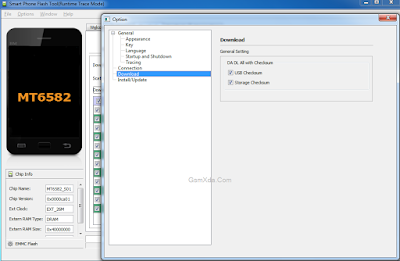
- Go to Option Menu and choose Option, Jump to Download, DA DL All with Checksum and Tick on USB Checksum and Storage Checksum
- Click on Scatter-loading button and choose MT6582_Android_scatter.txt file from Micromax_AQ4501_015550 firmware folder
- Click on Download button or shortcut key F9 from keyboard
- Press and hold Volume Up button and insert usb cable (note: usb socket or keys must be working well)
- If mtk driver installed in your computer or Laptop then starting flash automatically if not install mtk driver then wait until driver install
- You are done from install new os in device
Micromax Canvas A1 AQ4501 Impotent Tick Screenshot:
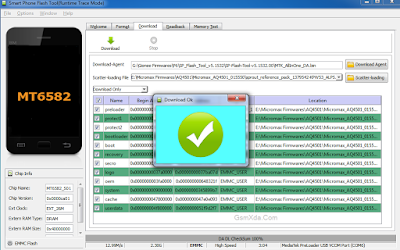
Micromax Canvas A1 AQ4501 Flash done Screenshot:
Available link for download
Tuesday, September 6, 2016
Lenovo A369i Dead After Flash Solution without any box tested
Lenovo A369i Dead After Flash Solution without any box tested
Some time what happen with software technician when try different version flash then device dead or other issue in software related so this experienced with me i was try with different version then device was dead so find in internet for perfect file or solution then i found one file its just showing video and there was write of after dead done so i downloaded this flash file and i try then was success without any error but i lost imei number so that issue if you use this tutorial, remember before use this method take backup all type like contacts, notes, messages, email etc because this all are properly format so you cant save any data which mention above and also must working well which required in this post if any not working then you cant following this method this tutorial not only dead solution but you can done many problem of solution related check below description about firmware this also most impotent please carefully read.
This flash file tested by me without any error working well, you can use this flash file when your device hang on logo problem, restarting problem, security lock problem, password lock problem, pattern lock problem etc software related problem and you can use this tutorial without any box and this is free for all who know about software in mobile, impotent for flashing first must check your micro usb cable if not good then you cant flash it so check micro usb cable second check your device battery that is impotent for flashing if your device battery low so stop your device between flash so this is impotent for flash, before you flash save your data like contact, photos, videos etc because this is factory flash file so you cant save after full flash so must remember all are impotent notes.
Download Link
Lenovo A369i Dead Solution Stock Rom Download here
Lenovo A369i SP Flash tool Download here
Lenovo A369i USB Driver Download here
Required for Solution:
1. Lenovo A369i phone with good battery charged
2. Lenovo A369i Stock Rom Firmware
3. Lenovo A369i Flash tool
4. Lenovo A369i USB Driver
5. Micro usb cable
6. Computer or Laptop
Procedure for Dead Recover:
1. First need files download from above link (if link broke just leave your comment)
2. Extract to desktop or as you like path (must be installed winzip)
3. Open SP Flash tool folder and choose flash_too.exe file and open it
4. Click on Scatter-loading button and choose MT6572_Android_scatter.txt file from target_bin folder
5. Now click on Download button and Press and hold Volume Up button and insert usb cable
6. After insert usb cable show message of install new hardware found then update driver link are above
7. After installed driver then process start automatically then wait until full process
8. Do not try unplug while device in flashing mode
9. Congratulation you are done

2. Extract to desktop or as you like path (must be installed winzip)
3. Open SP Flash tool folder and choose flash_too.exe file and open it
4. Click on Scatter-loading button and choose MT6572_Android_scatter.txt file from target_bin folder
5. Now click on Download button and Press and hold Volume Up button and insert usb cable
6. After insert usb cable show message of install new hardware found then update driver link are above
7. After installed driver then process start automatically then wait until full process
8. Do not try unplug while device in flashing mode
9. Congratulation you are done
Lenovo A369i Dead Recover Screenshot:
Available link for download
Saturday, September 3, 2016
Blackberry Z10 dead or red light blinking done tested
Blackberry Z10 dead or red light blinking done tested

This solution awesome for blackberry Z10 when i try in first time in blackberry Z10 then device was dead so try to online update and it is success but in online update many time waiting for that so here simple solution which is first time wait many time when you downloading but after downloading you can easy flash without any risk just few minute only so this is most impotent for everyone one who working in mobile software related and here some impotent notes remember everyone before use this tutorial first of must be charged battery to device up to 80% per. and also working well micro usb cable, working well your computer or laptop usb socket these most impotent if any issue then you cant flashing device
This flash file tested by me without any error working well, you can use this flash file when your device hang on logo problem, restarting problem, security lock problem, password lock problem, pattern lock problem etc software related problem and you can use this tutorial without any box and this is free for all who know about software in mobile, impotent for flashing first must check your micro usb cable if not good then you cant flash it so check micro usb cable second check your device battery that is impotent for flashing if your device battery low so stop your device between flash so this is impotent for flash, before you flash save your data like contact, photos, videos etc because this is factory flash file so you cant save after full flash so must remember all are impotent notes.
Download Link
Z10_10.3.02.2876_STL100-1 Download here
Available link for download
Subscribe to:
Posts (Atom)