Showing posts with label flash. Show all posts
Showing posts with label flash. Show all posts
Saturday, July 29, 2017
Micromax Bolt A082 Flash done with SP flash tool tested
Micromax Bolt A082 Flash done with SP flash tool tested
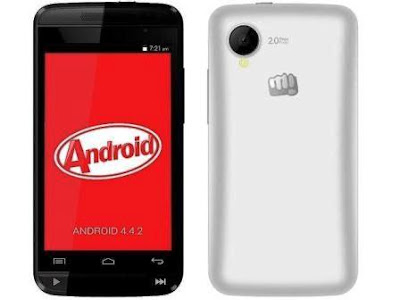
Before use this tutorial first read all tutorial carefully after following step by step and any problem using this tutorial then leave comment on below comment box i will soon good reply with also remember before use this tutorial also check device in hardware if hardware issue in device and try to flash using this tutorial then your device will be dead or other issue so first check in hardware after try in flash tutorial when device customer take this device for software then in hang issue so i use below firmware or flash tool so i was success and problem was solve of hang on solution but remember not only hang on logo solution but your device if restarting issue, hang issue then you can use this tutorial please carefully use this tutorial and read below description about firmware.
This flash file tested by me without any error working well, you can use this flash file when your device hang on logo problem, restarting problem, security lock problem, password lock problem, pattern lock problem etc software related problem and you can use this tutorial without any box and this is free for all who know about software in mobile, impotent for flashing first must check your micro usb cable if not good then you cant flash it so check micro usb cable second check your device battery that is impotent for flashing if your device battery low so stop your device between flash so this is impotent for flash, before you flash save your data like contact, photos, videos etc because this is factory flash file so you cant save after full flash so must remember all are impotent notes.
Download Link
Micromax A082 Stock ROM Firmware Download here
SP_Flash_Tool_v5.1343.01 Flash tool Download here
Micromax A082 USB Driver Download here
Required for flash:
1. Micromax Bolt A082 device with good battery charged
2. Micromax Bolt A082 tested firmware
3. SP_Flash_Tool_v5.1343.01 Flash tool
4. Micro usb cable
6. Computer or Laptop
Procedure:
1. Download tested firmware from above link (if link not working just leave your comment on below comment box)
2. Extract to both files into desktop or as you like path (must be installed winrar software in your computer)
3. Open SP_Flash_Tool_v5.1343.01 folder and choose flash_tool.exe file and open it
4. Click on Scatter-loading button and choose MT6572_Android_scatter.txt file
5. Now click on Download button
6. Press and hold Volume UP button and insert usb cable
7. Wait until driver install, if driver installed in your computer then download start automatically into device
8. Wait until full install (do not try in unplug while your device in flashing mode)
9. Congratulation you are done
Micromax Bolt A082 Flash done with SP flash tool screenshot;
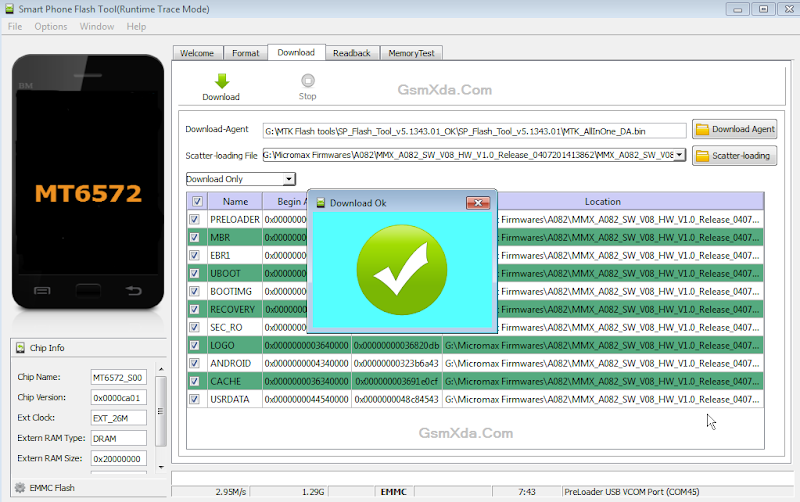
Micromax Bolt A082 Flash done with SP flash tool Video HERE
Available link for download

Thursday, March 30, 2017
How to Flash or Upgrade BSNL Penta WS702C with Flash tool tested
How to Flash or Upgrade BSNL Penta WS702C with Flash tool tested
When you try to Flash or Upgrade of BSNL Penta WS702C, remember some impotent notes, first of must be tablet charged, this is easy way to Flash or Upgrade if you understand and this is AllWinner CPU so for that different flash tool and Stock ROM Firmware is .img file not like scatter or .pac last two is running in mostly device but in this different so method also different, you can use this flash file when your device hangs on logo problem, restarting problem, security lock problem, password lock problem, pattern lock problem etc software related problem, before use preparation for flash, Stock ROM Firmware, USB Cable, Flash tool, Driver, Computer or Laptop and in requirement where mention like which cable to be, about Stock ROM, about USB Driver also with link just follow that, take all type data in your tablet because this is factory stock ROM, if data in SD Card so dont worry its be safe but remember not to be in internet storage and this flash file tested by me without any error working well
And you can use this tutorial without any box and this is free for all who know about software in mobile, impotent for flashing first must check your micro USB cable if not good then you cant flash it so check micro USB cable second check your device battery that is impotent for flashing if your device battery low so stop your device between flash so this is impotent for flash, before you flash save your data like contact, photos, videos etc because this is factory flash file so you cant save after full flash so must remember all are impotent notes.
And you can use this tutorial without any box and this is free for all who know about software in mobile, impotent for flashing first must check your micro USB cable if not good then you cant flash it so check micro USB cable second check your device battery that is impotent for flashing if your device battery low so stop your device between flash so this is impotent for flash, before you flash save your data like contact, photos, videos etc because this is factory flash file so you cant save after full flash so must remember all are impotent notes.
Requirement:
- BSNL Penta WS702C Tablet with charged battery up to 80%, do not try with low battery otherwise dead will be dead or another issues
- BSNL Penta WS702C Tablet Flash file its must be working well means not to be corrupted, you can download tested from this link | Download here
- BSNL Penta WS702C Tablet Flash tool | Download here
- BSNL Penta WS702C Tablet USB Driver | Download here
- Good Quality Micro USB Cable
- Computer or Laptop
Method to Flash or Upgrade for BSNL Penta WS702C:
- First Download required from the above link, if link dead or other problem just leave your comment on below comment box
- UnZip all are files from WinZip to Desktop or As you like path, must be installed WinZip in your computer or laptop for Extract
- Open Update tool folder and choose LiveSuit.exe file and open it
- YES button for Continue and NO for Cancel so choose YES button
- General Mode for Upgrade mode, Mandatory Mode for Update Mode (Recommended) so choose General
- Now choose YES and choose DZHW-A088hd-dou-XXXA-B-M1190-5875y-V2.0-20120907.img file from the img folder
- Press and hold Volume Down and insert USB Cable and wait until driver installing, if not installed then try to manual and update from above links driver
- After Installed Driver, Download start automatically and wait until full process, do not try to disconnected device while in flashing mode
- Congratulation you are done
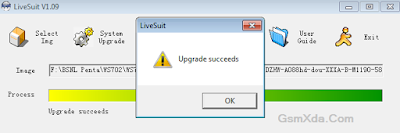
BSNL Penta WS702C Flash done Screenshot and Video :
Available link for download
Wednesday, March 29, 2017
How to Flash Lenovo A536 with SP Flash Tool Tested
How to Flash Lenovo A536 with SP Flash Tool Tested
If any problem in Lenovo A536 use this method really working easy to flash without any error and remember do not try with wrong stock ROM because device will be dead so carefully use this guide really working well, Lenovo A536 in any type issue software related you can easy solve using this method and this is for everyone who new fresher technician or experience technician in android software related, before use remember of must be working well all are required which you can see in this method it below to be mention, different to be error when you try to flash or upgrade first of USB not recognized this error possible when micro USB not working, battery not charged, phone USB socket not working properly so if you fail with this method just write down your comment on below comment box i will soon possible to fix it, first take backup into device if live otherwise dead you cant take backup, this guide you can use when device in dead condition also but must be in software related issue otherwise if any hardware then you can solve that.
If you want to repair your device, you can try to repair it by you. You have to charge your battery with any charger and charged it by 85%. Your data is very important for you so it is good to do a backup of your data it may consist like your contact details,your important messages, your emails or any other important thing which you feel to be the backup in your device. This backup can be done on another device. we have to do the backup because after a format of your device, all your data will be gone and it will not be recovered. For backup in other devices you can use other external device like your hard drive, SD card or any other suitable devices. If you are doing by your own.do it at your own risk as we dont take any responsibility if your device is damaged
When you use this method ?
This method you can use without any box its done from flash tool its also available here, and impotent of must be installed phones driver, you cant flash or upgrade if not installed in your computer or laptop it must be installed and also available in this post, here all are linked that tested and working fine just in one try, you can use this guide when your device in hang on logo, restarting, auto turn on internet connection, auto turn on WiFi connection, auto apk installing, auto gone balance, pattern lock, screen lock etc these type issues you can use this way.
Requisite for Lenovo A536
- Lenovo A536 phone with good battery charged, do not try with low battery
- Lenovo A536 Stock ROM Firmware Tested | Download here
- Lenovo A536 Flash Tool | Download here
- Lenovo A536 USB (Flashing) Driver | Download here
- Computer or Laptop
- Good Quality Micro USB Cable
Procedure for Lenovo A536
- First take files from above link, if link not working just leave your comment on below comment box i will soon fix if possible
- Install WinZip software in your Computer or Laptop, if already installed then ignore
- Extract to desktop or as you like path from the WinZip
- Open SP Flash Tool folder and choose flash_tool.exe file and open it
- Click on Scatter-loading button and choose MT6582_Android_scatter.txt file from the Stock ROM firmware folder
- Click on Download button then Just Insert USB Cable into device
- Wait until driver installed automatically, if not installed auto then just manual update from above links driver
- If device dead or not detect then use Press and hold Volume UP button and Insert USB Cable (Note: You can use Volume Down button for detection)
- Wait until finished process, do not try to unplug while device flashing mode
- Congratulation you are done
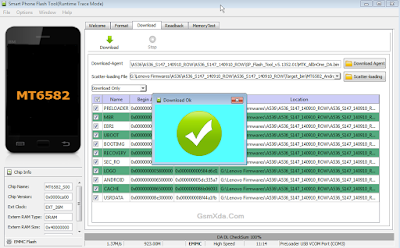
Lenovo A536 Flash done Screenshot:
Available link for download
Monday, March 20, 2017
How to Flash Karbonn A20 Check here with simple method
How to Flash Karbonn A20 Check here with simple method
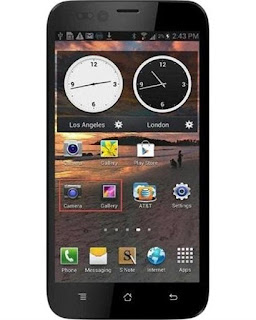
First back to all type data like photos, email, contacts, videos etc because this is factory firmware if dont take backup all then you will lost all type data of above mention.
This flash file tested by me without any error working well, you can use this flash file when your device hang on logo problem, restarting problem, security lock problem, password lock problem, pattern lock problem etc software related problem and you can use this tutorial without any box and this is free for all who know about software in mobile, impotent for flashing first must check your micro usb cable if not good then you cant flash it so check micro usb cable second check your device battery that is impotent for flashing if your device battery low so stop your device between flash so this is impotent for flash, before you flash save your data like contact, photos, videos etc because this is factory flash file so you cant save after full flash so must remember all are impotent notes.
Download Link
Karbonn A20 Firmware Download here
SP_Flash_Tool_v5.1343.01 Download here
Required for flash:
1. Karbonn A20 device with good battery charged
2. Karbonn A20 tested firmware
3. SP Flash Tool
4. Micro usb cable
5. Computer or Laptop
Procedure:
1. Download tested firmware or flash tool from above link
2. Extract to both winrar file into desktop or as you like path (must installed winrar software in your computer or laptop)
3. Open SP_Flash_Tool_v5.1343.01 folder and choose flash_tool.exe file and open it
4. Click on Scatter-loading button and choose MT6572_Android_scatter.txt file
5. Click on Download button
6. Press and hold Volume Up button and insert usb cable (device key or micro usb cable must be working well)
7. Wait until driver install, if driver installed in your computer or laptop then downloading start automatically in your device
8. Wait until full install android os into device
9. You are done
Karbonn A20 flash done with flash tool screenshot:
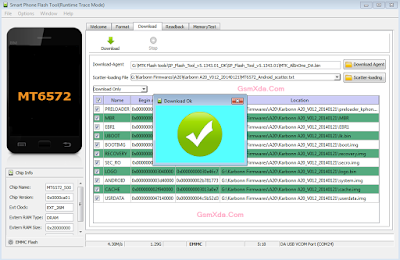
Karbonn A20 flash done with flash tool video:
Available link for download
How to Flash Intex NEO V Plus with Flash tool tested
How to Flash Intex NEO V Plus with Flash tool tested
This guide to Intex NEO V Plus for phone not starting means hang on logo you can use this easy way for solve problem, and if phone has dead you can this method its simple to use for that need flash file or flash tool tested, you can tested that download from in this post, you can use this flash file when your device hangs on logo problem, restarting problem, security lock problem, password lock problem, pattern lock problem etc software related problem and here no need to any box this job you can done without any box with simple method, before use remember must your phone battery charged and do not try with low battery cause in low battery giving flashing error like USB not recognized and also must installed USB Driver in Computer or Laptop, must be working Micro USB Cable also, now lets go how to flash Intex NEO V Plus with Flash tool ?
Required:
- Intex NEO V Plus phone with good battery charged, do no try with low battery
- Intex NEO V Plus Flash file | Download here
- Intex NEO V Plus Flash tool | Download here
- Intex NEO V Plus USB Driver | Download here
- Good Quality Micro USB Cable
- Computer or Laptop
Procedure:
- Download needed file from the above link, if link broke just leave your comment on below comment box
- UnZip to Desktop or as you like path from the WinZip, must be installed WinRAR or WinZip installed in your Computer or Laptop
- Open ResearchDownload 2.9.7006 (GsmXda) folder and choose ResearchDownload.exe file
- Click on Flash Choose Button and select Intex_Neo V+_V01_WVB_Indian_SER.pac file
- Click on Download button (button are show like Play) just click there
- Press and hold Center key and Insert USB Cable and wait until driver installing, if driver installed then start process automatically if not just install from the above links driver
- Wait until Pass Process, do not disconnect device while in Flashing Mode
- You are done, Congratulation
Intex NEO V Plus Flash done with Flash tool Screenshot:
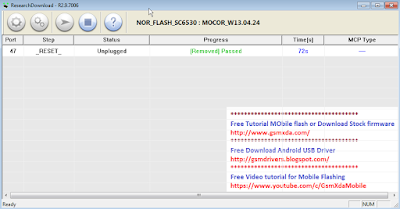
Available link for download
Sunday, March 19, 2017
How to Flash Gionee Elife E7 Mini with Flash tool simple way here
How to Flash Gionee Elife E7 Mini with Flash tool simple way here
Gionee Elife E7 very awesome phone and this device for using easy comfortable some time use internet connect in device then many issue comes on display like unfortunately, when you starting device then automatically restart, hang on logo problem any problem of software related this procedure its easy to everyone who working in software related here some impotent of before use this tutorial first read all are content to carefully after step by step using here we are try to very easy solution but if any problem using this tutorial just leave your comment on below comment i will soon with good reply or before using this tutorial please mention on required which are giving below must working well all are requireds if any problem then you cant flash or error on displayed see also mention below content of about firmware
This flash file tested by me without any error working well, you can use this flash file when your device hang on logo problem, restarting problem, security lock problem, password lock problem, pattern lock problem etc software related problem and you can use this tutorial without any box and this is free for all who know about software in mobile, impotent for flashing first must check your micro usb cable if not good then you cant flash it so check micro usb cable second check your device battery that is impotent for flashing if your device battery low so stop your device between flash so this is impotent for flash, before you flash save your data like contact, photos, videos etc because this is factory flash file so you cant save after full flash so must remember all are impotent notes.
Download link
Gionee Elife E7 Mini Stock Rom Firmware Download here
Gionee Elife E7 Mini Flash tool Download here
Gionee Elife E7 Mini USB Driver Download here
Need for Flash:
1. Gionee Elife E7 Mini device with good battery charged
2. Gionee Elife E7 Mini tested Stock ROM
3. Gionee Elife E7 Mini Flash tool
4. Gionee Elife E7 Mini USB Driver (for flashing)
5. Micro usb cable
6. Computer or Laptop
2. Extract to desktop or as you like path (must be installed winrar software in your computer)
3. Open SP flash tool and choose flash_too.exe file and open it
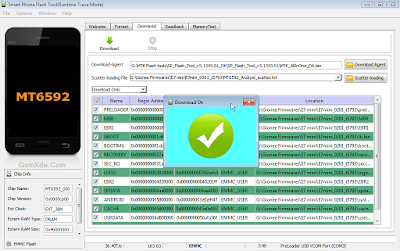
4. Click on Scatter-loading button and choose MT6592_Android_scatter.txt file
5. Now click on Download button and Press and hold Volume Up button and insert usb cable
6. If driver not installed in your computer then update from above link driver
7. Wait until full install (do not disconnect when your device in flashing mode)
8. Congratulation you are done
2. Gionee Elife E7 Mini tested Stock ROM
3. Gionee Elife E7 Mini Flash tool
4. Gionee Elife E7 Mini USB Driver (for flashing)
5. Micro usb cable
6. Computer or Laptop
How to Flash Gionee E7 Mini with flash tool ?
1. Download tested firmware, Flash tool or usb driver from above link2. Extract to desktop or as you like path (must be installed winrar software in your computer)
3. Open SP flash tool and choose flash_too.exe file and open it
4. Click on Scatter-loading button and choose MT6592_Android_scatter.txt file
5. Now click on Download button and Press and hold Volume Up button and insert usb cable
6. If driver not installed in your computer then update from above link driver
7. Wait until full install (do not disconnect when your device in flashing mode)
8. Congratulation you are done
Flash done Screenshot:
Available link for download
Friday, March 17, 2017
How to Flash Karbonn Titanium S4 Plus with Sp Flash Tool Tested
How to Flash Karbonn Titanium S4 Plus with Sp Flash Tool Tested
Actually this guide is no hard to use if you want to Flash or Upgrade Karbonn Titanium S4 Plus phone because this is tested by me without any error Karbonn Titanium S4 Plus in any type issue software related you can easy solve using this method and this is for everyone who new fresher technician or experience technician in android software related, before use remember of must be working well all are required which you can see in this method it below to be mention, different to be error when you try to flash or upgrade first of USB not recognized this error possible when micro USB not working, battery not charged, phone USB socket not working properly so if you fail with this method just write down your comment on below comment box i will soon possible to fix it, first take backup into device if live otherwise dead you cant take backup, this guide you can use when device in dead condition also but must be in software related issue otherwise if any hardware then you can solve that.
Must Follow:
If you want to repair your device, you can try to repair it by you. You have to charge your battery with any charger and charged it by 70%. Your data is very important for you so it is good to do a backup of your data it may consist like your contact details, your important messages, your emails or any other important thing which you feel to be the backup in your device. This backup can be done on another device. we have to do the backup because after a format of your device, all your data will be gone and it will not be recovered. For backup in other devices you can use other external device like your hard drive, SD card or any other suitable devices. If you are doing by your own do it at your own risk as we dont take any responsibility if your device is damaged
Required for Karbonn Titanium S4 Plus:
- Karbonn Titanium S4 Plus device with good battery charged, do not try to flash when battery in low condition
- Karbonn Titanium S4 Plus Stock ROM Firmware | Download here
- Karbonn Titanium S4 Plus Flash Tool | Download here
- Karbonn Titanium S4 Plus USB (Flashing) Driver | Download here
- Micro USB Cable with Good Quality
- Computer or Laptop
Procedure for Karbonn Titanium S4 Plus:
- Install WinZip or WinRAR Software in your Computer or Laptop, already installed ignore this
- Download all are files from above link which required for flash or upgrade, if link broke or not working just leave your comment on below comment box i will fix it soon if possible
- UnZip to all files anywhere you want from the WinZip
- Open SP Flash Tool folder and choose flash_tool.exe file and open it
- Click on Scatter-loading button and choose MT6582_Android_scatter.txt file from the Stock ROM Firmware folder
- Now click on Download button and Insert USB Cable into device, wait until driver automatically installing, if not take auto then manual update driver from the above links
- If device dead and not detect then try to Press and hold Volume Up and Insert USB Cable (Note : You can Try Volume Down Also for Detection if Volume Up button not working)
- After Device Detected then Downloading star automatically into device wait while finished the process (Note : Do not try to unplug while device in flashing mode)
- Congratulation you are done
Karbonn Titanium S4 Plus Flash done Screenshot:

Available link for download
Monday, March 13, 2017
Redmi Note 4G Model 2014712 Flash done with Mi Flash tool tested
Redmi Note 4G Model 2014712 Flash done with Mi Flash tool tested
This device in issue of hang on logo not ahead after full flashing i was different Stock Rom firmware use for flashing but no success so i search in internet for that solution and i found one but i dont sure about new solution but i understand just try and what happen using new found solution just unbeliever just few second done that really awesome for solution no need to flash no need new firmware download just connect device with fastboot mode and just run command in command prompt so if you some time will got solution just try and you will to be better but remember before use check below comment this new solution working well or not after try in flash some time dont show below comment and i try then device will dead or other issue so first read all are content after try step by step solution here some few description about firmware just see below
This flash file tested by me without any error working well, you can use this flash file when your device hang on logo problem, restarting problem, security lock problem, password lock problem, pattern lock problem etc software related problem and you can use this tutorial without any box and this is free for all who know about software in mobile, impotent for flashing first must check your micro usb cable if not good then you cant flash it so check micro usb cable second check your device battery that is impotent for flashing if your device battery low so stop your device between flash so this is impotent for flash, before you flash save your data like contact, photos, videos etc because this is factory flash file so you cant save after full flash so must remember all are impotent notes.
Download Link
Redmi Note 4G Model : 2014712 Stock ROM Download HERE
Redmi Note 4G Model : 2014712 MiFlash tool Download HERE
Redmi Note 4G Model : 2014712 USB Flashing Driver Download HERE


Required for Flash:
1. Readmi Note 4G device
2. Redmi Note 4G Stock Rom Firmware
3. Redmi Note 4G MiFlash tool
4. Redmi Note 4G USB Driver
5. Micro usb cable
6. Computer or Laptop
Formality:
1. Take tested Stock ROM firmware from above link (plz if link dead just leave your comment)
2. Go to Firmware winrar and please rename to .tgz, if is .gz or tar
3. Extract to desktop both winrar (Note : Must your firmware folder in desktop)
4. Open Mi folder and choose MiFlash.exe file and open it
5. Click on Browse button and choose firmware folder who in desktop (see below image)
6. Click on Point button near browse button and choose Advance option (see below image)
7. Choose Browse.. button to FastBoot scripts and choose flash_all_except_data_storage.bat file from desktop firmware folder (see below image)
8. Turn off device, Press the Volume Down + Power keys same time for enter Fastboot mode
9. Attach Micro usb cable and click on Refresh button in flash tool (for device detect or not)
10. If device detect with flash tool then click on Flash button
11. Wait until driver install, if driver installed in computer or laptop then downloading automatically start
12. Wait until full flash device
13. Congratulation you are done
Redmi Note 4G Model : 2014712 Screenshot:
Available link for download
Sunday, March 12, 2017
How to Flash Lava Iris Fuel 50 with Flash Tool Tested
How to Flash Lava Iris Fuel 50 with Flash Tool Tested
This guide very easy to use if you following step by step because this is tested by me without any error, Lava Iris Fuel 50 in restarting problem i decide to flash its first try then done no any error, this guide not for only restarting issue but you can use this when in hang on logo, restarting, auto turn on internet connection, auto turn on wifi connection, auto apk installing, auto gone balance, pattern lock, screen lock. If you want to repair your device, you can try to repair it by you. You have to charge your battery with any charger and charged it by 90%. Your data is very important for you so it is good to do a backup of your data it may consist like your contact details,your important messages, your emails or any other important thing which you feel to be the backup in your device. This backup can be done on another device. we have to do the backup because after a format of your device, all your data will be gone and it will not be recovered. For backup in other devices you can use other external device like your hard drive, SD card or any other suitable devices. If you are doing by your own.do it at your own risk as we dont take any responsibility if your device is damaged
Lava Iris Fuel 50 in any type issue software related you can easy solve using this method and this is for everyone who new fresher technician or experience technician in android software related, before use remember of must be working well all are required which you can see in this method it below to be mention, different to be error when you try to flash or upgrade first of USB not recognized this error possible when micro USB not working, battery not charged, phone USB socket not working properly so if you fail with this method just write down your comment on below comment box i will soon possible to fix it, you can use when device in dead condition also but must be in software related issue otherwise if any hardware then you can solve that, this flash file tested by me without any error working well,
Requisite for Lava Iris Fuel 50:
- Lava Iris Fuel 50 phone with good battery charged, do not try with low battery
- Lava Iris Fuel 50 Stock ROM Firmware (Tested) | Download here
- Lava Iris Fuel 50 SP Flash tool | Download here
- Lava Iris Fuel 50 USB Driver (for Flashing) | Download here
- Good Quality Micro USB Cable (do not try with market low quality USB cable) because some time not detect device
- Computer or Laptop
Method for Lava Iris Fuel 50:
- Download all needed flash files from above link, if link broke or not working just leave your comment on below comment box i will fix soon if possible
- Install WinRAR or WinZIP software in your Computer or Laptop
- Extract all files to anywhere path from WinZIP
- Open SP Flash Tool folder and choose flash_tool.exe file and open it
- Click on Scatter-loading button and choose MT6582_Android_scatter.txt file from the Firmware folder
- Click on Download button and Just Insert Micro USB Cable to device then wait until driver installing automatically
- If driver not installing auto then just manual update from the above links driver from the device manager
- If device dead then not detect with computer or laptop then Press and hold Volume Up button and Insert USB Cable to device, you can use Volume Down button also for detect
- After Installed driver device will be connected with flash tool and process starting, wait until finished process
- Congratulation you are done
Lava Iris Fuel 50 Flash done Screenshot:

Available link for download
Thursday, March 9, 2017
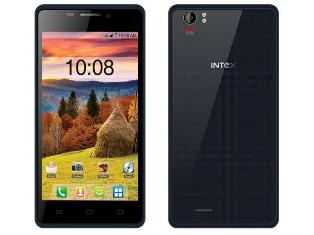
How to flash Intex Aqua Desire flash with sp flash tool see here with simple method
How to flash Intex Aqua Desire flash with sp flash tool see here with simple method
About Firmware or Tutorial:
This is tested firmware or flash tool you can do using this tutorial because this tutorial tested by me any error or issue and also this is simple method for everyone who know about android software related this tutorial use new user technician lets see how to flash intex aqua desire with sp flash tool ?
This flash file tested by me without any error working well, you can use this flash file when your device hang on logo problem, restarting problem, security lock problem, password lock problem, pattern lock problem etc software related problem and you can use this tutorial without any box and this is free for all who know about software in mobile, impotent for flashing first must check your micro usb cable if not good then you cant flash it so check micro usb cable second check your device battery that is impotent for flashing if your device battery low so stop your device between flash so this is impotent for flash, before you flash save your data like contact, photos, videos etc because this is factory flash file so you cant save after full flash so must remember all are impotent notes.
Download Link
Intex Aqua Desire Firmware or Flash tool Download here
Required for flash:
1. Intex Aqua desire device with good battery charged
2. Intex Aqua desire tested firmware or flash tool
3. Micro usb cable
4. Computer or Laptop
Procedure:
1. Download tested firmware or flash tool from above link (if link not working just write down comment on below comment box) 2. Extract winrar file to desktop or as you like path (must installed winrar software in your computer or laptop) 3. Open SP Flash Tool v3.1344.214 flash tool folder and choose flash_tool.exe file and open it 4. Click on Scatter-Loading button and choose MT6572_Android_scatter.txt file 5. Click on Download button and Press and hold Volume Up button and insert usb cable then wait until driver install if driver installed in your computer or laptop then downloading automatically start into android device 6. Wait until full os install in your device (not : do not disconnect device while your device in flashing mode) 7. Congratulation you are done from many problem and problem are mention above description.
Intex Aqua Desire Flash done with sp flash tool screenshot:

Intex Aqua Desire Flash done with sp flash tool video:
Available link for download
Wednesday, March 8, 2017
How to Flash HTC Desire 820 820MU dual sim by using Fastboot code Tested
How to Flash HTC Desire 820 820MU dual sim by using Fastboot code Tested
HTC Desire 820 Dual Sim to be different Stock ROM Firmware in this method using stock rom model of A31_DTUL, Build : 1.01.709.1, CID : 11111111, HBoot : 3.19.0.0000, MID : 0PE621000, Security : OFF, Region : Super_CID, if you want to use this method first check this mention model number if not then do not try with this Stock ROM Firmware but you can use this guide if you want to correct Stock ROM firmware put on fastboot mode and readinfo using HTX Multi Tool.exe software and this software also available in this guide.
HTC Desire 820 in any type issue software related you can easy solve using this method and this is for everyone who new fresher technician or experience technician in android software related, before use remember of must be working well all are required which you can see in this method it below to be mention, different to be error when you try to flash or upgrade first of USB not recognized this error possible when micro USB not working, battery not charged, phone USB socket not working properly so if you fail with this method just write down your comment on below comment box i will soon possible to fix it, first take backup into device if live otherwise dead you cant take backup, this guide you can use when device in dead condition also but must be in software related issue otherwise if any hardware then you can solve that.
If you want to repair your device, you can try to repair it by you. You have to charge your battery with any charger and charged it by 95%. Your data is very important for you so it is good to do a backup of your data it may consist like your contact details,your important messages, your emails or any other important thing which you feel to be the backup in your device. This backup can be done on another device. we have to do the backup because after a format of your device, all your data will be gone and it will not be recovered. For backup in other devices you can use other external device like your hard drive, SD card or any other suitable devices. If you are doing by your own. do it at your own risk as we dont take any responsibility if your device is damaged
This method you can use without any box its done from flash tool its also available here, and impotent of must be installed phones driver, you cant flash or upgrade if not installed in your computer or laptop it must be installed and also available in this post, here all are linked that tested and working fine just in one try, you can use this guide when your device in hang on logo, restarting, auto turn on internet connection, auto turn on wifi connection, auto apk installing, auto gone balance, pattern lock, screen lock.
Requisite for HTC Desire 820MU
- HTC Desire 820 (820MU) dual sim with well battery charged, do not try with low battery
- HTC Desire 820 (820MU) dual sim Stock ROM tested | Download here
- HTC Desire 820 (820MU) dual sim HTC Fastboot Driver spl | Download here
- HTC HTX Multi Tool | Download here
- HTC Desire 820 (820MU) sual sim fastboot code | Download here
- Good Quality Micro USB Cable
- Computer or Laptop
Procedure for HTC Desire 820 (820MU) dual sim
- Download needed files from above link, if link not working just leave your comment on below comment box i will soon fix it if possible
- Install WinRAR in your Computer or Laptop if already installed ignore this
- UnZip to Desktop or as you like path from the WinRAR
- Install HTC USB (Flashing) Driver already installed ignore this
- Unplug battery socket wait few second and gain Insert battery socket
- Press and hold Volume Down + Power button and choose Fastboot mode and Insert Micro USB Cable into device
- Open RBSoft folder and choose HTX Multi Tool.exe file and open it
- Go to Fastboot Tab and click on Read Boot Info button and wait until full readinfo to your device
- If above mention model to be in your device then use this Stock ROM Firmware, if different readinfo then just write down your info on below comment box i will give you correct stock ROM firmware link
- Rename Stock ROM Firmware 0PE6IMG_A31_DTUL_K44_DESIRE_SENSE60_HTCCN_CHS_CMCC_1.20.1403.1_R6_Radio_01.01.110_U1030481_08.01.1119_F_release_414395_combined_signed to 0PE6IMG and do Copy
- Open htc fastboot driver spl folder and Paste there Stock ROM Firmware
- Right click with Shift key on White area and choose Open command windows here option (see below image)
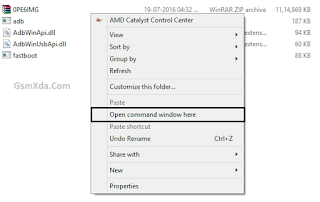
- Write down there first command of "fastboot devices" and press Enter key
- Write down again "fastboot oem rebootRUU" and Press Enter key
- Write down "fastboot flash zip 0PE6IMG.zip" and Press Enter key and wait until full installed Stock ROM Firmware
- After finished Stock ROM Firmware flashing procedure and use last command "fastboot reboot" and Hit Enter key
- Congratulation you are done
Available link for download
Saturday, March 4, 2017
HTC One Dual Sim 802W Flash done with HTC ARUWizard flash tool tested
HTC One Dual Sim 802W Flash done with HTC ARUWizard flash tool tested
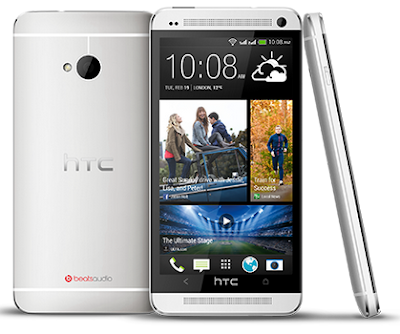
In this device different flashing way because in this device different CID different version number so please carefully in htc very complicated flash system some device you can flash from flash tool and some device flashing via CMD command base if you want to flash custom rom so must need to unlock bootloader after you can flashing custom rom.
This flash file tested by me without any error working well, you can use this flash file when your device hang on logo problem, restarting problem, security lock problem, password lock problem, pattern lock problem etc software related problem and you can use this tutorial without any box and this is free for all who know about software in mobile, impotent for flashing first must check your micro usb cable if not good then you cant flash it so check micro usb cable second check your device battery that is impotent for flashing if your device battery low so stop your device between flash so this is impotent for flash, before you flash save your data like contact, photos, videos etc because this is factory flash file so you cant save after full flash so must remember all are impotent notes.
Download Link
HTC One Dual Sim 802W Firmware download here
HTC One Dual Sim 802W Driver Download here
Note : This is tutorial tested in 7.17.401.5 HTC__A07 firmware
Note : This is tutorial tested in 7.17.401.5 HTC__A07 firmware
Required for flash:
- HTC One Dual Sim 802W device with good battery charged
- HTC One Dual Sim 802W tested firmware
- HTC One Dual Sim 802W Driver
- Micro usb cable
- Computer or Laptop
Procedure:
- Download firmware or driver from above link (if link not working just leave your comment on below comment box)
- Extract to desktop or as you like path (must be installed winrar software in your computer)
- Turn off device if on
- Press and hold Volume Down + Power button
- Select Fastboot mode and Press Power buttonInsert Micro usb cable into device
- Open ARUWizard.exe file
- Wait until full install
- After full flash device automatically reseting
- Congratulation you are done
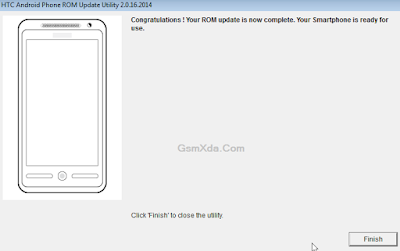
HTC One Dual Sim 802W Flash done with HTC ARUWizard flash tool screenshot:
Available link for download
Spice Factory Flash file download here
Spice Factory Flash file download here

This flash file not only single tool supported but this firmwares support in sp flash tool, spd flash tool, YGDP tool, Multi flash tool many tool supported this firmware any all are different procedure this blog not only firmware or flash tool here tutorial of all type android devices how to flash android device with flash tool but here some devices posts.
This flash files you can use this flash file when your device hang on logo problem, restarting problem, security lock problem, password lock problem, pattern lock problem etc software related problem and you can use this tutorial without any box and this is free for all who know about software in mobile, impotent for flashing first must check your micro usb cable if not good then you cant flash it so check micro usb cable second check your device battery that is impotent for flashing if your device battery low so stop your device between flash so this is impotent for flash, before you flash save your data like contact, photos, videos etc because this is factory flash file so you cant save after full flash so must remember all are impotent notes.
Spice
MI 436 v13.0 Factory Flash file
Download
Spice
MI 436 v1 Factory Flash file
Download
Spice
MI 437 v6.0 Factory Flash file
Download
Spice
MI 438 v10 (New Hardware) Factory Flash file
Download
Spice
MI 438 Factory Flash file
Download
Spice
MI 439 v4.2 Factory Flash file
Download
Spice
MI 445 027 Factory Flash file
Download
Spice
MI 445 040 Factory Flash file
Download
Spice
MI 449 v0.7 Factory Flash file
Download
Spice
MI 449 3G v01.02 Factory Flash file
Download
Spice
MI 449 3G v01.03 Factory Flash file
Download
Spice
MI 450 (1442) Factory Flash file
Download
Spice
MI 450 (1755) Factory Flash file
Download
Spice
MI 451 v2.3 Factory Flash file
Download
Spice
MI 451 v2.4 Factory Flash file
Download
Spice
MI 451 3G Factory Flash file
Download
Spice
MI 506 v15.0 Factory Flash file
Download
Spice
MI 506 v6.0 Factory Flash file
Download
Spice
MI 506 v7.0 Factory Flash file
Download
Spice
MI 506 v8.0 Factory Flash file
Download
Spice
MI 507 v4.0 Factory Flash file
Download
Spice
MI 507 v5.0 Factory Flash file
Download
Spice
MI 508 MP MT71 C25 S5007a Factory Flash file
Download
Spice
MI 508 New Software Factory Flash file
Download
Spice
MI 509 v5.0 Factory Flash file
Download
Spice
MI 509 v16.0 Factory Flash file
Download
Spice
MI 509 v4.0 Factory Flash file
Download
Spice
MI 514 v15 Factory Flash file
Download
Spice
MI 515 Factory Flash file
Download
Spice
MI 517 v12 Factory Flash file
Download
Spice
MI 600 v11 Factory Flash file
Download
Spice
MI 600 v12 Factory Flash file
Download
Spice
MI 600 v13 Factory Flash file
Download
Spice
MI 725 v10 Factory Flash file
Download
Spice
MI 1010 v12 Factory Flash file
Download
Spice
MI FX1 Factory Flash file
Download
Spice
N300 v1.7 Factory Flash file
Download
Spice
N300 v1.11 Factory Flash file
Download
Spice
N 300 v1.12 Factory Flash file
Download
Spice
N 300 v1.10 Factory Flash file
Download
Spice
N 500 v2.2 Factory Flash file
Download
Spice
XLife Ezy v06 Factory Flash file
Download
Spice
XLife 405 v2.3 Factory Flash file
Download
Spice
XLife 350 v1.4 Factory Flash file
Download
Spice
Mi FX2 v13.0 Factory Flash file
Download
Spice
Mi 730 Factory Flash file
Download
Spice
Mi 406 20150601 Factory Flash file
Download
Spice
XLife 364 20150602 Factory Flash file
Download
Spice
XLife 431Q v11.0 Factory Flash file
Download
Spice
MI 518 v1.12 Factory Flash file
Download
Spice
Mi 524 w855 s06a Factory Flash file
Download
Spice
N300 v1.12 Factory Flash file
Download
Spice
N300 v1.10 Factory Flash file
Download
Spice
N300 v2.2 Factory Flash file
Download
Spice
Mi 401 v1.6 Factory Flash file
Download
Spice
Mi 401 v2.0 Factory Flash file
Download
Spice
Mi 403e v1.6 Factory Flash file
Download
Spice
Mi 403e v1.8 Factory Flash file
Download
Spice
MI 362 Factory Flash file
Download
Spice
MI 401 Plus Factory Flash file
Download
Spice
MI 402 Factory Flash file
Download
Spice
MI 422 v19 Factory Flash file
Download
Spice
MI 422 v24 Factory Flash file
Download
Spice
MI 423 2.1-V1 & V2 Factory Flash file
Download
Spice
MI 423 KW S4007 Factory Flash file
Download
Spice
MI 424 v1.7 Factory Flash file
Download
Spice
MI 424 v2.1 Factory Flash file
Download
Spice
MI 425 Factory Flash file
Download
Spice
MI 426 v0.8 Factory Flash file
Download
Spice
MI 426 v1.1 Factory Flash file
Download
Spice
MI 430 v1.9 Factory Flash file
Download
Spice
MI 435 Factory Flash file
Download
Spice
MI 436 v8.0 Factory Flash file
Download
Spice
MI 436 v10.0 Factory Flash file
Download
Spice
MI 501 v2.0 Factory Flash file
Download
Spice
MI 502 (Latest) Factory Flash file
Download
Spice
MI 502 IMEI Erased Factory Flash file
Download
Spice
MI 502 v0.011 Factory Flash file
Download
Spice
MI 502 v0.16 Factory Flash file
Download
Spice
MI 502 v0.17 Factory Flash file
Download
Spice
MI 502n Factory Flash file
Download
Spice
MI 503 MP MT71 C25 S5007 Factory Flash file
Download
Spice
MI 503 New Factory Flash file
Download
Spice
MI 504 v4.2 Factory Flash file
Download
Spice
MI 504 v5.2 Factory Flash file
Download
Spice
MI 505 v0.10 Factory Flash file
Download
Spice
MI 505 v0.13 Factory Flash file
Download
Spice
MI 510 (YGDP tool) Factory Flash file
Download
Spice
MI 525 v0.20 Factory Flash file
Download
Spice
MI 525 v0.21Factory Flash file
Download
Spice
MI 526 v13 Factory Flash file
Download
Spice
MI 526 v14 Factory Flash file
Download
Spice
MI 526 v16 Factory Flash file
Download
Spice
MI 530 v13 Factory Flash file
Download
Spice
MI 535 v13 Factory Flash file
Download
Spice
MI 535 v14 Factory Flash file
Download
Spice
MI 549 Factory Flash file
Download
Spice
MI 550 v0.15 Factory Flash file
Download
Spice
MI 720 v08 Factory Flash file
Download
Spice
XLife 435Q v1.7 Factory Flash file
Download
Spice
XLife 515Q v8.0 Factory Flash file
Download
Spice
XLife 512 s17 Factory Flash file
Download
Spice
XLife 511 Pro v1.0 Factory Flash file
Download
Spice
XLife 480Q v12.0 Factory Flash file
Download
Spice
Mi 440 v7.0 Factory Flash file
Download
Spice
Mi 431 v0.4.11 s1229 Factory Flash file
Download
Spice
Mi 280 v1.6 Factory Flash file
Download
Spice
Mi 358 20150314 Factory Flash file
Download
Spice
Mi 358 v10.0 Factory Flash file
Download
Spice
Mi 498 Lollipop Eng Factory Flash file
Download
Spice
Mi 498 Lollipop Hin Factory Flash file
Download
Spice
MI 501 v2.2 Factory Flash file
Download
Spice
MI 501 v2.5 Factory Flash file
Download
Spice
MI 348e 2.1Factory Flash file
Download
Spice
MI 348e 2.3 Factory Flash file
Download
Spice
MI 285 Factory Flash file
Download
Spice
MI 347 Factory Flash file
Download
Spice
MI 349 Factory Flash file
Download
Spice
MI 351 Factory Flash file
Download
Spice
MI 352 Factory Flash file
Download
Spice
MI 353 (Update.zip) Factory Flash file
Download
Spice
MI 354 Factory Flash file
Download
Spice
MI 354 v2 Factory Flash file
Download
Spice
MI 356 Factory Flash file
Download
Spice
MI 357 Factory Flash file
Download
Spice
MI 359 v8.0 Factory Flash file
Download
Spice
MI 359 v11.0 New Display Factory Flash file
Download
Spice
MI 359 v11.0 Factory Flash file
Download
Spice
MI 360 Factory Flash file
Download
Spice
MI 361 v0.7 Factory Flash file
Download
Spice
MI 361 v0.5 Factory Flash file
Download
Spice
MI 470 Factory Flash file
Download
Spice
MI 491 Factory Flash file
Download
Spice
MI 492 v8.0 Factory Flash file
Download
Spice
MI 492 v9.0 Factory Flash file
Download
Spice
MI 495 v12.0 Factory Flash file
Download
Spice
MI 495 Stellar Factory Flash file
Download
Spice
MI 496 v8 (YGDP tool) Factory Flash file
Download
Spice
MI 496 v9 (YGDP tool) Factory Flash file
Download
Spice
MI 496 v10 (YGDP tool) Factory Flash file
Download
Spice
MI 497 Factory Flash file
Download
Spice
MI 498 Factory Flash file
Download
Spice
MI 498H Factory Flash file
Download
Spice
MI 500 v12 Factory F
Read more »
Available link for download
Wednesday, March 1, 2017
How to Flash Karbonn Titanium S205 2GB with SPD Upgrade Tool tested
How to Flash Karbonn Titanium S205 2GB with SPD Upgrade Tool tested
Karbonn Titanium S205 2GB in any type issue software related you can easy solve using this method and this is for everyone who new fresher technician or experience technician in android software related, before use remember of must be working well all are required which you can see in this method it below to be mention, different to be error when you try to flash or upgrade first of USB not recognized this error possible when micro USB not working, battery not charged, phone USB socket not working properly so if you fail with this method just write down your comment on below comment box i will soon possible to fix it, first take backup into device if live otherwise dead you cant take backup, this method use when device in dead condition also but must be in software problem in hardware device not be live, you have to charge your battery with any charger, For backup in other devices you can use other external device like your hard drive, sd card or any other suitable devices.
This method you can use without any box its done from flash tool its also available here, and impotent of must be installed phones driver, you cant flash or upgrade if not installed in your computer or laptop it must be installed and also available in this post, here all are linked that tested and working fine just in one try, you can use this guide when your device in hang on logo, restarting, auto turn on internet connection, auto turn on wifi connection, auto apk installing, auto gone balance, pattern lock, screen lock etc these type issues you can use this way now lets see how to above mention software related issues solve using this method ?
This method you can use without any box its done from flash tool its also available here, and impotent of must be installed phones driver, you cant flash or upgrade if not installed in your computer or laptop it must be installed and also available in this post, here all are linked that tested and working fine just in one try, you can use this guide when your device in hang on logo, restarting, auto turn on internet connection, auto turn on wifi connection, auto apk installing, auto gone balance, pattern lock, screen lock etc these type issues you can use this way now lets see how to above mention software related issues solve using this method ?
Whats a Need for that ?
- Karbonn Titanium S205 2GB handset with well battery charged it up to 80%, do not try with low battery
- Karbonn Titanium S205 2GB tested Stock ROM Firmware | Download here
- Karbonn Titanium S205 2GB tested Flash tool | Download here
- Karbonn Titanium S205 2GB USB (Flashing) Driver | Download here
- Good Quality micro USB Cable
- Computer or Laptop
How to Flash or Upgrade ?
- Download tested all are required from above link, if link not working just leave your comment
- Extract to Desktop or as you like path from the WinZip, must be installed WinZip in your Computer or Laptop
- Open SPD Upgrade Tool and choose UpgradeDownload.exe file and open it from the double click
- Click on Firmware button it be first number and choose UTLTitanium_S205_2GBv1004.pac file
- Now Click on Download button it be Third number, Turn off device if it ON
- Press and hold Volume Down key and inset USB cable wait until driver installed, already that then start flashing automatically
- Wait until finished process, do not try to unplug while device in flashing mode
- Congratulation you are done
Karbonn Titanium S205 2GB Flash done Screenshot

Karbonn Titanium S205 2GB Flash done Video
Available link for download
Micromax Bolt A069 Flash done with Sp flash tool tested
Micromax Bolt A069 Flash done with Sp flash tool tested

If you have micromax bolt a069 and in that problem like hang on logo, pattern unlock, restarting problem then you can using this tutorial for that solution and if your device dead then you can use this tutorial but must to be in software related issue if your device hardware issue then you cant solve above mention issue so please care fully use this tutorial i suggest before use this tutorial first carefully read this tutorial after following this if software issue and not solve your problem then write down comment on below comment box i will soon good reply
This flash file tested by me without any error working well, you can use this flash file when your device hang on logo problem, restarting problem, security lock problem, password lock problem, pattern lock problem etc software related problem and you can use this tutorial without any box and this is free for all who know about software in mobile, impotent for flashing first must check your micro usb cable if not good then you cant flash it so check micro usb cable second check your device battery that is impotent for flashing if your device battery low so stop your device between flash so this is impotent for flash, before you flash save your data like contact, photos, videos etc because this is factory flash file so you cant save after full flash so must remember all are impotent notes.
Download Link
Micromax Bolt A069 Stock Rom or flash tool download here
Whats need for flash ? :
1. Micromax bolt A069 device with good battery charged
2. Micromax bolt A069 tested firmware or flash tool you can download from above link
3. Micro usb cable
4. Computer or Laptop
Procedure:
1. First download tested firmware or flash tool from above link (if link not working just write down your comment on below comment box)
2. Extract to desktop or as you like path (must installed winrar in your computer or laptop)
3. Open Sp flash tool folder and choose flash_tool.exe file and open it
4. Click on Scatter-loading button and choose MT6572_Android_scatter.txt file
5. Now click on Download button or shortcut key Ctrl + D
6. Press and hold Volume Up button and insert usb cable
7. Wait until driver install, if driver installed in your computer or laptop then downloading automatically start into device
8. Wait until full install os (do not disconnect device while in flashing mode)
9. Congratulation you are done from many software related issue
Micromax Bolt A069 Flash done with Sp flash tool screenshot:

Micromax Bolt A069 Flash done with Sp flash tool video HERE
Available link for download
Subscribe to:
Posts (Atom)