Showing posts with label aqua. Show all posts
Showing posts with label aqua. Show all posts
Thursday, March 9, 2017
How to flash Intex Aqua Desire flash with sp flash tool see here with simple method
How to flash Intex Aqua Desire flash with sp flash tool see here with simple method
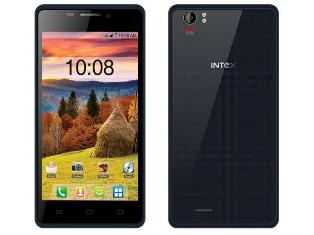
About Firmware or Tutorial:
This is tested firmware or flash tool you can do using this tutorial because this tutorial tested by me any error or issue and also this is simple method for everyone who know about android software related this tutorial use new user technician lets see how to flash intex aqua desire with sp flash tool ?
This flash file tested by me without any error working well, you can use this flash file when your device hang on logo problem, restarting problem, security lock problem, password lock problem, pattern lock problem etc software related problem and you can use this tutorial without any box and this is free for all who know about software in mobile, impotent for flashing first must check your micro usb cable if not good then you cant flash it so check micro usb cable second check your device battery that is impotent for flashing if your device battery low so stop your device between flash so this is impotent for flash, before you flash save your data like contact, photos, videos etc because this is factory flash file so you cant save after full flash so must remember all are impotent notes.
Download Link
Intex Aqua Desire Firmware or Flash tool Download here
Required for flash:
1. Intex Aqua desire device with good battery charged
2. Intex Aqua desire tested firmware or flash tool
3. Micro usb cable
4. Computer or Laptop
Procedure:
1. Download tested firmware or flash tool from above link (if link not working just write down comment on below comment box) 2. Extract winrar file to desktop or as you like path (must installed winrar software in your computer or laptop) 3. Open SP Flash Tool v3.1344.214 flash tool folder and choose flash_tool.exe file and open it 4. Click on Scatter-Loading button and choose MT6572_Android_scatter.txt file 5. Click on Download button and Press and hold Volume Up button and insert usb cable then wait until driver install if driver installed in your computer or laptop then downloading automatically start into android device 6. Wait until full os install in your device (not : do not disconnect device while your device in flashing mode) 7. Congratulation you are done from many problem and problem are mention above description.
Intex Aqua Desire Flash done with sp flash tool screenshot:

Intex Aqua Desire Flash done with sp flash tool video:
Available link for download

Monday, February 27, 2017
Intex Aqua N17 Flash done with Flash tool tested
Intex Aqua N17 Flash done with Flash tool tested
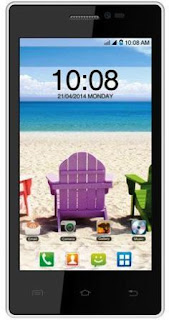
Before following this tutorial just remember some impotent tricks first if you following this tutorial just remember which is software version you want to flash it because if some choose wrong version and try in flash then your device will be dead or some issues so please carefully read all tutorial first after following because this is tested tutorial by me without any error also remember must be charged battery up to 80% to device also must be working well micro usb cable also must be working well of computer or laptop usb socket and last must be working well of device usb socket if any problem of above mention topic then you cant flash it.
This flash file tested by me without any error working well, you can use this flash file when your device hang on logo problem, restarting problem, security lock problem, password lock problem, pattern lock problem etc software related problem and you can use this tutorial without any box and this is free for all who know about software in mobile, impotent for flashing first must check your micro usb cable if not good then you cant flash it so check micro usb cable second check your device battery that is impotent for flashing if your device battery low so stop your device between flash so this is impotent for flash, before you flash save your data like contact, photos, videos etc because this is factory flash file so you cant save after full flash so must remember all are impotent notes.
Download Link
Intex Aqua N17 Firmware or Flash tool download here
Intex Aqua N17 USB (Flashing Driver) here
Required for flash:
1. Intex Aqua N17 device with good battery charged
2. Intex Aqua N17 tested firmware or flash tool
3. Intex Aqua N17 USB Driver
4. Micro usb cable
5. Computer or Laptop
Procedure:
1. First download tested firmware, flash tool or usb driver from above link (if link not working just leave your comment on below comment box)
2. Extract to desktop or as you like path (must be installed winrar software in your computer or laptop)
3. Open Flash tool folder and choose flash_tool.exe file and open it
4. Click on Scatter-loading button and choose MT6572_Android_scatter.txt file
5. Click on Download button
6. Press and hold Volume Up button and insert usb cable
7. Install driver (if driver installed in your computer then detect device automatically with computer)
8. Wait until full installed android os in your device (do not unplug device while device in flashing mode)
9. Congratulation you are done
Intex Aqua N17 Flash done with Flash tool screenshot
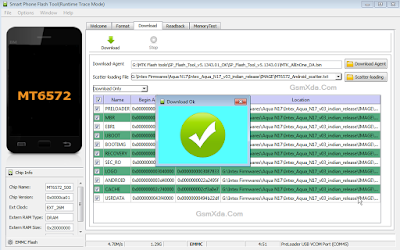
Intex Aqua N17 Flash done with Flash tool video here
Available link for download
Sunday, February 19, 2017
Intex Aqua N15 Simple Flash done With SP Flash tool tested
Intex Aqua N15 Simple Flash done With SP Flash tool tested
Experience with this device when i flashing:
When customer take to device come our shop for solve software related problem so before flash do charged battery up to 80% for flashing need to charged device battery otherwise stop between flashing so first charged battery after i check device for actually what happen in this device so problem is device restarting so if device restarting issue you can hard reset for this solution some time this problem easy solve using hard reset but this way not for all time this tutorial not for only restarting problem solved but you can use when your device in hang on logo problem, pattern lock problem, many problems but remember to be software related after, second preparation micro usb cable this is also most impotent if any problem in that so you cant flashing error like usb not recognized, third preparation i check device usb socket its detect to pc or not so that also working well after i deiced to flash and first try i was success with this device and working well, now see stock rom description what happen if you use this stock rom firmware ?
Experience with Stock Rom Firmware:
This flash file tested by me without any error working well, you can use this flash file when your device hang on logo problem, restarting problem, security lock problem, password lock problem, pattern lock problem etc software related problem and you can use this tutorial without any box and this is free for all who know about software in mobile, impotent for flashing first must check your micro usb cable if not good then you cant flash it so check micro usb cable second check your device battery that is impotent for flashing if your device battery low so stop your device between flash so this is impotent for flash, before you flash save your data like contact, photos, videos etc because this is factory flash file so you cant save after full flash so must remember all are impotent notes.
Download Link
Intex Aqua N15 Stock Rom Firmware Download
Intex Aqua N15 Flash tool Download Link-1 | Link-2
Intex Aqua N15 USB Driver Download
Need for Flash:
1. Intex Aqua N15 device
2. Intex Aqua N15 stock rom firmware
3. Intex Aqua N15 Flash tool
4. Intex Aqua N15 USB driver
5. Micro usb cable
6. Computer or Laptop
How to Flash Intex Aqua N15 with Flash tool ?
1. First all are required download from above link (if link broke then just leave your comment)
2. Extract to all are from winrar to desktop or any path (must installed winrar)
3. Install usb driver (link are above | if link broke just leave your comment)
4. Open SP flash tool and choose flash_tool.exe file and open it
5. Click on Scatter-loading button and choose MT6582_Android_scatter.txt file
6. Now click on Download button then Press and hold Volume Up button and insert usb cable
7. Wait until driver install, after installed driver then detect device with computer
8. Wait until full process (do not disconnect while device in flashing mode)
9. Congratulation you are done
Intex Aqua N15 Flash done Screenshot:

Available link for download
Wednesday, February 8, 2017
Intex Aqua Life II Flash done with flash tool
Intex Aqua Life II Flash done with flash tool

This flash file tested by me without any error working well, you can use this flash file when your device hang on logo problem, restarting problem, security lock problem, password lock problem, pattern lock problem etc software related problem and you can use this tutorial without any box and this is free for all who know about software in mobile, impotent for flashing first must check your micro usb cable if not good then you cant flash it so check micro usb cable second check your device battery that is impotent for flashing if your device battery low so stop your device between flash so this is impotent for flash, before you flash save your data like contact, photos, videos etc because this is factory flash file so you cant save after full flash so must remember all are impotent notes.
Download Link
Intex Aqua Life II firmware or flash tool download from here
Required for flash:
1. Intex Aqua Life II device with good battery charged
2. Intex Aqua Life II tested firmware or flash tool
3. Micro usb cable
4. Computer or Laptop
Procedure:
1. Take of all needed for flashing device from above link (if link not working then write down comment on below box)
2. Extract to desktop or as you like path (must installed winrar software in computer or laptop)
3. Open SPD Upgrade Tool vR2.9.9015 folder and choose UpgradeDownload.exe file and open it
4. Click on Firmware button (button like setting) and choose SC7731_V120_KEW_281_V1.9_150624.pac file from Firmware folder
5. Now Click on Start button (button like Play)
6. Press and hold Volume Down key and insert usb cable (must be working well micro usb cable or device key)
7. Wait until driver install, if driver installed in your computer or laptop then downloading automatically start in to device
8. Wait until full install (note : do not disconnect device while flashing)
9. You are done
Intex Aqua Life II Flash done with flash tool screenshot:

Intex Aqua Life II Flash done with flash tool video :
Available link for download
Wednesday, February 1, 2017
Intex Aqua Glam Hang on Logo or Flash done with SP Flash tool tested
Intex Aqua Glam Hang on Logo or Flash done with SP Flash tool tested
This handset in hang on logo problem when I was check sometimes try to write just user data file device will start normal means solution of hang on logo this way not only hang on logo solution but you can use when your device in pattern lock, screen lock or other software related issue you will easy done using this tutorial before use this way you should mention requirement option because if any not working of requirement then you cant flash it this is impotent of this solution way I suggest everyone who use this tutorial first carefully read all content after following step by step lets see below description about stock ROM firmware.
This flash file tested by me without any error working well, you can use this flash file when your device hangs on logo problem, restarting problem, security lock problem, password lock problem, pattern lock problem etc software related problem and you can use this tutorial without any box and this is free for all who know about software in mobile, impotent for flashing first must check your micro USB cable if not good then you cant flash it so check micro USB cable second check your device battery that is impotent for flashing if your device battery low so stop your device between flash so this is impotent for flash, before you flash save your data like contact, photos, videos etc because this is factory flash file so you cant save after full flash so must remember all are impotent notes.
Download Link
Intex Aqua Glam Stock Rom Firmware Download here
Intex Aqua Glam Flash tool Download here
Intex Aqua Glam USB (Flashing) Driver Download here
Requirement:
1. Intex Aqua Glam handset2. Intex Aqua Glam Stock Rom Firmware
3. Intex Aqua Glam Flash tool
4. Intex Aqua Glam USB Driver
5. Micro USB cable
6. Computer or Laptop
Method:
1. Download requirement from above link (if link dead just leave your comment)2. Unzip file from WinZip to desktop or as you like path (must be installed WinRAR)
3. Open SP Flash tool folder and choose flash_tool.exe file and open it
4. Click on Scatter-loading button and choose MT6580_Android_scatter.txt file
5. Wait until stock ROM firmware checksum process
6. Now click on Download button
7. Attach USB Cable into device (if not detect device then Press and hold Volume Up button)
8. Wait until driver installing automatically if not installed driver just update from above link driver
9. After detect device start process automatically and wait until full process
10. Do not disconnect while device in flashing mode
11. Congratulation I wish you are done
Intex Aqua Glam Hang on Logo done Screenshot:

Available link for download
Tuesday, January 10, 2017
Intex Aqua I5 mini Flash done with SP Flash tool tested
Intex Aqua I5 mini Flash done with SP Flash tool tested
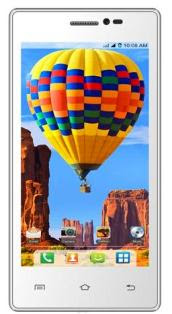
In this device problem of auto data connection start, wifi automatically start, hidden application automatically install, auto balance gone so try first of intex aqua i5 mini reset or hard reset but same issue not solve this problem then i decide to flash device when i flashed device with below link firmware or tool so result problem solved all type issue but not only use this tutorial above mention problem but any try software related issue in this device then you can use this tutorial but remember first carefully all read tutorial after step by step following.
This flash file tested by me without any error working well, you can use this flash file when your device hang on logo problem, restarting problem, security lock problem, password lock problem, pattern lock problem etc software related problem and you can use this tutorial without any box and this is free for all who know about software in mobile, impotent for flashing first must check your micro usb cable if not good then you cant flash it so check micro usb cable second check your device battery that is impotent for flashing if your device battery low so stop your device between flash so this is impotent for flash, before you flash save your data like contact, photos, videos etc because this is factory flash file so you cant save after full flash so must remember all are impotent notes.
Download Link
Intex Aqua I5 mini Firmware download here
SP_Flash_Tool_v5.1343.01 Flash tool download here
Whats needed for flash ?
- Intex Aqua I5 mini device with good battery charged
- Intex Aqau I5 mini tested firmware or flash tool (link are above)
- Micro usb cable (with good quality)
- Computer or Laptop
How to Flash ?
- Download tested firmware from above link (if link not working then just leave your comment on below comment box)
- Extract both winrar file to desktop or as you like path (must installed winrar software in your computer or laptop)
- Open SP_Flash_Tool_v5.1343.01 folder and choose flash_tool.exe file and open it
- Click on Scatter-loading button and choose MT6582_Android_scatter.txt file from firmware folder
- Now click on Download button
- Press and hold Volume Up button and insert usb cable (device key, device USB socket or micro USB cable must working well)
- Wait until driver install, if driver installed in your computer or laptop then downloading automatically start into device
- Wait until full install (do not disconnect device while device in flashing mode)
- Congratulation you are done from many software issue
Intex Aqua I5 mini Flash done with SP Flash tool screenshot:

Intex Aqua I5 mini Flash done with SP Flash tool video HERE
Available link for download
Sunday, January 1, 2017
Intex Aqua 4 5E After Flash Dead Solution here tested
Intex Aqua 4 5E After Flash Dead Solution here tested
Hello every one intex aqua 4.5e after flash dead issue ? dont worry here simple solution if you better understand this tutorial because first time i flash device then it dead so i am confuse then i search in internet then i found this solution and i also use this tutorial and i was got success so you can also use this tutorial if your device dead after flash but remember be carefully use i suggest first read carefully full tutorial after following step by step so you fill easy to use, before use some impotent notes first of must be working well micro usb cable, must be working well device or pc usb socket and also must be installed usb drive in computer
This flash file tested by me without any error working well, you can use this flash file when your device hang on logo problem, restarting problem, security lock problem, password lock problem, pattern lock problem etc software related problem and you can use this tutorial without any box and this is free for all who know about software in mobile, impotent for flashing first must check your micro usb cable if not good then you cant flash it so check micro usb cable second check your device battery that is impotent for flashing if your device battery low so stop your device between flash so this is impotent for flash, before you flash save your data like contact, photos, videos etc because this is factory flash file so you cant save after full flash so must remember all are impotent notes.
Download Link
Intex Aqua 4.5E Firmware Download here
preloader_vsun71_e_kk Download here
SP_Flash_Tool_v5.1343.01 Flash tool Download here
Intex Aqua 4.5E Flashing USB Driver Download here
Required for flash:
- Intex Aqua 4.5E device with well battery charged
- Preloader_vsun71_e_kk file
- Android USB Driver
- Micro usb cable
- Computer or Laptop
Procedure:
- Download Intex Aqua 4.5E firmware, Preloader file, SP_Flash_Tool_v5.1343.01 or USB Flashing driver from above link
- Extract to desktop or as you like path (must be installed winrar software in your computer)
- Copy preloader_vsun71_e_kk.bin file
- Open Intex_Aqua_4.5E_V06_Indian_SER firmware folder and Paste Copied file there and do overwrite
- Now SP_Flash_Tool_v5.1343.01 folder and choose flash_tool.exe file and open it
- Click on Scatter-loading button and choose MT6571_Android_scatter.txt file
- Double click on Download button
- Press and hold Volume Up button and insert usb cable
- Wait until driver install, if driver installed in your computer then downloading automatically start
- Wait until full install android os
- Congratulation you are done
Screenshot:


Available link for download
Friday, December 9, 2016
How to Flash Intex Aqua I 4 Plus with flash tool check here with simple method
How to Flash Intex Aqua I 4 Plus with flash tool check here with simple method

First back to all type data like photos, email, contacts, videos etc because this is factory firmware if dont take backup all then you will lost all type data of above mention.
This flash file tested by me without any error working well, you can use this flash file when your device hang on logo problem, restarting problem, security lock problem, password lock problem, pattern lock problem etc software related problem and you can use this tutorial without any box and this is free for all who know about software in mobile, impotent for flashing first must check your micro usb cable if not good then you cant flash it so check micro usb cable second check your device battery that is impotent for flashing if your device battery low so stop your device between flash so this is impotent for flash, before you flash save your data like contact, photos, videos etc because this is factory flash file so you cant save after full flash so must remember all are impotent notes.
Download Link
Intex Aqua I-4 Plus firmware download here
SP_Flash_Tool_v3.1328.0.183 download here
Required for flash:
1. Intex Aqua I-4 Plus device with well battery charged
2. Tested firmware or flash tool
3. Micro usb cable
4. Computer or Laptop
Procedure:
1. Download tested firmware or flash tool from above link (if link not working just write down comment on below comment box)
2. Extract to desktop or as you like path (must be installed winrar software in your computer or laptop)
3. Open SP Flash tool folder and choose flash_tool.exe file and open it
4. Click on Scatter-loading button and choose MT6572_Android_scatter.txt file
5. Now click on Download button
6. Press and hold Volume Up and insert micro usb cable
7. Wait until driver install, if driver installed in your computer or laptop then downloading automatically start into device
8. Wait until full install android os
9. You are done
Intex Aqua I-4 Plus flash done with flash tool screenshot:

Intex Aqua I-4 Plus flash done with flash tool video:
Available link for download
Friday, November 4, 2016
Intex Aqua Power HD Flash done with flash tool tested
Intex Aqua Power HD Flash done with flash tool tested

This tutorial is very simple for flash, when you need flash device ? first when your device hang on logo, you can use when your device in pattern lock, security lock, screen lock etc, you can use when your device in restarting issue, you can use when our device in automatically wifi starting or data connection, you can use when your device in auto apps installed so i means not above mention issue then you can use this tutorial but your device in issue of any type software related then you can use this tutorial this tricks for everyone who using software related with experience or new user technician.
This flash file tested by me without any error working well, you can use this flash file when your device hang on logo problem, restarting problem, security lock problem, password lock problem, pattern lock problem etc software related problem and you can use this tutorial without any box and this is free for all who know about software in mobile, impotent for flashing first must check your micro usb cable if not good then you cant flash it so check micro usb cable second check your device battery that is impotent for flashing if your device battery low so stop your device between flash so this is impotent for flash, before you flash save your data like contact, photos, videos etc because this is factory flash file so you cant save after full flash so must remember all are impotent notes.
Download Link
Intex Aqua Power HD Firmware or Flash tool download from here
Required for flash:
1. Intex Aqua Power HD Device with good battery charged
2. Intex Aqua Power HD tested firmware or flash tool
3. Micro usb cable with good quality
4. Computer or Laptop
Procedure:
1.First download tested firmware or flash tool from above link (if link not working just write down comment on below comment box)
2. Extract to desktop or as you like path where you can to manual paste firmware for use second time
3. Open SP Flash Tool v5.1516 folder and choose flash_tool.exe file and open it
4. Click on Scatter-loading button and choose MT6592_Android_scatter.txt file
5. Now last click on Download button
6. Press and hold volume up button and insert usb cable
7. Wait until driver install, if driver installed in your computer or laptop then download start automatically into device
8. Wait until full install android os (Note : do not disconnect device while in flashing mode)
9. Congratulation you are done
Intex Aqua Power HD Flash done with flash tool screenshot:

Intex Aqua Power HD Flash done with flash tool video:
Available link for download
Wednesday, October 26, 2016
Intex Aqua Star Power Flash done with Flash tool tested
Intex Aqua Star Power Flash done with Flash tool tested

This tutorial tested by me without any error if you have device like this and in this problem of restarting, hang on log, pattern lock. screen lock then you can use this tutorial but remember before use tutorial first of must your device battery charged up to 80% and also check device usb cable, check micro usb cable also check computer or laptop usb socket if any issue in above mention then you cant flash it so please carefully following this tutorial i suggest first read all tutorial carefully after following.
This flash file tested by me without any error working well, you can use this flash file when your device hang on logo problem, restarting problem, security lock problem, password lock problem, pattern lock problem etc software related problem and you can use this tutorial without any box and this is free for all who know about software in mobile, impotent for flashing first must check your micro usb cable if not good then you cant flash it so check micro usb cable second check your device battery that is impotent for flashing if your device battery low so stop your device between flash so this is impotent for flash, before you flash save your data like contact, photos, videos etc because this is factory flash file so you cant save after full flash so must remember all are impotent notes.
Download Link
Intex Aqua Star Power firmware or flash tool download here
Required for flash :
- Intex Aqua Star Power device with good battery (must be problem in software related if hardware related and try in flash then your device will be dead or other issue)
- Intex Aqua Star Power tested firmware or flash tool
- Micro usb cable
- Computer or Laptop
Procedure:
- Download tested firmware or flash tool from above link (if link not work just write down comment on below comment box)
- Extract to desktop or as you like path (must installed winrar software in your computer or laptop)
- Open SP Flash Tool v3.1344.214 and choose flash_tool.exe and open it
- Click on Scatter-loading button and choose MT6582_Android_scatter.txt file
- Now click on Download button
- Press and hold Volume Up button and insert usb cable (must be working well micro usb cable or device usb pin)
- Wait until driver install, if driver installed in your computer or laptop then download start automatically into device
- Wait until full downloaded (do not unplug device while device in flashing mode)
- Congratulation you are done from many software related issues
Intex Aqua Star Power Flash done with flash tool screenshot:

Intex Aqua Star Power Flash done with flash tool video HERE
Available link for download
Friday, September 30, 2016
Intex Aqua Y2 Pro Privacy Lock remove done with Miracle box
Intex Aqua Y2 Pro Privacy Lock remove done with Miracle box

This try problem to be in many devices but not solve after full flash but here few tricks you can done remove privacy lock without any error no need to flash just one click and run this job done in few minutes but remember before use this tutorial this is impotent first of must charged your device battery up to 80% if your battery low in your device then many issues in device if stop flashing between flash then your device will be dead or other issues please carefully read first this full tutorial after following one by one.
This flash file tested by me without any error working well, you can use this flash file when your device hang on logo problem, restarting problem, security lock problem, password lock problem, pattern lock problem etc software related problem and you can use this tutorial without any box and this is free for all who know about software in mobile, impotent for flashing first must check your micro usb cable if not good then you cant flash it so check micro usb cable second check your device battery that is impotent for flashing if your device battery low so stop your device between flash so this is impotent for flash, before you flash save your data like contact, photos, videos etc because this is factory flash file so you cant save after full flash so must remember all are impotent notes.
Required for remove privacy lock:
1. Intex Aqua Y2 Pro device with good battery charged
2. Miracle box (you can use other chines box)
3. Micro usb cable
4. Computer or Laptop
Procedure:
1. Open Miracle box
2. Go to MTK tab
3. Click on Unlock/Fix tab
4. Choose Clear Anti-theft option
5. Choose Boot option : 11 th Boot(MT6582&MT6571/2NAND)
6. Tick on USBCable option (if untick)
7. Now click on Start button
8. Press and hold Volume Up button and insert usb cable
9. Wait until driver install, if driver installed in your computer then start automatically process
10. Wait until full finished process
11. Congratulation you are done
Note : First time start device while Clear Anti-theft done then wait a few minutes
Intex Aqua Y2 Pro Privacy lock remove done in miracle box screenshot:

Intex Aqua Y2 Pro Privacy lock remove done in miracle box video here
Available link for download
Tuesday, September 13, 2016
Intex Aqua Desire HD Flash done with SP Flash tool Tested
Intex Aqua Desire HD Flash done with SP Flash tool Tested
This tutorial tested by me without any problem i was done this job in this device when i started then in problem of hang on logo so first i try with hard reset but not start properly some time device was started but some error coming on display like not unsupported or other error so better is try to flash its best way because your time save otherwise time waste before use this tutorial first carefully read all content because if direct start process and some one missing then you cant flash it or before use check all are required in below mention its all are working well if any issue then you cant solve problem of software related now lets see stock rom firmware description.
This flash file tested by me without any error working well, you can use this flash file when your device hang on logo problem, restarting problem, security lock problem, password lock problem, pattern lock problem etc software related problem and you can use this tutorial without any box and this is free for all who know about software in mobile, impotent for flashing first must check your micro usb cable if not good then you cant flash it so check micro usb cable second check your device battery that is impotent for flashing if your device battery low so stop your device between flash so this is impotent for flash, before you flash save your data like contact, photos, videos etc because this is factory flash file so you cant save after full flash so must remember all are impotent notes.
Download Link
Intex Aqua Desire HD Stock Rom Download here
Intex Aqua Desire HD Flash tool Download here
Intex Aqua Desire HD USB Driver Download here
Requirement for Upgrade:
1. Intex Aqua Desire HD Device
2. Intex Aqua Desire HD Stock Rom
3. Intex Aqua Desire HD Flash tool
4. Intex Aqua Desire HD USB Driver
5. Micro usb cable
6. Computer or Laptop
Method:
1. Download stock rom firmware from above link ( if link not working just leave your comment)
2. Unzip from winzip to desktop or as you like path (must be installed winzip)
3. Open SP Flash tool folder and choose flash_tool.exe file and open it
4. Click on Scatter-loading button and choose MT6592_Android_scatter.txt file and then click OK
5. Wait until read stock rom firmware
6. Now click on Download button
7. Press and hold Volume Up button and Insert usb cable
8. Wait until auto driver installing if not installed then manual update from above link
9. After driver installed device will detect with pc and flash tool
10. Wait until full process (do not disconnect device while flashing mode)
11. Congratulation you are done
Intex Aqua Desire HD Flash done Screenshot:

Available link for download
Wednesday, September 7, 2016
Intex Aqua 3G Plus Pattern Unlock done without flash tested
Intex Aqua 3G Plus Pattern Unlock done without flash tested

In this device i was try to hard reset for remove pattern lock but not success using every tricks volume keys for power but if you want to remove pattern lock without flashing then you can use this tutorial because this is every simple tricks no nay risk or will be any issue because this is tested by me without any error and just a few minute in this tutorial i use miracle box for that but dont worry you can other use chines box but will be option in that because you cant pattern unlock without option, in internet one other way for pattern unlock just you have to download few mb flash file and you can do job using sp flash tool and it also simple way for that just remember every needed for pattern unlock now lets go how to pattern unlock intex aqua 3g+ using miracle box ?
Download Link
Intex Aqua 3G+ (Plus) Pattern Unlock file only download here
Intex Aqua 3G+ (Plus) full firmware download here
ResearchDownload_VER_2.9.7006 download here
Required for Pattern Unlock:
1. Intex Aqua 3G+ (plus) device with good battery charged
2. Miracle box (you can use other chines box)
3. Micro usb cable
4. Computer or Laptop
Procedure:
1. First download tested firmware or unlock file from above link
2. Open Miracle box
3. Go to SPD Tab
4. Choose Write option
5. Select correct boot option : SPD8825/6825/Other{Factory File Write)
6. Choose firmware file which you was downloaded
7. Tick on USBCable option
8. Now last click on Start button
9. Press and hold Volume Down button and insert usb cable
10. After few second wait then one popup box there untick all without USERDATA then click ok
11. Wait until process
12. Congratulation you are done
Intex Aqua 3G+ (Plus) Pattern Unlock done screenshot:

Available link for download
Subscribe to:
Posts (Atom)