Showing posts with label without. Show all posts
Showing posts with label without. Show all posts
Saturday, March 25, 2017
LENOVO K3 Note K50 A40 Bypass gmail account FRP done without any box
LENOVO K3 Note K50 A40 Bypass gmail account FRP done without any box
This is security lock in new android devices when you first time purchase device then it asked enter your registered gmail account after enter account must be remember because if future you will do hardreset or reset device then asked first entered gmail account if you forgot but dont worry to solution for it just see below procedure but before use must remember which is required for frp solution because if any one do not work then you cant solve that problem first of device battery must be charged up to 80%, second of must be working well scatter file or flash tool, third of must be working well micro usb cable and last must be installed driver without driver you cant do that in this post also link available of driver link first install it after try to unlock.
Without reset FRP lock you cant go ahead if you remember first entered gmail account then you can easy do unlock and for unlock must be device connected with internet without internet you cant go ahead this tutorial i cant try with this device but i think is it success and simple way for frp reset lock without any box before use remember must take out simcard or micro sd card and i think remember from this procedure you cant save data like contacts, photos, videos, mp3 songs, notes, email etc so now lets go how to bypass gmail account in Lenovo K3 Note K50-4A40 ? see below procedure
Download Link
Lenovo K3 Note K50-A40 Bypass Gmail Account file
Download here
Lenovo K3 Note K50-A40 Flash tool
Download here
Lenovo K3 Note K50-A40 USB Driver
Download here
Whats need for FRP Reset ?
- Lenovo K3 Note K50-A40 phone
- Lenovo K3 Note K50-A40 Scatter file
- Lenovo K3 K3 Note K50-A40 Flash tool
- Lenovo K3 K3 Note K50-A40 USB Driver
- Micro usb cable
- Computer or Laptop
How to Reset FRP Lock ?
- Download required from above link (if link dead just leave your comment)
- Extract to desktop or as you like path
- Open MTK_flashtool_v5.1536.00.000 tool and choose flash_tool.exe file and open it
- Click on Scatter-loading button and choose MT6752_Android_scatter.txt file
- Jump to Format Tab shortcut key Alt + A
- Choose Manual Format Flash option
Begin Address[HEX]: 0x7fa0000
Format Length[HEX]: 0x860000
- Write there above code in both box like below images

- Now Click on Start button
- Press and hold Volume Up button and insert usb cable
- Install driver from above link, if driver installed in your computer then starting automatically
- Congratulation you are done
Available link for download

Tuesday, February 28, 2017
Micromax Canvas A110 Hang On Logo done Without Flashing tested
Micromax Canvas A110 Hang On Logo done Without Flashing tested
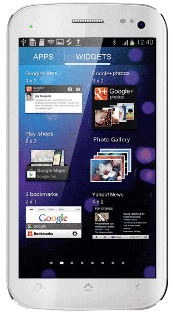
Some time in device hang on logo problem so how to solve without flashing ? in this tutorial simple method if you have chines boxes here tutorial with Miracle box but you can use any other chines box for this solution and this tutorial not only for hang on logo but you can use any software related issue like hang on logo, restarting problem, dead problem, security code if you forgot, patter lock etc you can use this tutorial but remember before using this tutorial first of read all tutorial carefully so you can easy solve about software related issue and most impotent of must be working well micro usb cable if any problem in your micro usb cable then you cant solve that also check MTK android usb driver this must be installed in your computer or laptop without driver you cant solve problem also check your device usb socket if not working you also not solve problem without device usb socket so must be working well all type which for need solution
Download Link
Micromax Canvas A110 Android USB Driver Download here
Whats need to solution ?
1. Micromax Canvas A110 device or MT6577 CPU device
2. Micromax Canvas A110 USB Driver
3. Miracle box or Other Chines boxes you can use
4. Computer or Laptop
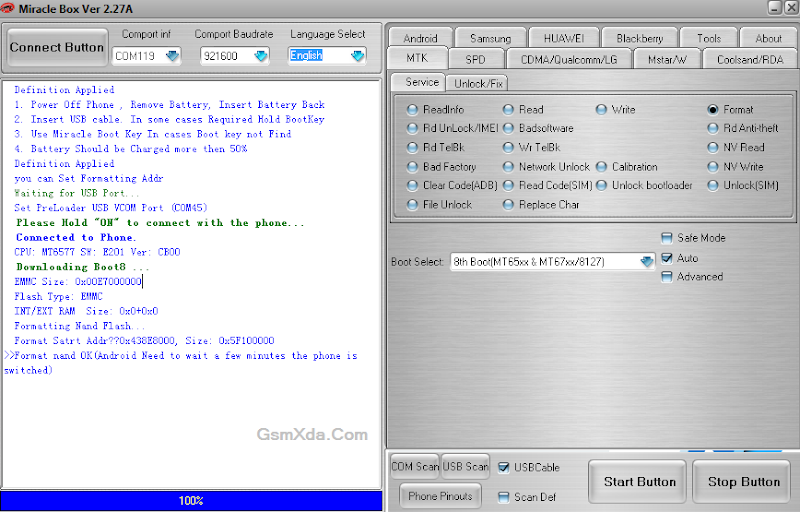
2. Go to MTK / Service tab
3. Select Format Option
4. Untick on Safe Mode Option tick on Auto Option
5. Choose Boot : 8th Boot(MT65xx & MT67XX/8127)
6. Tick on USBCable option
7. Now last click on Start button
8. Press and hold Volume up button and insert usb cable
9. Wait until driver install, if driver not installed then you can update from above link
10. Wait until full process
11. Congratulation you are done
2. Micromax Canvas A110 USB Driver
3. Miracle box or Other Chines boxes you can use
4. Computer or Laptop
How to Solve ?
1. Open Miracle box2. Go to MTK / Service tab
3. Select Format Option
4. Untick on Safe Mode Option tick on Auto Option
5. Choose Boot : 8th Boot(MT65xx & MT67XX/8127)
6. Tick on USBCable option
7. Now last click on Start button
8. Press and hold Volume up button and insert usb cable
9. Wait until driver install, if driver not installed then you can update from above link
10. Wait until full process
11. Congratulation you are done
Screenshot:
Micromax Canvas A110 Hang On Logo done Without Flashing Video HERE
Available link for download
Tuesday, January 24, 2017
Samsung Metro 312 SM B312E Easy Way For Flashing without any Box
Samsung Metro 312 SM B312E Easy Way For Flashing without any Box
This flashing procedure tested by me without any problem just mention in required for everyone one who use this tutorial this tutorial many usefully for this device like hang on logo, restarting issue, dead issue in dead required for detect device if not detect then you cant flash it and sim lock issue, phone lock problem this any type software related issue then you can use this tutorial and good news which one this tutorial use without any box just download required for flash and following this tutorial step by step and done before use this tutorial first carefully read all tutorial because for easy to flash if and problem using this tutorial just leave your comment on below comment box and we are good reply soon and we are hope everyone better done this job and we are try to easy write content for everyone who working software related or non software related user also understand english or non understand english see blow description about flash file or tool.
This flash file or tool working better, and remember before use this tutorial must take data if your device live condition data like contacts, notes, messages, photos, videos because is use this flash file or flash tool then you cant save data because this is flash with factory reset so carefully also focus in required if any problem in required then you cant upgrade device like micro usb cable in this cable what happen ? device detect but show messages of usb not recognized so this problem in both first of micro usb cable and second of battery low, device not detect ? why if in device usb socket any line broke then your device not detect with computer or laptop so finally you cant flash, if not installed driver in your computer or laptop then you cant upgrade phone i means this is impotent for flashing so carefully read all are tutorial after try in step by step now lets see how to flash Samsung Metro 312 SM-B312E with Flash tool.
Download Links
Samsung Metro 312 SM-B312E Flash file Download BIN | CSC
Samsung Metro 312 SM-B312E Flash tool Download here
Samsung Metro 312 SM-B312E USB Driver Download here
Whats Need for Flashing ?
- Samsung B312E device
- B312EJPNF1_BIN Flash file
- B312EOJPNF1_CSC Flash file
- Flash tool
- Samsung B312E USB Flashing Driver
- Computer or laptop
How to Flash ?
- First download all are required from above link (if link broke or dead just leave your comment)
- Must be installed winrar software in your computer for Extact file from winrar or Zip
- Extract to desktop or as you like path
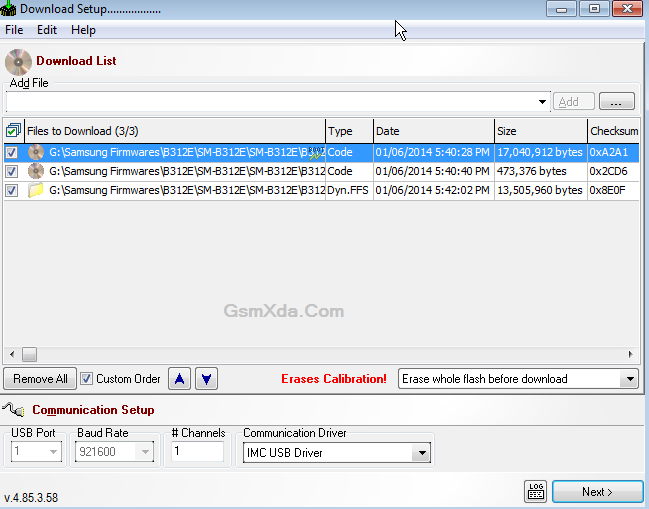
- Open New_FlashTool_E2 folder and choose FlashTool_E2.exe file and open it
- Click on Add File button and choose B312EJPNF1_BSY.fls file
- Again click on Add File button and choose B312EJPNF1_CDS.fls file
- Click again on Add File button and last choose B312EOJPNF1_CSC.dffs file
- Click on NEXT button
- Again Click on Start USB1 button
- Press and hold Center key and Insert usb cable
- Wait for driver install, if driver not installed in your computer then update from above links driver
- Wait until full flash phone (do not unplug while device in flashing mode)
- Congratulation you are done
File Add in Flash tool Screenshot:
Samsung B312E Flash done Screenshot:
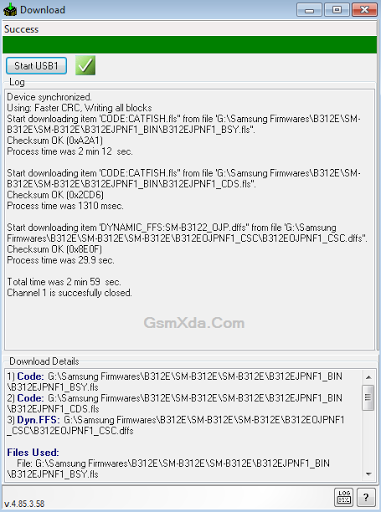
Samsung B312E Flash done with Flash tool
Available link for download
Saturday, December 24, 2016
Easily Recover Data without using Undelete Software
Easily Recover Data without using Undelete Software
Data Recovery is a process to recover accidentally deleted or formatted files from your computer including common storage devices such as external or internal hard drive, USB, CD/DVD, memory card etc. Such files can be restored if proper actions are taken immediately or as soon as possible.
Data recovery software is indeed a great way to have your deleted files back, though it may require you to invest money and time. Recovery software can make use of sophisticated algorithm to deeply scan files that is mark as deleted or lost in MBR and treat them carefully to recover exactly as they were deleted.
However, we’ll discuss about some manual ways to recover your lost or deleted files without using such recovery software. It’s strongly advised to not to save or overwrite any more data on the problem storage device as it’ll make your attempts failed of recovering lost or deleted data.
Restore deleted files (Manual method)
Accidental deletion of files and folders- Perhaps, you’re cleaning your system by deleted unnecessary and junk files to free up some hard disk space. However, accidentally you may have deleted an important files or folders that you badly needed. Unluckily, you can’t file those files in the recycle bin as you’ve chosen to delete it permanently by pressing ‘shift + delete’.
Resolution: In some cases, you should see your computer recycle bin folder to see if the deleted files are there. You can right click on it and choose ‘Restore’ to save them back to their original destination. However, if you can’t found files what you’re looking for, try following the steps mentioned below:
a. Right click on folder containing your files deleted previously.
b. Choose ‘Properties’ and go to ‘Previous versions tab’.
c. This will list all the previous version of files existed previously (Before deletion). Select file which you want to restore and click on ‘Restore’ button to restore those files back to your system.
Data recovery software is indeed a great way to have your deleted files back, though it may require you to invest money and time. Recovery software can make use of sophisticated algorithm to deeply scan files that is mark as deleted or lost in MBR and treat them carefully to recover exactly as they were deleted.
However, we’ll discuss about some manual ways to recover your lost or deleted files without using such recovery software. It’s strongly advised to not to save or overwrite any more data on the problem storage device as it’ll make your attempts failed of recovering lost or deleted data.
Restore deleted files (Manual method)
Accidental deletion of files and folders- Perhaps, you’re cleaning your system by deleted unnecessary and junk files to free up some hard disk space. However, accidentally you may have deleted an important files or folders that you badly needed. Unluckily, you can’t file those files in the recycle bin as you’ve chosen to delete it permanently by pressing ‘shift + delete’.
Resolution: In some cases, you should see your computer recycle bin folder to see if the deleted files are there. You can right click on it and choose ‘Restore’ to save them back to their original destination. However, if you can’t found files what you’re looking for, try following the steps mentioned below:
a. Right click on folder containing your files deleted previously.
b. Choose ‘Properties’ and go to ‘Previous versions tab’.
c. This will list all the previous version of files existed previously (Before deletion). Select file which you want to restore and click on ‘Restore’ button to restore those files back to your system.
What if the files were deleted from the Desktop folder?
For example, if you have deleted files from the desktop folder named ‘XYZ’. Try creating a new folder with exactly the same name i.e. ‘XYZ’. Moving further, right click on the same and go to its ‘Properties’. Under ‘previous version’ tab, you should see all the deleted files located under the folder. Simply, choose any or all the files you want and hit on restore button.
However, make the system protection is set to turned on. Follow the steps below to check and make sure the system protection is ON:
For example, if you have deleted files from the desktop folder named ‘XYZ’. Try creating a new folder with exactly the same name i.e. ‘XYZ’. Moving further, right click on the same and go to its ‘Properties’. Under ‘previous version’ tab, you should see all the deleted files located under the folder. Simply, choose any or all the files you want and hit on restore button.
However, make the system protection is set to turned on. Follow the steps below to check and make sure the system protection is ON:
- Right click on ‘My Computer’ and select ‘Manage’.
- Navigate to ‘System Protection’ tab and see if the protection is set to ‘On’ or ‘Off’. To turn the protection ‘On’ for drive ‘D’ (See the image below), click on the drive and select ‘Configure’.

- Under ‘Restore Settings’ section, select the radio button stating ‘Turn on System Protection’ and set the ‘Disk Space Usage’ as per your convenient.

- Click on ‘Apply’ to make changes take effect.
Other type of deletion that can’t be addressed manually
Partition Format- If you’ve accidentally formatted or deleted an entire partition, you might be in trouble as you can’t be able to restore them manually. Instead, you should seek for professional and efficient partition undelete software that can scans and recover data from formatted or deleted partition.
Below are some common type of partition problem occurs in Windows OS:
2) File system damages - This kind of failure occurs due to hardware failure or registry corruption. Sometime logical damage is also caused by software failure. However, most modern file system has a high level of protection against file system.
3) Partition Corruption due to virus attack- This kind of corruption arises due to unknown malware or other type of threats that may leave partition inaccessible and all the data stored.
Conclusion
Data deleted from computer will keep residing on the memory till it’s not overwritten by some other data. In most cases, we simply delete any files that were no longer needed and can be restored from the recycle bin folder. If you can make use of manual tricks of restoring deleted files, you might not need to invest money on purchasing data recovery software.
However, if situations isn’t in your favor, choose efficient data recovery software might be your last resort. It’ll help you in recovering data from severely damaged or corrupt partitions as well as ensures you that it’ll be completely accessible and 100% working as before.
Available link for download
Saturday, December 10, 2016
Micromax Canvas Blaze 4G Q400 FRP Reset done without any box
Micromax Canvas Blaze 4G Q400 FRP Reset done without any box

This procedure in no need to any boxes or flashing just few minute you can done this job but need to must installed driver in your computer or laptop because without driver you cant done this job i suggest you before use this procedure first read all tutorial carefully after that following step by step and this content its very easy to understand because we are thing all are better understand without any issue because here not all are master visit this site but everyone visit who master or fresher technician this procedure not yet tested by me but i put here because this is tricks from Micromax service center must check your device USB socket if any issue also check computer or laptop USB port also check micro USB cable if any problem i mentioned then you cant done this job so please carefully following this tutorial
Required for FRP Reset:
- Micromax Canvas Blaze 4G Q400 device with good battery charged
- Driver download here
- Micro USB cable
- Computer or Laptop
Procedure:
- Turn off device with device on
- Press and hold Volume Down + Power For Fastboot Mode
- Insert usb cable to device
- Now go to RUN and type there cmd and then press Hit Enter key Shortcut key win.key + R
- Put ADB Driver into desktop
- Type : Cd desktopadb_drivers then Hit Enter key
- Type : Adb devices>fastboot oem unlock Hit Enter key
- Type : Fastboot -i 0x2a96 erase config Hit Enter key
- Type : Fastboot -i 0x2a96 reboot Hit Enter Key
- After reboot device google id will reset
- Congratulation you are done
Micromax Canvas Blaze 4G Q400 FRP Reset Done Screenshot

Available link for download
Thursday, November 24, 2016
SPD 7730 31 Read Pattern unlock code without any data loss tested
SPD 7730 31 Read Pattern unlock code without any data loss tested
If you have spd 7730/31 cpu related phone and in that issue of pattern lock then dont worry you can easy solve using this tutorial this is not only for spd 7730/31 but every spd cpu related you can done job using this tutorial but here some impotent notes this is working well if any issue in that so you cant solve problem so please read all type tutorial after try following step by step, some time what happen customer take device in office and asking please this problem can be solve ? but also required of customer please do not erase all data because its impotent if you solve as a customer required then customer trust in our office and second type any issue in device then will come to our shop.
Which box use for read unlock code without data loss ?
This tutorial done in Miracle box its version of 2.32 if you using this method then must check first version this option available in above mention version and in the new feature miracle box not supported of old version because technician cant know new feature in miracle box so i regular update and use this miracle box so i cant easy solve this problem so i request to everyone technician if you free then check our regular update forum and in check about box related there put of update in this box section.
What happen if required not working ?
Before use this tutorial must see and carefully read required for unlock this is most impotent and part in this tutorial first of device battery related its must be charged up to 80% and after try, second of box must be working well if not open box then you cant done this job, third of usb driver must installed in your computer or laptop if not installed then first install after try without usb driver you cant connect device with box, fourth of micro usb cable must be working well some device not connect with computer or laptop because here required good quality usb cable cause device always connected with box.
Download Link
SPD 7730/7731 USB Driver Download here
Need for Read Pattern Unlock code:
1. SPD 7730/7731 cpu based phone with good charged battery
2. Miracle box
3. SPD usb driver
4. Micro usb cable
5. Computer or Laptop
Procedure:
1. Download spd driver from above link (if link not working just leave your comment)
2. Extract and install driver (must be installed winzip in your computer)
3. Open Miracle box
4. Go to SPD tab
5. Choose Rd Unlock option
5. Choose Choose Boot type : SPD7730/31 EMMC option
6. Tick on USBCable option
7. Now Click on Start button
8. Press and hold Volume Down button and insert usb cable
9. Wait until driver installing, if driver not installed then update manual from above links
10. If driver installed then starting process automatically then wait until full process
11. Congratulation you are done
SPD 7730/7731 Read Pattern Unlock code Screenshot:

Available link for download
Friday, October 14, 2016
GET FREE INSTAGRAM FOLLOWERS WITHOUT ANY SURVEY FREE DRIVERS DOWNLOAD RUSHIKESH THAWALE
GET FREE INSTAGRAM FOLLOWERS WITHOUT ANY SURVEY FREE DRIVERS DOWNLOAD RUSHIKESH THAWALE
GET FREE INSTAGRAM FOLLOWERS WITHOUT ANY SURVEY | FREE DRIVERS DOWNLOAD | RUSHIKESH THAWALE
-----------------------------------------------

-----------------------------------------------
Hello Friends,

Grab the possibility and then use free instagram followers no survey hack rather than expecting the target audience to uncover you. A number of people already know concerning the particular expert services that enable to purchase Instagram fans but they overlook excellent possibilities by means of not using these web sites. Keep reading if you are new to this concept or have never tried this sort of service in past times. You definitely will quickly know the reasons to use the hack tool in order to achieve increased visibility on social networking sites like Instagram.
----------------------------------------
If perhaps you had sought out numerous ideas that describe precisely how to become popular on Instagram, you almost certainly heard the identical tips and hints almost everywhere. The guidelines generally advise one to like photos which other individuals submit, discuss all of them and generally end up being extremely active on Instagram. Its not an extremely poor recommendation however there is one big issue. You will need to commit a lot of time to start out getting awareness. On the other hand with the applicability of free instagram followers no survey hack you are nearly assured with quick popularity and that too without spending any money.
----------------------------------------------------------
An approach which is just about as known as leaving comments concerning photographs is always to focus on the quality of your images. Based to these people who seem to clarify exactly how to grow to be well-liked, you do not have a lot of fans because you dont have material on your own user profile. It is actually explained that you will acquire a large number of supporters as soon as youll get plenty of premium quality content. You need to get incredibly fortunate in order to think of form of content material that isnt provided anywhere else.
------------------------------------------------------
Free instagram followers no survey hack is exclusively effective to get some followers - not huge amounts of them. If you are searching to acquire a huge direct exposure, you actually should really contemplate to use sites where you can get Instagram fans. Without any doubt there are many such hack tools which are serving needy individuals with free Instagram followers. It might be a tricky situation to select one hack tool out of many available. In order to avoid any sort of problem there is a need to go through enough reviews and follow quality online sources.
-------------------------------------------------------
With enough information available the chances of making wrong selection will decrease a lot. The hack tool mentioned here is definitely a blessing in disguise for the individuals who want to get popular on social networking site but dont have enough money to buy free instagram followers.
------------------------------------------------------------
THANK YOU.
PLEASE FEEL FREE TO CONTACT US @
www.rushikeshthawale.in
Available link for download
Wednesday, September 7, 2016
Intex Aqua 3G Plus Pattern Unlock done without flash tested
Intex Aqua 3G Plus Pattern Unlock done without flash tested

In this device i was try to hard reset for remove pattern lock but not success using every tricks volume keys for power but if you want to remove pattern lock without flashing then you can use this tutorial because this is every simple tricks no nay risk or will be any issue because this is tested by me without any error and just a few minute in this tutorial i use miracle box for that but dont worry you can other use chines box but will be option in that because you cant pattern unlock without option, in internet one other way for pattern unlock just you have to download few mb flash file and you can do job using sp flash tool and it also simple way for that just remember every needed for pattern unlock now lets go how to pattern unlock intex aqua 3g+ using miracle box ?
Download Link
Intex Aqua 3G+ (Plus) Pattern Unlock file only download here
Intex Aqua 3G+ (Plus) full firmware download here
ResearchDownload_VER_2.9.7006 download here
Required for Pattern Unlock:
1. Intex Aqua 3G+ (plus) device with good battery charged
2. Miracle box (you can use other chines box)
3. Micro usb cable
4. Computer or Laptop
Procedure:
1. First download tested firmware or unlock file from above link
2. Open Miracle box
3. Go to SPD Tab
4. Choose Write option
5. Select correct boot option : SPD8825/6825/Other{Factory File Write)
6. Choose firmware file which you was downloaded
7. Tick on USBCable option
8. Now last click on Start button
9. Press and hold Volume Down button and insert usb cable
10. After few second wait then one popup box there untick all without USERDATA then click ok
11. Wait until process
12. Congratulation you are done
Intex Aqua 3G+ (Plus) Pattern Unlock done screenshot:

Available link for download
Tuesday, September 6, 2016
Lenovo A369i Dead After Flash Solution without any box tested
Lenovo A369i Dead After Flash Solution without any box tested
Some time what happen with software technician when try different version flash then device dead or other issue in software related so this experienced with me i was try with different version then device was dead so find in internet for perfect file or solution then i found one file its just showing video and there was write of after dead done so i downloaded this flash file and i try then was success without any error but i lost imei number so that issue if you use this tutorial, remember before use this method take backup all type like contacts, notes, messages, email etc because this all are properly format so you cant save any data which mention above and also must working well which required in this post if any not working then you cant following this method this tutorial not only dead solution but you can done many problem of solution related check below description about firmware this also most impotent please carefully read.
This flash file tested by me without any error working well, you can use this flash file when your device hang on logo problem, restarting problem, security lock problem, password lock problem, pattern lock problem etc software related problem and you can use this tutorial without any box and this is free for all who know about software in mobile, impotent for flashing first must check your micro usb cable if not good then you cant flash it so check micro usb cable second check your device battery that is impotent for flashing if your device battery low so stop your device between flash so this is impotent for flash, before you flash save your data like contact, photos, videos etc because this is factory flash file so you cant save after full flash so must remember all are impotent notes.
Download Link
Lenovo A369i Dead Solution Stock Rom Download here
Lenovo A369i SP Flash tool Download here
Lenovo A369i USB Driver Download here
Required for Solution:
1. Lenovo A369i phone with good battery charged
2. Lenovo A369i Stock Rom Firmware
3. Lenovo A369i Flash tool
4. Lenovo A369i USB Driver
5. Micro usb cable
6. Computer or Laptop
Procedure for Dead Recover:
1. First need files download from above link (if link broke just leave your comment)
2. Extract to desktop or as you like path (must be installed winzip)
3. Open SP Flash tool folder and choose flash_too.exe file and open it
4. Click on Scatter-loading button and choose MT6572_Android_scatter.txt file from target_bin folder
5. Now click on Download button and Press and hold Volume Up button and insert usb cable
6. After insert usb cable show message of install new hardware found then update driver link are above
7. After installed driver then process start automatically then wait until full process
8. Do not try unplug while device in flashing mode
9. Congratulation you are done

2. Extract to desktop or as you like path (must be installed winzip)
3. Open SP Flash tool folder and choose flash_too.exe file and open it
4. Click on Scatter-loading button and choose MT6572_Android_scatter.txt file from target_bin folder
5. Now click on Download button and Press and hold Volume Up button and insert usb cable
6. After insert usb cable show message of install new hardware found then update driver link are above
7. After installed driver then process start automatically then wait until full process
8. Do not try unplug while device in flashing mode
9. Congratulation you are done
Lenovo A369i Dead Recover Screenshot:
Available link for download
Subscribe to:
Posts (Atom)