Showing posts with label canvas. Show all posts
Showing posts with label canvas. Show all posts
Tuesday, February 28, 2017
Micromax Canvas A110 Hang On Logo done Without Flashing tested
Micromax Canvas A110 Hang On Logo done Without Flashing tested
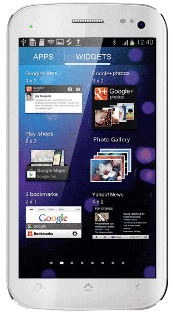
Some time in device hang on logo problem so how to solve without flashing ? in this tutorial simple method if you have chines boxes here tutorial with Miracle box but you can use any other chines box for this solution and this tutorial not only for hang on logo but you can use any software related issue like hang on logo, restarting problem, dead problem, security code if you forgot, patter lock etc you can use this tutorial but remember before using this tutorial first of read all tutorial carefully so you can easy solve about software related issue and most impotent of must be working well micro usb cable if any problem in your micro usb cable then you cant solve that also check MTK android usb driver this must be installed in your computer or laptop without driver you cant solve problem also check your device usb socket if not working you also not solve problem without device usb socket so must be working well all type which for need solution
Download Link
Micromax Canvas A110 Android USB Driver Download here
Whats need to solution ?
1. Micromax Canvas A110 device or MT6577 CPU device
2. Micromax Canvas A110 USB Driver
3. Miracle box or Other Chines boxes you can use
4. Computer or Laptop
2. Go to MTK / Service tab
3. Select Format Option
4. Untick on Safe Mode Option tick on Auto Option
5. Choose Boot : 8th Boot(MT65xx & MT67XX/8127)
6. Tick on USBCable option
7. Now last click on Start button
8. Press and hold Volume up button and insert usb cable
9. Wait until driver install, if driver not installed then you can update from above link
10. Wait until full process
11. Congratulation you are done
2. Micromax Canvas A110 USB Driver
3. Miracle box or Other Chines boxes you can use
4. Computer or Laptop
How to Solve ?
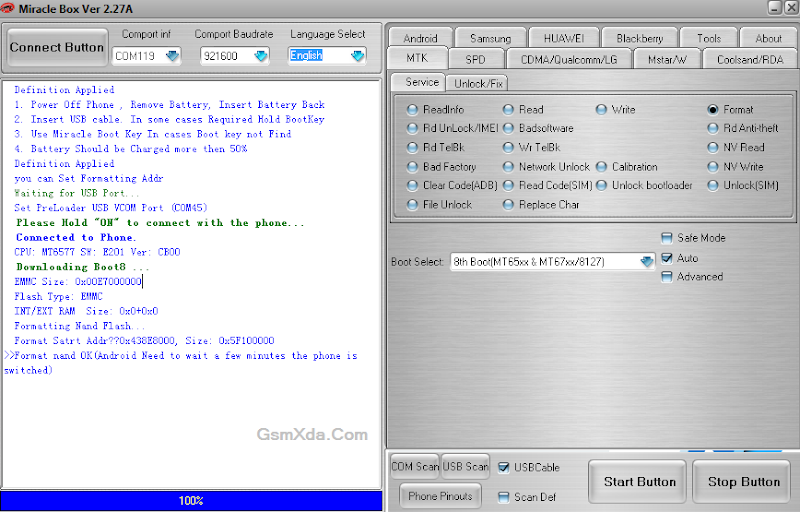
1. Open Miracle box2. Go to MTK / Service tab
3. Select Format Option
4. Untick on Safe Mode Option tick on Auto Option
5. Choose Boot : 8th Boot(MT65xx & MT67XX/8127)
6. Tick on USBCable option
7. Now last click on Start button
8. Press and hold Volume up button and insert usb cable
9. Wait until driver install, if driver not installed then you can update from above link
10. Wait until full process
11. Congratulation you are done
Screenshot:
Micromax Canvas A110 Hang On Logo done Without Flashing Video HERE
Available link for download

Saturday, February 11, 2017
Micromax Canvas Duet II EG111 Flash done with flash tool
Micromax Canvas Duet II EG111 Flash done with flash tool

This flash file tested by me without any error working well, you can use this flash file when your device hang on logo problem, restarting problem, security lock problem, password lock problem, pattern lock problem etc software related problem and you can use this tutorial without any box and this is free for all who know about software in mobile, impotent for flashing first must check your micro usb cable if not good then you cant flash it so check micro usb cable second check your device battery that is impotent for flashing if your device battery low so stop your device between flash so this is impotent for flash, before you flash save your data like contact, photos, videos etc because this is factory flash file so you cant save after full flash so must remember all are impotent notes.
Download Link
Micromax Canvas Duet II EG111 Firmware or flash tool download from here
Required for flash:
- Micromax Canvas Duet II EG111 device with good battery charged
- Micromax Canvas Duet II EG111 firmware or flash tool (tested)
- Micro usb cable
- Computer or Laptop
Procedure:
- Download tested firmware or flash tool from above link (if link not working just write down comment on below comment box)
- Extract to zip file in desktop or as you like path (must be installed winrar software in your computer or laptop)
- Open DownloadTools_V1.4 folder and choose DownloadTools.exe file and open it
- Untick on Bootload option and Tick on FastBoot Upgrade option
- Click on Browse... button and choose emmc_update_all.bat file
- Now Click on Start button
- Press and hold Volume Down + Power button few second for FastBoot mode
- Attach Micro usb cable (micro usb cable must be working well)
- Wait until driver install, if driver installed in your computer or laptop then downloading automatically into device
- Wait until full install (do not disconnect device while flashing)
- You are done
Micromax Canvas Duet II EG111 Flash done with flash tool screenshot:

Micromax Canvas Duet II EG111 Flash done with flash tool video:
Available link for download
Sunday, December 25, 2016
How to Flash Micromax A104 Canvas with SP Flash tool tested
How to Flash Micromax A104 Canvas with SP Flash tool tested

This tutorial not only for one solution you have any issue of software related then you can use this tutorial because this is tested by me without any problem just remember some impotent topics for better result or without any issue first of read all content carefully after step by step following this tutorial if using this tutorial arrive any issue just you should to comment on below comment box because we are understand for new issue how to solve ? so please remember if any issue using this tutorial then leave your feedback on below comment box and most impotent of must be working well micro usb cable, must be working well usb socket, must be working well computer or laptop usb port, must be installed android flashing usb driver or must be charged your device battery up to 80%
This flash file tested by me without any error working well, you can use this flash file when your device hang on logo problem, restarting problem, security lock problem, password lock problem, pattern lock problem etc software related problem and you can use this tutorial without any box and this is free for all who know about software in mobile, impotent for flashing first must check your micro usb cable if not good then you cant flash it so check micro usb cable second check your device battery that is impotent for flashing if your device battery low so stop your device between flash so this is impotent for flash, before you flash save your data like contact, photos, videos etc because this is factory flash file so you cant save after full flash so must remember all are impotent notes.
Download Link
Micromax A104 Canvas Stock ROM Firmware Download here
SP Flash tool Download here
Micromax A104 Canvas Android Flashing USB Driver Download here

Micromax A104 Canvas Stock ROM Firmware Download here
SP Flash tool Download here
Micromax A104 Canvas Android Flashing USB Driver Download here
Required for Flash:
1. Micromax A104 Canvas device with well battery charged
2. Micromax A104 Tested Stock ROM Firmware
3. SP Flash tool
4. Micromax A104 Android flashing usb driver
5. Micro usb cable
6. Computer or Laptop
Procedure:
- First download required from above link (if link not working just leave your comment on below comment box)
- Extract to desktop or as you like path (must be installed winrar software in your computer)
- Open SP Flash tool folder and choose flash_tool.exe and open it
- Click on Scatter-loading button and choose MT6582_Android_scatter.txt file from Stock ROM Firmware folder
- Now click on Download button
- Press and hold Volume Up button and insert micro usb cable
- Wait until driver install, if driver not installed in your computer just update from device manager
- Wait until full insall android OS in your device (do not disconnect while device in flashing mode)
- Congratulation your are done
Screenshot:
Micromax A104 Canvas Flashing Video HERE
Available link for download
Saturday, December 10, 2016
Micromax Canvas Blaze 4G Q400 FRP Reset done without any box
Micromax Canvas Blaze 4G Q400 FRP Reset done without any box

This procedure in no need to any boxes or flashing just few minute you can done this job but need to must installed driver in your computer or laptop because without driver you cant done this job i suggest you before use this procedure first read all tutorial carefully after that following step by step and this content its very easy to understand because we are thing all are better understand without any issue because here not all are master visit this site but everyone visit who master or fresher technician this procedure not yet tested by me but i put here because this is tricks from Micromax service center must check your device USB socket if any issue also check computer or laptop USB port also check micro USB cable if any problem i mentioned then you cant done this job so please carefully following this tutorial
Required for FRP Reset:
- Micromax Canvas Blaze 4G Q400 device with good battery charged
- Driver download here
- Micro USB cable
- Computer or Laptop
Procedure:
- Turn off device with device on
- Press and hold Volume Down + Power For Fastboot Mode
- Insert usb cable to device
- Now go to RUN and type there cmd and then press Hit Enter key Shortcut key win.key + R
- Put ADB Driver into desktop
- Type : Cd desktopadb_drivers then Hit Enter key
- Type : Adb devices>fastboot oem unlock Hit Enter key
- Type : Fastboot -i 0x2a96 erase config Hit Enter key
- Type : Fastboot -i 0x2a96 reboot Hit Enter Key
- After reboot device google id will reset
- Congratulation you are done
Micromax Canvas Blaze 4G Q400 FRP Reset Done Screenshot

Available link for download
Friday, October 21, 2016
Micromax A177 Canvas Easy Flash Tutorial in SP Flash tool tested
Micromax A177 Canvas Easy Flash Tutorial in SP Flash tool tested
This tutorial can use anyone no required software related technician because here no need any box for flash its tested by me without any issue just simple following step by step, if you have this device and issue then you can use this tutorial but remember before use this tutorial you have to must focus on required in below mention required that must you have to working well if any problem then you cant flash this device so please carefully read all are tutorial after following, if your device live first back up to all type data after try in flash because lost of all data in flashing so remember this also remember must charged your battery if low condition battery in try so i think stop between flashing and if stop flashing then device will be dead or other issue also read below description about firmware

This flash file tested by me without any error working well, you can use this flash file when your device hang on logo problem, restarting problem, security lock problem, password lock problem, pattern lock problem etc software related problem and you can use this tutorial without any box and this is free for all who know about software in mobile, impotent for flashing first must check your micro usb cable if not good then you cant flash it so check micro usb cable second check your device battery that is impotent for flashing if your device battery low so stop your device between flash so this is impotent for flash, before you flash save your data like contact, photos, videos etc because this is factory flash file so you cant save after full flash so must remember all are impotent notes.
Download Link
Micromax A177 Canvas Stock ROM Firmware link here
Micromax A177 Canvas Flash tool link here
Micromax A177 Canvas USB Flashing Driver link here
Whats Need for Flash ?
1. Micromax A177 Canvas device with good battery charged
2. Micromax A177 Canvas Stock Rom Firmware (tested)
3. Micromax A177 Canvas SP Flash tool
4. Micromax A177 Canvas USB Flashing Driver
5. Computer or Laptop
6. Micro usb cable
Procedure:
1. Download all are required first from the above link
2. Extract it to any path (for extract must be installed winrar software in your computer)
3. Open SP Flash tool folder and choose flash_tool.exe file and open it
4. Click on Scatter-loading button and choose MT6572_Android_scatter.txt file
5. Click on Download button and Press and hold Volume UP button and insert usb cable
6. Wait until driver install, if driver installed in your computer then downloading start automatically
7. Wait until full install android os (do not disconnect device while device in flashing mode)
8. Congratulation you are done
Screenshot:

Micromax A177 Canvas Flash done with Flash tool Video Tutorial
Available link for download
Tuesday, September 27, 2016
Micromax Canvas A1 AQ4501 Dead After Flash Solution tested
Micromax Canvas A1 AQ4501 Dead After Flash Solution tested
Micromax Canvas AQ4501 Dead After Flash the Experience was with me, after that was sent to Micromax Care from there it was getting ready but SIM not working in that again i try to flash but same again dead device when I find from the internet this solution and it done without any error all experience post in this post just read carefully after try to following be carefully, before use first carefully read all guide and also prepare required for that if any missing you cant solve, and from this guide you cant save data like contacts, videos, photos, email, notes etc, you can use this flash file when your device hangs on logo problem, restarting problem, security lock problem, password lock problem, pattern lock problem etc software related problem and you can use this tutorial without any box
This flash file tested by me without any error working well, and this is free for all who know about software in mobile, impotent for flashing first must check your micro USB cable if not good then you cant flash it so check micro USB cable second check your device battery that is impotent for flashing if your device battery low so stop your device between flash so this is impotent for flash, before you flash save your data like contact, photos, videos etc because this is factory flash file so you cant save after full flash so must remember all are impotent notes.
First Read After Following:
- You have to charge your battery with any charger and charged it by 70%.
- Your data is very important for you so it is good to do a backup of your data it may consist like your contact details,your important messages, your emails or any other important thing which you feel to be the backup in your device.
- This backup can be done on another device. we have to do the backup because after a format of your device, all your data will be gone and it will not be recovered.
- For backup in other devices you can use other external device like your hard drive, sd card or any other suitable devices.
- If you are doing by your own.do it at your own risk as we dont take any responsibility if your device is damaged
Requirement:
- Micromax Canvas A1 AQ4501 device with good battery charged and do not try with low battery otherwise device will be dead
- Micromax Canvas A1 AQ4501 tested Stock ROM Firmware | Download here
- SP_Flash_Tool_v5.1532 Flash tool | Download here
- Micromax Canvas A1 AQ4501 USB (Flashing) Driver | Download here
- Micro usb cable must be good quality
- Computer or Laptop
Procedure for Micromax Canvas A1 AQ4501:
- First device check in hardware related issue if hardware issue then after flash done your device will be dead or other issue please carefully use
- Download Micromax Canvas A1 AQ4501 tested firmware or download tested SP_Flash_Tool_v5.1532 flash tool from above link
- UnZip of both file from winrar to desktop or as you like path must be installed WinRAR or WinZip without that you cant extract
- Open SP_Flash_Tool_v5.1532 folder and choose flash_tool.exe file and open it
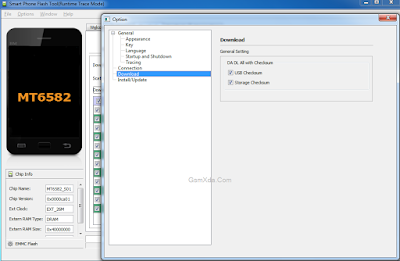
- Go to Option Menu and choose Option, Jump to Download, DA DL All with Checksum and Tick on USB Checksum and Storage Checksum
- Click on Scatter-loading button and choose MT6582_Android_scatter.txt file from Micromax_AQ4501_015550 firmware folder
- Click on Download button or shortcut key F9 from keyboard
- Press and hold Volume Up button and insert usb cable (note: usb socket or keys must be working well)
- If mtk driver installed in your computer or Laptop then starting flash automatically if not install mtk driver then wait until driver install
- You are done from install new os in device
Micromax Canvas A1 AQ4501 Impotent Tick Screenshot:
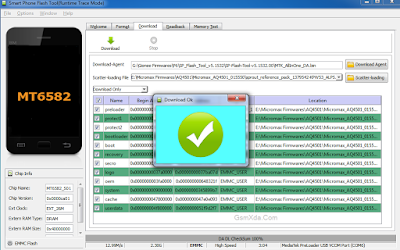
Micromax Canvas A1 AQ4501 Flash done Screenshot:
Available link for download
Subscribe to:
Posts (Atom)