Showing posts with label solution. Show all posts
Showing posts with label solution. Show all posts
Sunday, January 1, 2017
Intex Aqua 4 5E After Flash Dead Solution here tested
Intex Aqua 4 5E After Flash Dead Solution here tested
Hello every one intex aqua 4.5e after flash dead issue ? dont worry here simple solution if you better understand this tutorial because first time i flash device then it dead so i am confuse then i search in internet then i found this solution and i also use this tutorial and i was got success so you can also use this tutorial if your device dead after flash but remember be carefully use i suggest first read carefully full tutorial after following step by step so you fill easy to use, before use some impotent notes first of must be working well micro usb cable, must be working well device or pc usb socket and also must be installed usb drive in computer
This flash file tested by me without any error working well, you can use this flash file when your device hang on logo problem, restarting problem, security lock problem, password lock problem, pattern lock problem etc software related problem and you can use this tutorial without any box and this is free for all who know about software in mobile, impotent for flashing first must check your micro usb cable if not good then you cant flash it so check micro usb cable second check your device battery that is impotent for flashing if your device battery low so stop your device between flash so this is impotent for flash, before you flash save your data like contact, photos, videos etc because this is factory flash file so you cant save after full flash so must remember all are impotent notes.
Download Link
Intex Aqua 4.5E Firmware Download here
preloader_vsun71_e_kk Download here
SP_Flash_Tool_v5.1343.01 Flash tool Download here
Intex Aqua 4.5E Flashing USB Driver Download here
Required for flash:
- Intex Aqua 4.5E device with well battery charged
- Preloader_vsun71_e_kk file
- Android USB Driver
- Micro usb cable
- Computer or Laptop
Procedure:
- Download Intex Aqua 4.5E firmware, Preloader file, SP_Flash_Tool_v5.1343.01 or USB Flashing driver from above link
- Extract to desktop or as you like path (must be installed winrar software in your computer)
- Copy preloader_vsun71_e_kk.bin file
- Open Intex_Aqua_4.5E_V06_Indian_SER firmware folder and Paste Copied file there and do overwrite
- Now SP_Flash_Tool_v5.1343.01 folder and choose flash_tool.exe file and open it
- Click on Scatter-loading button and choose MT6571_Android_scatter.txt file
- Double click on Download button
- Press and hold Volume Up button and insert usb cable
- Wait until driver install, if driver installed in your computer then downloading automatically start
- Wait until full install android os
- Congratulation you are done
Screenshot:


Available link for download

Thursday, November 10, 2016
4 Troublesome Memory Problems and Their Solution
4 Troublesome Memory Problems and Their Solution
Problems related to your computer memory are quite frequent and occurs, either sooner or later. Your computer might become unbootable/inaccessible if memory problem took place. The only thing which makes you happy is, there are several fixes already available to deal with such tragic situations either from Microsoft or from third party sources.
But in some cases, all the possible fixes fail to address these memory errors and you may eventually lose any unsaved data or might not able to access your computer. Probably you’re facing this now and that’s why landed here to get 100% working solution(s), right??
If that’s the case, take a deep breath and carefully read the article. It’ll explain each and everything you need to know about computer memory problems along with working solutions to bring back your PC back again in healthy state as it was before.
Types of memory problems and their possible solutions
If your Windows computer has facing any memory problems, it will detect it automatically and offers subsequent solution such as memory diagnostic tool. If Windows has somehow not detected it, you have to manually find the problem and apply solutions accordingly.
There are some common symptoms mentioned below, that happens only when the error is related to your computer memory:
Problem 1) Strange Behavior
When memory problems strikes, your computer may start behaving abruptly such as sudden system shutdown, freezes, blue screens etc. There are other factors which may also cause this, but digging for memory problems first will save time and efforts.
Solution: Use Memtest86
To test and make sure that the computer has suffering from memory problems, you can use a free memory diagnostic utility, called memtest86 . You’ll need to arrange a different computer other than the one with problems, to create a bootable CD and investigate the errors. This tool require you to shut down the problem computer before it begin analyzing.
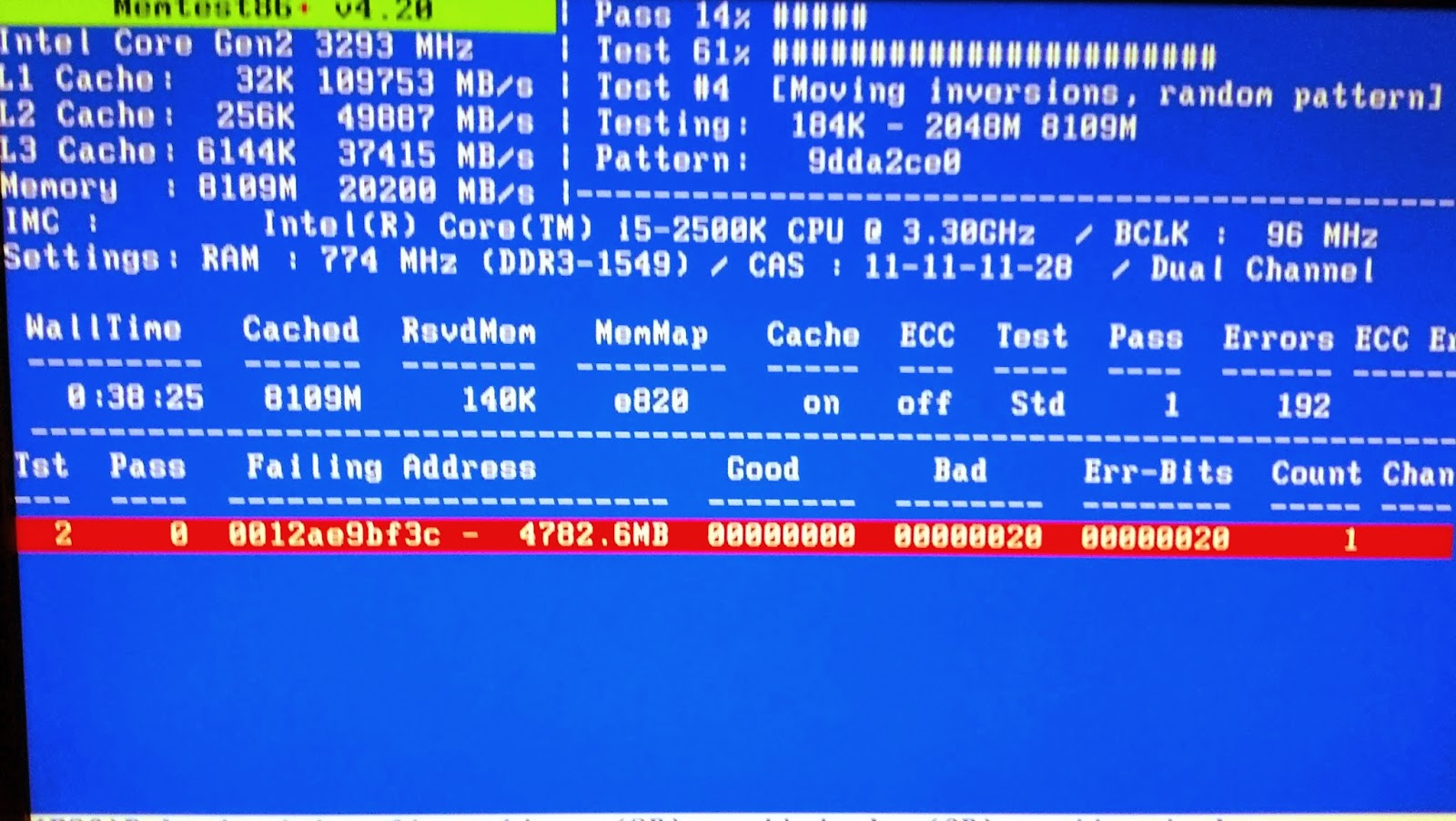
It’ll take some time before finally producing the results. On the result screen, you can see helpful information like the failing address, good & bad memory location, error count etc. If you see some red line highlighted with some information on it, most probably the computer has suffering from serious memory problems and you’ll need to replace either one or both the RAM sticks.
Problem 2) Black Screen
After pressing the power button, the computer not load successfully and may hangs at the black screen just after passing the ‘booting windows’ screen. Highly suspected cause would be faulty or damaged computer memory which prevents Windows to load properly. Other hardware problems such as CPU, motherboard or faulty fan could contribute towards the computer black screen but leaving them for last is recommended.
Solution: Running Inbuilt Memory Diagnostic Tool
This is an inbuilt utility and comes preinstalled with the latest Windows operating system such as Vista, Windows 7 and Windows 8. As soon as you get the memory error notification window, click on any of two available options to check memory problems: Restart now and check for memory problems (recommended) and check for problems the next time I start my computer.
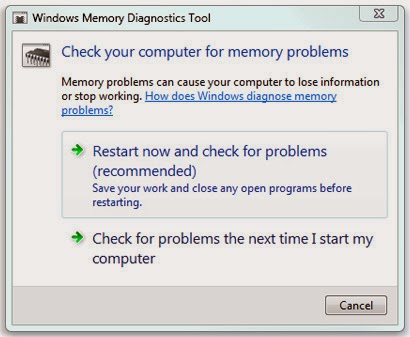
As the name suggest, you can choose to run memory diagnostic immediately or the next time you start your computer. In case you’re running it immediately, make sure you’ve saved all your work and closed all the open programs. Once the scan is completed, the computer will restart automatically and gives you the produced results. If the problem is memory chip related, you’ll need to contact the manufacturer to get it replaced, if it’s in warranty.
There are options to further customize the scanning even further. When the scan starts, Press F1 and adjust the settings for better results:
Test Mix: Basic, standard or extended scan is available. You can choose extended for detailed and thoroughly checking the memory problems.
Cache: choose the desired cache settings such as default. On or off.
Pass Count:You can choose to run this test 3 to 5 times repeatedly. The longer pass count you perform, the better result will produce.
Problem 3) No Lights on the monitor:
After pressing the power button, you can’t see any display on the monitor or the monitor lights keeps blinking for a long time. Moreover, you can’t hear any beep sound that computer does previously. The beep sound normally indicates that the computer is in healthy state and hardware parts are working properly.
Solution: To address this issue, you’ll need to clear the dust inside the CPU case or take off the RAM sticks and clean it. Again reinsert it and see if the computer starts this time. If the problem still persist even after cleaning every bit of dust from the CPU case, it’s better to look out for the other faulty hardware parts.
Problem 4) Faulty RAM Sticks
It might be possible that the any or all of your computer RAM sticks has gone bad and couldn’t be used any longer. Possible causes could be memory overage, faulty RAM sticks delivered from the manufacturer or circuit failure.
Solution: All you can do is to replace the RAM sticks and use a new one. If it’s not in guarantee, you can ask manufacturer for replacement.
There are various other causes responsible for making your computer memory unstable and later make your system completely inaccessible. It has emerged as one of the most troublesome problem and occurs in 67% cases of computer problems. Either you can reset all the memory and start from scratch or can investigate the possible causes and hunt for solutions over here and there.
No matter how serious the memory problem is, you always have risks to lose your valuable data on the system and may go through list of tools to recover data. It’s advisable to take a proper backup copy and update it frequently to always have the latest copy stored so you can never loose even a single piece of data.
Available link for download
Tuesday, September 27, 2016
Micromax Canvas A1 AQ4501 Dead After Flash Solution tested
Micromax Canvas A1 AQ4501 Dead After Flash Solution tested
Micromax Canvas AQ4501 Dead After Flash the Experience was with me, after that was sent to Micromax Care from there it was getting ready but SIM not working in that again i try to flash but same again dead device when I find from the internet this solution and it done without any error all experience post in this post just read carefully after try to following be carefully, before use first carefully read all guide and also prepare required for that if any missing you cant solve, and from this guide you cant save data like contacts, videos, photos, email, notes etc, you can use this flash file when your device hangs on logo problem, restarting problem, security lock problem, password lock problem, pattern lock problem etc software related problem and you can use this tutorial without any box
This flash file tested by me without any error working well, and this is free for all who know about software in mobile, impotent for flashing first must check your micro USB cable if not good then you cant flash it so check micro USB cable second check your device battery that is impotent for flashing if your device battery low so stop your device between flash so this is impotent for flash, before you flash save your data like contact, photos, videos etc because this is factory flash file so you cant save after full flash so must remember all are impotent notes.
First Read After Following:
- You have to charge your battery with any charger and charged it by 70%.
- Your data is very important for you so it is good to do a backup of your data it may consist like your contact details,your important messages, your emails or any other important thing which you feel to be the backup in your device.
- This backup can be done on another device. we have to do the backup because after a format of your device, all your data will be gone and it will not be recovered.
- For backup in other devices you can use other external device like your hard drive, sd card or any other suitable devices.
- If you are doing by your own.do it at your own risk as we dont take any responsibility if your device is damaged
Requirement:
- Micromax Canvas A1 AQ4501 device with good battery charged and do not try with low battery otherwise device will be dead
- Micromax Canvas A1 AQ4501 tested Stock ROM Firmware | Download here
- SP_Flash_Tool_v5.1532 Flash tool | Download here
- Micromax Canvas A1 AQ4501 USB (Flashing) Driver | Download here
- Micro usb cable must be good quality
- Computer or Laptop
Procedure for Micromax Canvas A1 AQ4501:
- First device check in hardware related issue if hardware issue then after flash done your device will be dead or other issue please carefully use
- Download Micromax Canvas A1 AQ4501 tested firmware or download tested SP_Flash_Tool_v5.1532 flash tool from above link
- UnZip of both file from winrar to desktop or as you like path must be installed WinRAR or WinZip without that you cant extract
- Open SP_Flash_Tool_v5.1532 folder and choose flash_tool.exe file and open it
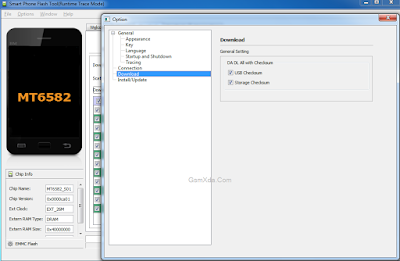
- Go to Option Menu and choose Option, Jump to Download, DA DL All with Checksum and Tick on USB Checksum and Storage Checksum
- Click on Scatter-loading button and choose MT6582_Android_scatter.txt file from Micromax_AQ4501_015550 firmware folder
- Click on Download button or shortcut key F9 from keyboard
- Press and hold Volume Up button and insert usb cable (note: usb socket or keys must be working well)
- If mtk driver installed in your computer or Laptop then starting flash automatically if not install mtk driver then wait until driver install
- You are done from install new os in device
Micromax Canvas A1 AQ4501 Impotent Tick Screenshot:
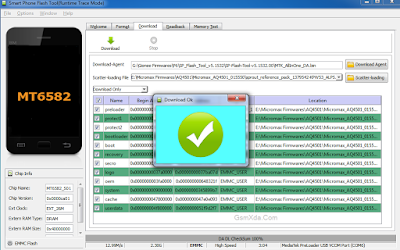
Micromax Canvas A1 AQ4501 Flash done Screenshot:
Available link for download
Tuesday, September 6, 2016
Lenovo A369i Dead After Flash Solution without any box tested
Lenovo A369i Dead After Flash Solution without any box tested
Some time what happen with software technician when try different version flash then device dead or other issue in software related so this experienced with me i was try with different version then device was dead so find in internet for perfect file or solution then i found one file its just showing video and there was write of after dead done so i downloaded this flash file and i try then was success without any error but i lost imei number so that issue if you use this tutorial, remember before use this method take backup all type like contacts, notes, messages, email etc because this all are properly format so you cant save any data which mention above and also must working well which required in this post if any not working then you cant following this method this tutorial not only dead solution but you can done many problem of solution related check below description about firmware this also most impotent please carefully read.
This flash file tested by me without any error working well, you can use this flash file when your device hang on logo problem, restarting problem, security lock problem, password lock problem, pattern lock problem etc software related problem and you can use this tutorial without any box and this is free for all who know about software in mobile, impotent for flashing first must check your micro usb cable if not good then you cant flash it so check micro usb cable second check your device battery that is impotent for flashing if your device battery low so stop your device between flash so this is impotent for flash, before you flash save your data like contact, photos, videos etc because this is factory flash file so you cant save after full flash so must remember all are impotent notes.
Download Link
Lenovo A369i Dead Solution Stock Rom Download here
Lenovo A369i SP Flash tool Download here
Lenovo A369i USB Driver Download here
Required for Solution:
1. Lenovo A369i phone with good battery charged
2. Lenovo A369i Stock Rom Firmware
3. Lenovo A369i Flash tool
4. Lenovo A369i USB Driver
5. Micro usb cable
6. Computer or Laptop
Procedure for Dead Recover:
1. First need files download from above link (if link broke just leave your comment)
2. Extract to desktop or as you like path (must be installed winzip)
3. Open SP Flash tool folder and choose flash_too.exe file and open it
4. Click on Scatter-loading button and choose MT6572_Android_scatter.txt file from target_bin folder
5. Now click on Download button and Press and hold Volume Up button and insert usb cable
6. After insert usb cable show message of install new hardware found then update driver link are above
7. After installed driver then process start automatically then wait until full process
8. Do not try unplug while device in flashing mode
9. Congratulation you are done

2. Extract to desktop or as you like path (must be installed winzip)
3. Open SP Flash tool folder and choose flash_too.exe file and open it
4. Click on Scatter-loading button and choose MT6572_Android_scatter.txt file from target_bin folder
5. Now click on Download button and Press and hold Volume Up button and insert usb cable
6. After insert usb cable show message of install new hardware found then update driver link are above
7. After installed driver then process start automatically then wait until full process
8. Do not try unplug while device in flashing mode
9. Congratulation you are done
Lenovo A369i Dead Recover Screenshot:
Available link for download
Sunday, September 4, 2016
3 Major Problems Related to Windows Update and Their Relevant Solution – Windows 8
3 Major Problems Related to Windows Update and Their Relevant Solution – Windows 8
Microsoft releases updates and security patches for your Windows system to ensure its smooth functioning and protection against various type of Trojan and malware. Depending upon the settings you choose, Windows can install crucial updates automatically or you can manually start the process and then let the computer install updates for you.
P.S. Microsoft released critical updates on every second and fourth Tuesday of every month.
There are mainly three type of Windows updates provided from Microsoft, based upon their importance:
Important: Such updates are important for keeping your system safe and reliable, covering all your safety and privacy concerns.
Recommended: It is important to update installed software and drivers from time to time to achieve best performance out of your system. Recommended updates will be provided with important updates which generally download and install updates for the running programs.
Optional: These are the updates about new or trail Microsoft software which you may able to install manually.
On the darkest side, if you don’t install these updates daily or weekly (at least), your system may starts freezing, crashing or suddenly becomes inaccessible. In worst cases, user may not able to access the stored hard drive data and the only way out to recover data is by using inaccessible data recovery software.
However, there are some common problems related to Windows updates which may leave your system in unbootable state. Let us understand the problems with such updates along with subsequent troubleshooting steps to make your system working again.
System become inaccessible after installing updates
In some cases, after installing one or two updates and security patches from Microsoft, the system was not able to start successfully and give error messages like Blue screen of death, failed start loop, stuck at booting screen etc. You’ll need to double check and ensure that the problem is surfaced after the update installation took place and you haven’t done anything else that causes system inaccessibility.

Older version of Windows such as Windows 7, Vista and XP comes with an option to start system with previously loaded system files and drivers, known as “Last Known Good Configuration”. You can use this option by continuously tapping F8 just after starting your system which will takes you to the advanced system startup options. In case you’re using Windows 8, try reset or refresh option on your computer.
Windows 7 offers various other useful tools to fix unbootable computer like startup repair, system image recovery or system restore. You can apply any or all the option and check if you may able to get into Windows once again. Once you able to access your system, you may perhaps want to look for the culprit and uninstall it if it were still there:
Under ‘Control Panel’ option, click ‘Programs’ and then click on ‘View Installed updates’ option under ‘Programs and Features’ tab. Select the update that you want to remove and click on ‘Uninstall’ option to begin removing that particular update. If you want to remove any recently installed updates, check out their details like date and time, update name and related services or programs.
System give freezes after installing updates
After installing recently available updates, you couldn’t able to access program, play music or simply turn it off. System does nothing except to stay there forever.

These are the security updates released for keeping your files and folders safe and prevent viruses to steal confidential data. The problem surfaced when updates were not fully installed or stuck at mid of installation and therefore hamper performance of other important system files use to boot and perform read/write operation.
Once you are at mid of such tragic circumstances and puzzled could save you from this, run your system using clean boot mode. Clean boot is a special technique to start system with minimal set of drivers and programs so could you find the culprit driver or programs and later able to start your system.
USB Device not working after installing update
Microsoft sometime releases updates for your USB ports to ensure faster and reliable performance for various type of USB Devices. These update also helps your computer in easily reading the stored content and alarms if there is any suspicious files trying to interrupt performance of your computer.

On the other hand, sometime these updates make your system unable to detect USB devices. Moreover, it’ll make your system to freeze or hang as soon as you connect the USB device on your system. There is a special case that I’ve found where Windows 8 computer stop reading any USB device after installing update: KB2756872. Follow the steps mentioned below to free yourself from such problems:
- Restart your computer and switch to BIOS settings.
- Go to Advanced mode > USB Configuration.
- Find option ‘USB Legacy support’ and ‘USB3.0 Legacy support’ and make it disabled.
- Press F10 to save changes and exit from the BIOS.
- Again, restart your computer.
- Go to control panel > windows update and locate the recently installed updates after which, this all started happening.
- Remove that updates and restart computer back again.
- Again, in BIOS settings mode, set both the options to enable back again which we had previously set to disabled: USB Legacy Support & USB3.0 Legacy Support.
- Save and exit from the BIOS by pressing F10 and hitting enter.
Most probably, you may now able to access USB storage device and its stored content with absolutely no problem at all.
Available link for download
Friday, September 2, 2016
Redmi 2 Model 2014818 Flash done OR After Flash Hang on Logo Solution Tested
Redmi 2 Model 2014818 Flash done OR After Flash Hang on Logo Solution Tested

This device in issue of hang on logo not ahead after full flashing i was different Stock Rom firmware use for flashing but no success so i search in internet for that solution and i found one but i dont sure about new solution but i understand just try and what happen using new found solution just unbeliever just few second done that really awesome for solution no need to flash no need new firmware download just connect device with fastboot mode and just run command in command prompt so if you some time will got solution just try and you will to be better but remember before use check below comment this new solution working well or not after try in flash some time dont show below comment and i try then device will dead or other issue so first read all are content after try step by step solution here some few description about firmware just see below
This flash file tested by me without any error working well, you can use this flash file when your device hang on logo problem, restarting problem, security lock problem, password lock problem, pattern lock problem etc software related problem and you can use this tutorial without any box and this is free for all who know about software in mobile, impotent for flashing first must check your micro usb cable if not good then you cant flash it so check micro usb cable second check your device battery that is impotent for flashing if your device battery low so stop your device between flash so this is impotent for flash, before you flash save your data like contact, photos, videos etc because this is factory flash file so you cant save after full flash so must remember all are impotent notes.
Download Link
(Tested) Xiaomi 2014818 Stock ROM Download HERE
Xiaomi 2014818 MiFlash tool Download HERE
Xiaomi 2014818 USB Flashing Driver Download HERE
Required for flash:
- Xiaomi 2014818 device with good battery charged
- Xiaomi 2014818 tested firmware
- MiFlash tool
- Xiaomi 2014818 usb flashing driver
- Micro usb cable
- Computer or Laptop
Procedure:
- Take tested Stock ROM firmware from above link (plz if link dead just leave your comment)
- Go to Firmware winrar and please rename to .tgz, if is .gz or tar
- Extract to desktop both winrar (Note : Must your firmware folder in desktop)
- Open Mi folder and choose MiFlash.exe file and open it
- Click on Browse button and choose firmware folder who in desktop (see below image)

- Click on Point button near browse button and choose Advance option (see below image)

- Choose Browse.. button to FastBoot scripts and choose flash_all_except_data_storage.bat file from desktop firmware folder (see below image)

- Turn off device, Press the Volume Down + Power keys same time for enter Fastboot mode

- Attach Micro usb cable and click on Refresh button in flash tool (for device detect or not)
- If device detect with flash tool then click on Flash button
- Wait until driver install, if driver installed in computer or laptop then downloading automatically start
- Wait until full flash device
- Congratulation you are done
Redmi 2 Model 2014818 Flash done Screenshot:

Redmi 2 Model 2014818 Flash done Video
How to Solve After Hang on Logo device ?
- Turn off device and take out battery into device
- Insert battery into device
- Press the Volume Down + Power keys same time for enter Fastboot mode
- Insert usb cable into device
- Go to C:Program FilesMi Flash toolGoogleAndroid
- Press SHIFT Key and Right click and choose open command window here
- Type : fastboot -w and Hit Enter key
- Type : fastboot reboot and Hit Enter key
- Congratulation you are done
Redmi 2 Model 2014818 Hang on logo Video done
Note : if any query using this tutorial just leave your comment i will soon reply.
Available link for download
Subscribe to:
Posts (Atom)