Showing posts with label flashing. Show all posts
Showing posts with label flashing. Show all posts
Tuesday, February 28, 2017
Micromax Canvas A110 Hang On Logo done Without Flashing tested
Micromax Canvas A110 Hang On Logo done Without Flashing tested
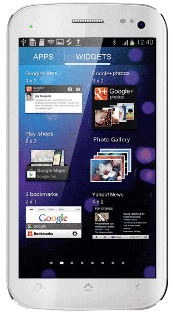
Some time in device hang on logo problem so how to solve without flashing ? in this tutorial simple method if you have chines boxes here tutorial with Miracle box but you can use any other chines box for this solution and this tutorial not only for hang on logo but you can use any software related issue like hang on logo, restarting problem, dead problem, security code if you forgot, patter lock etc you can use this tutorial but remember before using this tutorial first of read all tutorial carefully so you can easy solve about software related issue and most impotent of must be working well micro usb cable if any problem in your micro usb cable then you cant solve that also check MTK android usb driver this must be installed in your computer or laptop without driver you cant solve problem also check your device usb socket if not working you also not solve problem without device usb socket so must be working well all type which for need solution
Download Link
Micromax Canvas A110 Android USB Driver Download here
Whats need to solution ?
1. Micromax Canvas A110 device or MT6577 CPU device
2. Micromax Canvas A110 USB Driver
3. Miracle box or Other Chines boxes you can use
4. Computer or Laptop
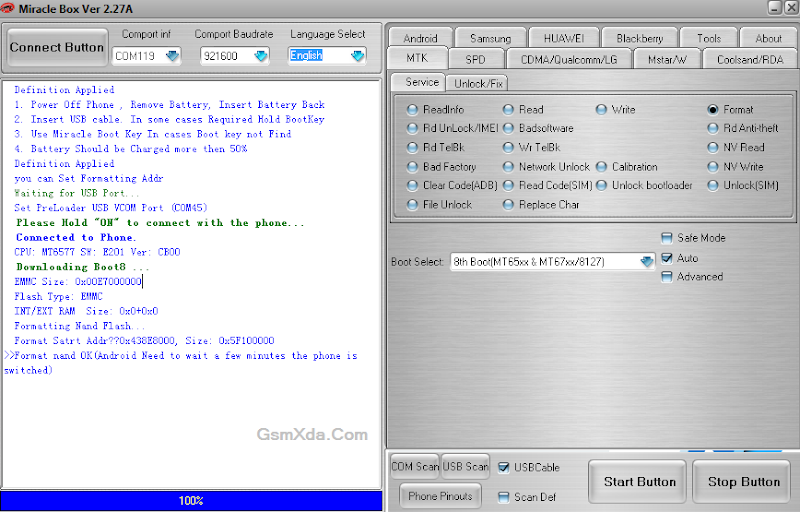
2. Go to MTK / Service tab
3. Select Format Option
4. Untick on Safe Mode Option tick on Auto Option
5. Choose Boot : 8th Boot(MT65xx & MT67XX/8127)
6. Tick on USBCable option
7. Now last click on Start button
8. Press and hold Volume up button and insert usb cable
9. Wait until driver install, if driver not installed then you can update from above link
10. Wait until full process
11. Congratulation you are done
2. Micromax Canvas A110 USB Driver
3. Miracle box or Other Chines boxes you can use
4. Computer or Laptop
How to Solve ?
1. Open Miracle box2. Go to MTK / Service tab
3. Select Format Option
4. Untick on Safe Mode Option tick on Auto Option
5. Choose Boot : 8th Boot(MT65xx & MT67XX/8127)
6. Tick on USBCable option
7. Now last click on Start button
8. Press and hold Volume up button and insert usb cable
9. Wait until driver install, if driver not installed then you can update from above link
10. Wait until full process
11. Congratulation you are done
Screenshot:
Micromax Canvas A110 Hang On Logo done Without Flashing Video HERE
Available link for download

Tuesday, February 14, 2017
Tutorial Flashing Samsung Galaxy Menggunakan Odin
Tutorial Flashing Samsung Galaxy Menggunakan Odin

Nah,Jadi saya sarankan sebelum melakukan flashing di HP Samsung Android kesayangan anda sebaiknya di backup dulu No imei agan.
Langsung Simak Persiapan dan Langkah-langkahnya :
Download dulu bahan :
1. Laptop/PC2. Samsung Kies, download => Samsung Driver Pack.3.Download => Odin4. Kabel USB5 => Stock RomSekarang kita masuk ke tahap Instalasinya :
1. Kalau Ponsel masih bisa menyala backup dulu data anda.
2. Batery diatas 80%
3. Install Samsung Kies / Samsung Driver Pack & di Laptop/PC.
4. Ekstrack file stock rom, dan anda akan mendapat 3 file .tar
5. Matikan Samsung Galaxy Y.
6. Sekarang Masuk ke Download Mode ( caranya tekan tombol power + home + volume down secara bersamaan sampai logo Y menyala )
7. Jika muncul layar peringatan tekan volume up.
8. Sekarang Hubungkan Samsung Galaxy Y ke Laptop/PC menggunakan kabel USB.
9. Buka Aplikasi Odin.
10. Pastikan ponsel anda sudah ke detect oleh odin, dan dikotak pesan pertama ada tulisan added dan ID:COM sudah terblok warna kuning, seperti gambar

11. Masukkan file .tar seperti berikut :
PDA : PDA_xxx.tarPHONE : MODEM_xxx.tarCSC : CSC_xxx.tarNOTE: Isi tergantung dengan firmware yang anda download tadi. dan biarkan kolom pit dan bootloader kosong.
12. Pastikan semua file sudah terisi dengan benar dan centang auto reboot dan F.Reset Time, yang lain biarkan tidak tercentang.
13. Jika sudah yakin semua benar, sekarang klik START dan tunggu sampai ada tulisan PASS warna hijau di pojok kiri atas, seperti gambar
14. Kemudian Samsung Galaxy Y akan me-reboot otomatis, kemudian tutup aplikasi odin dan cabut kabel USB.
15. SELESAI.
Jika Terjebak Misalnya Bootloop, lakukan cara berikut:
1. Cabut Batery
2. Re-insert battery
3. Masuk recovery mode ( tekan tombol power + home + volume up secara bersamaan sampai logo Y muncul )
4. Gunakan tombol volume up/down untuk berpindah menu dan gunakan tombol home untuk masuk ke menu/OK.
5. Kemudian pilih wipe data / factory reset, lalu pilih yes.
6. Pilih reboot system now.
Sekian duluTutorial Flashing Samsung Galaxy Menggunakan Odin semoga bermanfaat.
Available link for download
Tuesday, January 24, 2017
Samsung Metro 312 SM B312E Easy Way For Flashing without any Box
Samsung Metro 312 SM B312E Easy Way For Flashing without any Box
This flashing procedure tested by me without any problem just mention in required for everyone one who use this tutorial this tutorial many usefully for this device like hang on logo, restarting issue, dead issue in dead required for detect device if not detect then you cant flash it and sim lock issue, phone lock problem this any type software related issue then you can use this tutorial and good news which one this tutorial use without any box just download required for flash and following this tutorial step by step and done before use this tutorial first carefully read all tutorial because for easy to flash if and problem using this tutorial just leave your comment on below comment box and we are good reply soon and we are hope everyone better done this job and we are try to easy write content for everyone who working software related or non software related user also understand english or non understand english see blow description about flash file or tool.
This flash file or tool working better, and remember before use this tutorial must take data if your device live condition data like contacts, notes, messages, photos, videos because is use this flash file or flash tool then you cant save data because this is flash with factory reset so carefully also focus in required if any problem in required then you cant upgrade device like micro usb cable in this cable what happen ? device detect but show messages of usb not recognized so this problem in both first of micro usb cable and second of battery low, device not detect ? why if in device usb socket any line broke then your device not detect with computer or laptop so finally you cant flash, if not installed driver in your computer or laptop then you cant upgrade phone i means this is impotent for flashing so carefully read all are tutorial after try in step by step now lets see how to flash Samsung Metro 312 SM-B312E with Flash tool.
Download Links
Samsung Metro 312 SM-B312E Flash file Download BIN | CSC
Samsung Metro 312 SM-B312E Flash tool Download here
Samsung Metro 312 SM-B312E USB Driver Download here
Whats Need for Flashing ?
- Samsung B312E device
- B312EJPNF1_BIN Flash file
- B312EOJPNF1_CSC Flash file
- Flash tool
- Samsung B312E USB Flashing Driver
- Computer or laptop
How to Flash ?
- First download all are required from above link (if link broke or dead just leave your comment)
- Must be installed winrar software in your computer for Extact file from winrar or Zip
- Extract to desktop or as you like path
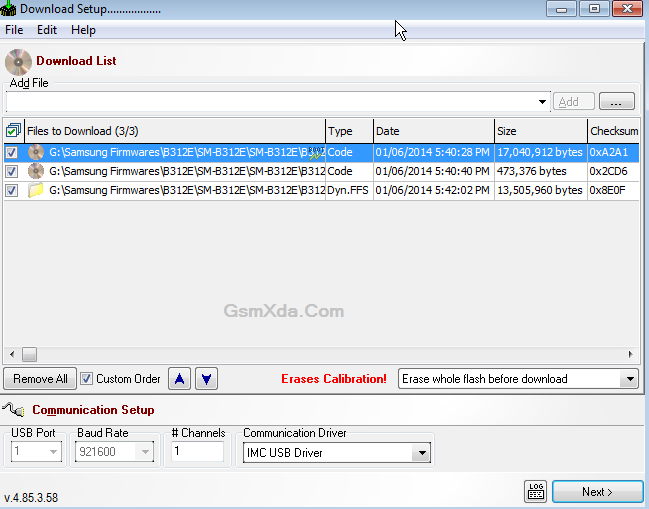
- Open New_FlashTool_E2 folder and choose FlashTool_E2.exe file and open it
- Click on Add File button and choose B312EJPNF1_BSY.fls file
- Again click on Add File button and choose B312EJPNF1_CDS.fls file
- Click again on Add File button and last choose B312EOJPNF1_CSC.dffs file
- Click on NEXT button
- Again Click on Start USB1 button
- Press and hold Center key and Insert usb cable
- Wait for driver install, if driver not installed in your computer then update from above links driver
- Wait until full flash phone (do not unplug while device in flashing mode)
- Congratulation you are done
File Add in Flash tool Screenshot:
Samsung B312E Flash done Screenshot:
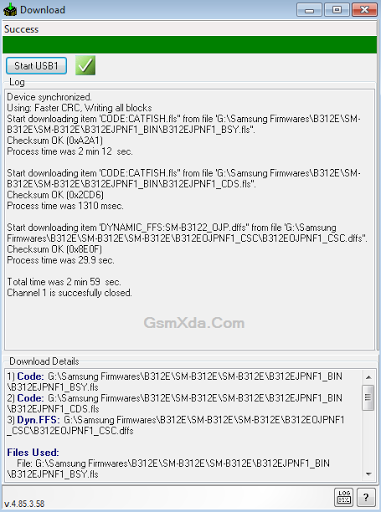
Samsung B312E Flash done with Flash tool
Available link for download
Sunday, January 1, 2017
Nokia 110 USB Cable Flashing Driver For Windows Free Download
Nokia 110 USB Cable Flashing Driver For Windows Free Download
 Connect your Nokia 110 with your computer easily after installing the USB driver on your windows operating system. Nokia 110 USB flashing driver driver is provided at the bottom of this post to download for free. You can get your driver by just following the provided download link location below. Download the driver and install it on your PC windows to connect your phone. USB driver is most perfect and legal thing that connects the mobile phone devices to the computers easily. Flash your Nokia 110 by installing this driver on your windows. Nokia 110 is the simple device brand is manufactured by Nokia corporation. Its perfect to daily use at our home. So, whenever it is going to slow then you are looking for flash your phone. So, first of all, download the USB driver for your windows from here provided download link and then install it. Connect your phone via a compatible USB cable connection.
Description: Nokia 110 USB Driver Download Free
Supporting OS: Windows Xp, 7, 8 and Vista (32-Bit or 64-Bit)
Download Driver
Available link for download
Subscribe to:
Posts (Atom)