Showing posts with label hang. Show all posts
Showing posts with label hang. Show all posts
Tuesday, February 28, 2017
Micromax Canvas A110 Hang On Logo done Without Flashing tested
Micromax Canvas A110 Hang On Logo done Without Flashing tested

Some time in device hang on logo problem so how to solve without flashing ? in this tutorial simple method if you have chines boxes here tutorial with Miracle box but you can use any other chines box for this solution and this tutorial not only for hang on logo but you can use any software related issue like hang on logo, restarting problem, dead problem, security code if you forgot, patter lock etc you can use this tutorial but remember before using this tutorial first of read all tutorial carefully so you can easy solve about software related issue and most impotent of must be working well micro usb cable if any problem in your micro usb cable then you cant solve that also check MTK android usb driver this must be installed in your computer or laptop without driver you cant solve problem also check your device usb socket if not working you also not solve problem without device usb socket so must be working well all type which for need solution
Download Link
Micromax Canvas A110 Android USB Driver Download here
Whats need to solution ?
1. Micromax Canvas A110 device or MT6577 CPU device
2. Micromax Canvas A110 USB Driver
3. Miracle box or Other Chines boxes you can use
4. Computer or Laptop
2. Go to MTK / Service tab
3. Select Format Option
4. Untick on Safe Mode Option tick on Auto Option
5. Choose Boot : 8th Boot(MT65xx & MT67XX/8127)
6. Tick on USBCable option
7. Now last click on Start button
8. Press and hold Volume up button and insert usb cable
9. Wait until driver install, if driver not installed then you can update from above link
10. Wait until full process
11. Congratulation you are done
2. Micromax Canvas A110 USB Driver
3. Miracle box or Other Chines boxes you can use
4. Computer or Laptop
How to Solve ?
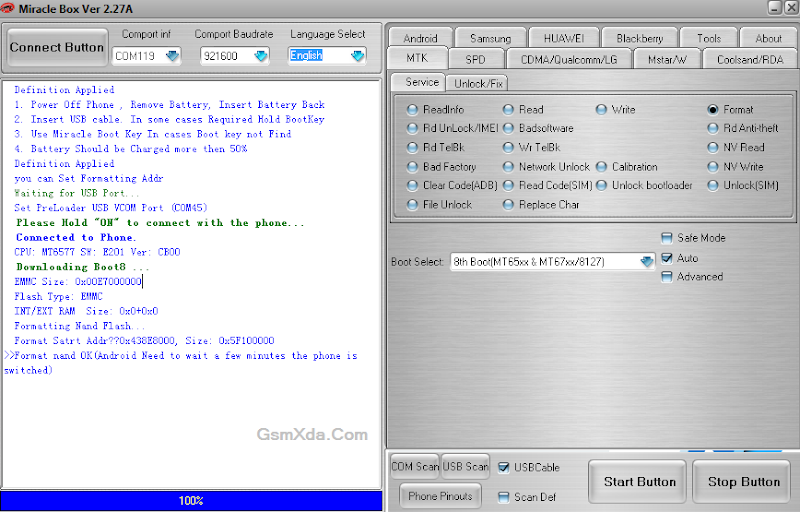
1. Open Miracle box2. Go to MTK / Service tab
3. Select Format Option
4. Untick on Safe Mode Option tick on Auto Option
5. Choose Boot : 8th Boot(MT65xx & MT67XX/8127)
6. Tick on USBCable option
7. Now last click on Start button
8. Press and hold Volume up button and insert usb cable
9. Wait until driver install, if driver not installed then you can update from above link
10. Wait until full process
11. Congratulation you are done
Screenshot:
Micromax Canvas A110 Hang On Logo done Without Flashing Video HERE
Available link for download

Saturday, February 25, 2017
CARA MENGATASI ADVAN YANG NGEBLENG HANG
CARA MENGATASI ADVAN YANG NGEBLENG HANG

SOLUSINYA:
- Biarkan posisi tablet tertancap/charge ke listrik.
- Tekan dan tahan tombol reset yang terletak di sampingnya menggunakan ujung pena atau sejenisnya,{ lubang kecil posisi disamping dekat power }
- Lepaskan tombol reset saat tablet bergetar.
- Tunggu beberapa detik dan ,jreng..jreeeeng tablet kembali menyala
Catatan :
Untuk sumua tipe Tablet Advan, hampir sama semua kelemahanya. Untuk riset hati-hati jangan salah lubang. Gunakan jarum atau penitih,tusuk lubang hingga terasa ada tekanan balik dari dalam lalu lepaskan (hati-hati jangan terlalu keras pakai perasaan ya ..) ulangi terus sampai berhasil. Posisi menekan jangan miring,rasakan bila ditekan terasa seperti per lalu lepas. Ingat Tab advan dalam keadaan di charger.
Solusi selanjutnya jika Advan agan tidak ada lubang resetnya dan yang ada ternyata lubang Mix.
Cara Reset atau Factory Reset Tablet Advan Vandroid dengan Cara ini bisa mengatasi Hp Advan yang tidak bisa masuk ke menu tampilan atau Hang, Bootloop, Hp Advan yang terkunci karena salah kode pola, Gmail dan sebagainya.
- Pastikan daya baterai Tablet Advan Vandroid masih mencukupi.
- Matikan Tablet Advan Vandroid
- Tekan dan tahan Tombol Volume Up + Tombol Power secara bersamaan sampai muncul Robot android hijau dan lepas kedua tombol tersebut.
- Tekan tombol power ontuk masuk ke menu System Cwm Recovery.
- Tekan tombol volume sampai di wipe data/factory reset. ( Naik turun tekan Volume down dan untuk enter tekan volume Up ) biasanya tekan tombol power untuk memilih untuk advan lama.
- Selanjutnya pilih yes - delete all user data, dan Tunggu sampai selesai Tablet Advan Vandroid melakukan Reset data....
- Terakhir pilih Reboot systeam now.
- Tunggu sampai Tablet Advan Vandroid anda selesai restart
- dan SELESAI
Baca juga: Cara mengatasi Advan S4a yang Bootloop atau Gagal Booting
Available link for download
Wednesday, February 1, 2017
Intex Aqua Glam Hang on Logo or Flash done with SP Flash tool tested
Intex Aqua Glam Hang on Logo or Flash done with SP Flash tool tested
This handset in hang on logo problem when I was check sometimes try to write just user data file device will start normal means solution of hang on logo this way not only hang on logo solution but you can use when your device in pattern lock, screen lock or other software related issue you will easy done using this tutorial before use this way you should mention requirement option because if any not working of requirement then you cant flash it this is impotent of this solution way I suggest everyone who use this tutorial first carefully read all content after following step by step lets see below description about stock ROM firmware.
This flash file tested by me without any error working well, you can use this flash file when your device hangs on logo problem, restarting problem, security lock problem, password lock problem, pattern lock problem etc software related problem and you can use this tutorial without any box and this is free for all who know about software in mobile, impotent for flashing first must check your micro USB cable if not good then you cant flash it so check micro USB cable second check your device battery that is impotent for flashing if your device battery low so stop your device between flash so this is impotent for flash, before you flash save your data like contact, photos, videos etc because this is factory flash file so you cant save after full flash so must remember all are impotent notes.
Download Link
Intex Aqua Glam Stock Rom Firmware Download here
Intex Aqua Glam Flash tool Download here
Intex Aqua Glam USB (Flashing) Driver Download here
Requirement:
1. Intex Aqua Glam handset2. Intex Aqua Glam Stock Rom Firmware
3. Intex Aqua Glam Flash tool
4. Intex Aqua Glam USB Driver
5. Micro USB cable
6. Computer or Laptop
Method:
1. Download requirement from above link (if link dead just leave your comment)2. Unzip file from WinZip to desktop or as you like path (must be installed WinRAR)
3. Open SP Flash tool folder and choose flash_tool.exe file and open it
4. Click on Scatter-loading button and choose MT6580_Android_scatter.txt file
5. Wait until stock ROM firmware checksum process
6. Now click on Download button
7. Attach USB Cable into device (if not detect device then Press and hold Volume Up button)
8. Wait until driver installing automatically if not installed driver just update from above link driver
9. After detect device start process automatically and wait until full process
10. Do not disconnect while device in flashing mode
11. Congratulation I wish you are done
Intex Aqua Glam Hang on Logo done Screenshot:

Available link for download
Friday, September 2, 2016
Redmi 2 Model 2014818 Flash done OR After Flash Hang on Logo Solution Tested
Redmi 2 Model 2014818 Flash done OR After Flash Hang on Logo Solution Tested

This device in issue of hang on logo not ahead after full flashing i was different Stock Rom firmware use for flashing but no success so i search in internet for that solution and i found one but i dont sure about new solution but i understand just try and what happen using new found solution just unbeliever just few second done that really awesome for solution no need to flash no need new firmware download just connect device with fastboot mode and just run command in command prompt so if you some time will got solution just try and you will to be better but remember before use check below comment this new solution working well or not after try in flash some time dont show below comment and i try then device will dead or other issue so first read all are content after try step by step solution here some few description about firmware just see below
This flash file tested by me without any error working well, you can use this flash file when your device hang on logo problem, restarting problem, security lock problem, password lock problem, pattern lock problem etc software related problem and you can use this tutorial without any box and this is free for all who know about software in mobile, impotent for flashing first must check your micro usb cable if not good then you cant flash it so check micro usb cable second check your device battery that is impotent for flashing if your device battery low so stop your device between flash so this is impotent for flash, before you flash save your data like contact, photos, videos etc because this is factory flash file so you cant save after full flash so must remember all are impotent notes.
Download Link
(Tested) Xiaomi 2014818 Stock ROM Download HERE
Xiaomi 2014818 MiFlash tool Download HERE
Xiaomi 2014818 USB Flashing Driver Download HERE
Required for flash:
- Xiaomi 2014818 device with good battery charged
- Xiaomi 2014818 tested firmware
- MiFlash tool
- Xiaomi 2014818 usb flashing driver
- Micro usb cable
- Computer or Laptop
Procedure:
- Take tested Stock ROM firmware from above link (plz if link dead just leave your comment)
- Go to Firmware winrar and please rename to .tgz, if is .gz or tar
- Extract to desktop both winrar (Note : Must your firmware folder in desktop)
- Open Mi folder and choose MiFlash.exe file and open it
- Click on Browse button and choose firmware folder who in desktop (see below image)

- Click on Point button near browse button and choose Advance option (see below image)

- Choose Browse.. button to FastBoot scripts and choose flash_all_except_data_storage.bat file from desktop firmware folder (see below image)

- Turn off device, Press the Volume Down + Power keys same time for enter Fastboot mode

- Attach Micro usb cable and click on Refresh button in flash tool (for device detect or not)
- If device detect with flash tool then click on Flash button
- Wait until driver install, if driver installed in computer or laptop then downloading automatically start
- Wait until full flash device
- Congratulation you are done
Redmi 2 Model 2014818 Flash done Screenshot:

Redmi 2 Model 2014818 Flash done Video
How to Solve After Hang on Logo device ?
- Turn off device and take out battery into device
- Insert battery into device
- Press the Volume Down + Power keys same time for enter Fastboot mode
- Insert usb cable into device
- Go to C:Program FilesMi Flash toolGoogleAndroid
- Press SHIFT Key and Right click and choose open command window here
- Type : fastboot -w and Hit Enter key
- Type : fastboot reboot and Hit Enter key
- Congratulation you are done
Redmi 2 Model 2014818 Hang on logo Video done
Note : if any query using this tutorial just leave your comment i will soon reply.
Available link for download
Subscribe to:
Posts (Atom)