Showing posts with label know. Show all posts
Showing posts with label know. Show all posts
Wednesday, March 22, 2017
Know all the Windows Server 2008 Command Line Tools
Know all the Windows Server 2008 Command Line Tools
Windows Server 2008 provides the user with the option to execute commands from a command-prompt window. This chapter of Windows Server 2008 Essentials is intended to provide an overview of the different commands currently provided in the command-prompt.
Command Line Tools Summary
Command | Description |
| Arp | Display and modify the IP to physical address translation tables used by the Address Resolution Protocol (ARP). |
| Assoc | Display and modify file extension associations. |
| Attrib | Display and change file attributes. |
| Break | Configure extended Ctrl-C checking. |
| Bcdedit | Configure properties in name database to control boot loading. |
| Cacls | Display or modify access control lists of files. |
| Call | Call a script or script label as a procedure. |
| CD/Chdir | Display the name of or changes the current directory. |
| Chcp | Display or set the active code page number. |
| Chkdsk | Check a disk for errors and display a report. |
| Chkntfs | Display the status of volumes. Set or exclude volumes from automatic system checking during system boot. |
| Choice | Create a selection list from which users can select a choice in batch scripts. |
| Cls | Clear the console window. |
| Cmd | Start a new instance of the Windows command shell. |
| Color | Set the colors of the command-shell window. |
| Comp | Compare the contents of two files or sets of files. |
| Compact | Display or modify the compression of files or sets of files. |
| Convert | Convert FAT volumes to NTFS. |
| Copy | Copy or combine files. |
| Date | Display or set the system date. |
| Del | Delete one or more files. |
| Dir | Display a list of files and subdirectories within a directory. |
| Diskcomp | Compare the contents of two floppy disks. |
| Diskcopy | Copy the contents of one floppy disk to another. |
| Diskpart | Invoke a text-mode command interpreter so that you can manage disks, partitions, and volumes using a separate command prompt and commands that are internal to Diskpart. |
| Doskey | Edit command lines, recall Windows commands, and create macros. |
| Driverquery | Display the current device driver properties and status. |
| Echo | Display messages, or turns command echoing on or off. |
| Endlocal | End localization of environment changes in a batch file. |
| Erase | See Del. |
| Exit | Exit the command interpreter. |
| Expand | Uncompress files. |
| FC | Compare two files and display the differences between them. |
| Find/Findstr | Search for a text string in files. |
| For | Run a specified command for each file in a set of files. |
| Format | Format a floppy disk or hard drive. |
| Fsutil | File system utility - displays and configures file system properties. |
| Ftp | Transfer files. |
| Ftype | Display or modify file types used in file extension associations |
| Goto | Direct the Windows command interpreter to a labeled line in a script. |
| Gpresult | Display Group Policy information for a machine or user. |
| Graftabl | Enable Windows to display extended character sets in graphics mode. |
| Help | Display Help information for Windows commands. |
| Hostname | Display the computer name. |
| ICACLS | Display, modify, backup, and restore ACLs for files and directories. |
| IF | Perform conditional processing in batch programs. |
| Ipconfig | Display TCP/IP configuration. |
| Label | Create, change, or delete the volume label of a disk. |
| Md/Mkdir | Create a directory or subdirectory. |
| Mklink | Create symbolic and hard links. |
| Mode | Configure a system device. |
| More | Display output one screen at a time. |
| Mountvol | Manage a volume mount point. |
| Move | Move files from one directory to another directory on the same drive. |
| Openfiles | Display files opened by remote users for a file share. |
| Nbtstat | Display status of NetBIOS. |
| Net Accounts | Manage user account and password policies. |
| Net Computer | Add or remove computers from a domain. |
| Net ConfigServer | Display or modify configuration of Server service. |
| Net Config Workstation | Display or modify configuration of Workstation service. |
| Net Continue | Resume a paused service. |
| Net File | Display or manage open files on a server. |
| Net Group | Display or manage global groups. |
| Net Localgroup | Display or manage local group accounts. |
| Net Pause | Suspend a service. |
| Net Print | Display or manage print jobs and shared queues. |
| Net Session | List or disconnect sessions. |
| Net Share | Display or manage shared printers and directories. |
| Net Start | List or start network services. |
| Net Statistics | Display workstation and server statistics. |
| Net Stop | Stop services. |
| Net Time | Display or synchronize network time. |
| Net Use | Display or manage remote connections. |
| Net User | Display or manage local user accounts. |
| Net View | Display network resources or computers. |
| Netsh | Invoke a separate command prompt that allows you to manage the configuration of various network services on local and remote computers. |
| Netstat | Display status of network connections. |
| Path | Display or set a search path for executable files in the current command window. |
| Pathping | Trace routes and provides packet loss information. |
| Pause | Suspend processing of a script and wait for keyboard input. |
| Ping | Determine if a network connection can be established. |
| Popd | Change to the directory stored by Pushd. |
| Print a text file. | |
| Prompt | Change the Windows command prompt. |
| Pushd | Save the current directory then changes to a new directory. |
| Rd/Rmdir | Remove a directory. |
| Recover | Recover readable information from a bad or defective disk. |
| Reg Add | Add a new subkey or entry to the Registry. |
| Reg Compare | Compare Registry subkeys or entries. |
| Reg Copy | Copy a Registry entry to a specified key path on a local or remote system. |
| Reg Delete | Delete a subkey or entries from the Registry. |
| Reg Query | List the entries under a key and the names of subkeys (if any). |
| Reg Restore | Write saved subkeys and entries back to the Registry. |
| Reg Save | Save a copy of specified subkeys, entries, and values to a file. |
| Regsvr32 | Register and unregister DLLs. |
| Rem | Add comments to scripts. |
| Ren | Rename a file. |
| Replace | Replace a file. |
| Route | Manage network routing tables. |
| Rmdir | Remove a directory. |
| Set | Display or modify Windows environment variables. Also used to evaluate numeric expressions at the command line. |
| Setlocal | Begin localization of environment changes in a batch file. |
| Sc | Display and configure background processes (services). |
| Schtasks | Schedule commands and programs to run on a system. |
| Sfc | Scans and verifies protected operating system files. |
| Shift | Shifts the position of replaceable parameters in scripts. |
| Shutdown | Perform system shutdown. |
| Sort | Sort input. |
| Start | Start a new command-shell window to run a specified program or command. |
| Subst | Maps a path to a drive letter. |
| Systeminfo | Display machine properties and configuration. |
| Tasklist | Display currently running tasks and services. |
| Taskkill | Kill or stop a running process or application. |
| Time | Display or sets the system time. |
| Title | Sets the title for the command-shell window. |
| Tracert | Display the path between computers. |
| Tree | Graphically displays the directory structure of a drive or path. |
| Type | Display the contents of a text file. |
| Ver | Display the Windows version. |
| Verify | Tells Windows whether to verify that your files are written correctly to a disk. |
| Vol | Display a disk volume label and serial number. |
| Xcopy | Copy files and directories. |
| WMI | Display WMI information. |
Available link for download

Thursday, December 15, 2016
Know to enable SSH to an ESXi 5 Host
Know to enable SSH to an ESXi 5 Host
To enable the ESXi Shell from the Direct Console
1 | Access the direct console of the ESXi host, press F2, and provide credentials when prompted. |
2 | Scroll to Troubleshooting Options, and press Enter. |
3 | Select Enable ESXi Shell and press Enter. |
On the left, Enable ESXi Shell changes to Disable ESXi Shell. On the right, ESXi Shell is Disabled changes to ESXi Shell is Enabled.
4 | (Optional) Configure the time-out for the ESXi Shell |
a | Select Modify ESXi Shell timeout and press Enter. |
b | Enter the time-out value in minutes and press Enter. |
5 | Press Esc until you return to the main direct console screen. |
You can enable the ESXi Shell from the vSphere Client.
To enable the local or remote ESXi Shell from the vSphere Client
1 | Select the host, click the Configuration tab, and click Security Profile in the Software panel. |
2 | In the Services section, click Properties. |
3 | Select ESXi Shell and click Options. |
4 | Change the ESXi Shell options. |
? | To temporarily start or stop the service, click the Start or Stop button. |
? | To enable access permanently, click Start and stop with host. The change will take effect the next time you reboot the host. |
5 | Click OK. |
6 | (Optional) Configure the time-out for the ESXi Shell from the vSphere Client. |
a | In the Configuration tab’s Software panel, click Advanced Settings. |
b | In the left panel, click UserVars. |
c | Locate UserVars.ESXiShellTimeOut and enter the timeout value in minutes. |
d | Click OK. |
After you have enabled the ESXi Shell, you can use it from that monitor or through an out-of-band network connection.
Available link for download
Sunday, November 20, 2016
Know to Configuration of Windows 8 Virtual Machine Step By Step guide
Know to Configuration of Windows 8 Virtual Machine Step By Step guide

With the launch of Windows 8s Consumer Preview, youre probably itching to spend some quality time with Microsofts latest operating system. Although you may have already downloaded the ISO, we bet some of you havent decided how youre going to install it.
Considering youve just met, we assume most of you arent ready to clear a dresser drawer for Windows 8. Overwriting your current stable OS with pre-release code could be a recipe for disaster, though at least one TechSpot staffer is taking the plunge.
Dual booting is popular, but in our experience, rebooting into a separate environment is more trouble than its worth when youre just trying to sample beta (err, "preview") software. The same could be said for using the OS on a secondary PC near your primary rig.

This write-up wont have much to offer folks experienced with virtual machines, but many users are still intimidated by them. We hope to demystify the process with a guide that installs a fully functional, commitment-free copy of Windows 8 inside your main OS.
So, what do I need?
Not much! You probably want 1-2GB of RAM and 20-30GB of storage allocated to the Windows 8 VM. You need a processor that supports virtualization (basically any major chip from Intel or AMD released since 2006). In other words, you need a semi-modern PC.Accompanying said hardware, you need to download a copy of Windows 8 (either 32-bit or 64-bit will work fine, but the former calls for half the RAM and 4GB less storage). You also need virtualization software. Were using VirtualBox, a free solution from Oracle.
Got it. Lets do this!
Honestly, by the time youre done, youll probably wonder why you even consulted a walkthrough. Configuring a basic virtual machine is a lot easier than it might seem if youve never done it. Start by clicking New in VirtualBox and click Next on the first prompt.Youll be asked to name your virtual machine. The name is purely for identification purposes, so you know exactly what the machine is later on. Were using Windows 8 CP 64-bit. You also have to choose the OS youre installing (hint: Windows 8 or Windows 8 64-bit).

Assuming this is your first VM youll have to choose "Create new hard disk" on the following screen. In doing so, youll be asked to pick a format. You can leave VDI (VirtualBoxs own format) selected unless you want to run the VM with other virtualization software.

By default, the virtual disk will be created in C:UsersUSERNAMEVirtualBox VMs. If your C: drive is short on space or if you simply want the VM stored elsewhere, you can set it now. My C: drive is an 80GB SSD, so Im creating the virtual disk on a secondary HDD.

Wait. What about Windows 8?
Youre only moments away from installing Windows 8. Right click your new VM and open Settings. In the left column, click Storage > Empty (under IDE Controller) > the CD/DVD icon (under Attributes) > Virtual CD/DVD disk file and navigate to the Windows 8 ISO.

Youll be prompted to set your language, time and currency format, and input method. Youll also have to supply a product key (DNJXJ-7XBW8-2378T-X22TX-BKG7J). Agree to the terms, choose a Custom setup and install Windows 8 to the only unallocated space.

Son of a... this wont work!


Available link for download
Thursday, September 15, 2016
Know to use NSLOOKUP for DNS Server diagnosis
Know to use NSLOOKUP for DNS Server diagnosis
The DNS protocol has been around for decades and is a stable and reliable protocol.Even so, DNS does occasionally have problems. PING is a great tool for DNS serverdiagnosis, and I tend to use it quite frequently myself. However, sometimes PING justdoesn’t give you enough information about the problem at hand. When you need moreinformation about a DNS problem than what PING provides you with, you can alwaysturn to the NSLOOKUP command. In this article, I will show you how to useNSLOOKUP
Download Complete Document Here:
http://www.scribd.com/doc/47721566/Using-NSLOOKUP-for-DNS-Server-Diagnosis
Available link for download
Monday, September 12, 2016
Everything You Need to Know about Hybrid Drives
Everything You Need to Know about Hybrid Drives
We live in the world where our digital stuff gets compact but their capabilities seems improved over a time as well as several advancements were made to make it superior in performance, have high usability and acceptance rate, deliver best value for money etc. Same case were applies to our conventional hard drives which now comes in variety of higher storage capacity and sizes which gets reduced to its lowest, merely 2.5 or 3.5 Inch for Ultrabook or tablet PCs. Many other improvements were made to deliver higher performance rate, reduced time for starting PC or opening applications etc.
One major change took place that is instead of using platter for storing your digital information, many modern drives (commonly known as solid state drives and hybrid hard drives) uses flash chip based storing area, that reduces duration to copy or move data, boot Windows or initialize heavy applications/games.
This all becomes possible only after creating the caching algorithm (an inbuilt mechanism comes in devices firmware) which generally stores information about recently used applications, boot history and registry details. So, the system wont need to look for those specific details and instead, they only initialize the caching files and fetch all the details which the system requires to boot and start Windows as well as immediately start all the startup applications. As results, you can boot system and initialize applications faster.
However, because of using flash chips and modern firmware, solid state drives costs were so high that it hardly meets the budget of normal home PC user such as normal 128 GB SSD costs you around $135 or so, whereas a 2 TB of traditional hard drive would be purchased in the same cost. So if youre a computer warrior and needs high storage capacity wishes to have high PC speed, you can use hybrid hard drives (combination of both SSD and traditional HDD) to store all your documents and digital media files in hard drive and install applications as well as Windows on SSD area.
How Hybrid Drive exactly works?
The way hybrid drives operate is pretty simple and easy to understand. It has no spindle motor and platter at rest most of the time which saves lot of power and produce much less heat as compare to mechanical hard drives, and thus heavily increases its life. As hybrid drives uses flash memorys buffer (not volatile in nature) to store data, there is no risk of loosing your valuable data when power failure strikes or system suddenly restarts.
Every time you access data from the platter, some extra amount of data is fetched and stored in the buffer. This is done in hope of future data requirements and providing fast availability for further requests, thus ultimately improves booting speed and keeps it reducing for further boot ups. The system speed will get increased to 4 times higher than it was before.
What so special about Hybrid Drives?
Seagate, the giant hard drive manufacturers, in 2007 introduced first flash chip based hard drive created by physically integrating both SSD and HDD, entitled Solid State Hybrid hard drives (SSHD) a.k.a. Hybrid drives. Though, Seagate announced their first hybrid drives release for public use in later 2010 named Momentus XT 7200 RPM.
Later, Western Digital and SanDisk join the trend and collectively introduced their first hybrid hard drives in the summer 2013, most thinly hard drive in history, named WD Blue. As like Momentus hybrid drive from Seagate, WD Blue uses the same small amount of NAND flash memory to boost performance and gives the same capacity to store large files. Itll available in various sizes from 8 GB to 24 GB of NAND flash memory and somewhere around 500 GB of hard disk drive capacity.
However, instead of using caching through firmware as in Seagate Momentus, WD uses driver software which is more relevant to computer operating system and readily improves PC speed even further as time passes on. However, this would suppose to be more prone to fail even by a low level of corruption to computer system and thus, your whole system might becomes unbootable.
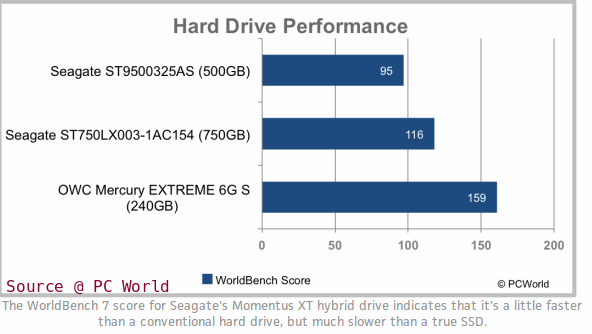
This way, you can increase speed of using your PC up to 4 times. PC World experts has performed worldbench7 test on the Seagate 750 GB hybrid drives and found it little faster than the mechanical hard drives though much slower than the original solid state drives.
Comparing capabilities of SSD, HDD & Hybrid Drives
Which one will best fits you or which is better among hard drive, solid state drives and hybrid drives? This is a quite typical question though, but fairly easy if youve a clear picture of what exactly you need either speed or performance or both.
Hard drive is a default storage device and used since decades ago. It delivers the maximum storage capacity you need to keep you thousands of songs or even hundreds of movies. However, traditional storage technologies were failed to deliver the performance especially when the sizes filled with user data. Solid state devices were created to deliver the speed but limited in capacity and have high prices than hard drive. All the said devices are limited somewhere and wont provide all the benefits that is speed, performance and capacity.
To overcome these challenges, Seagate in conjunction with Samsung introduced the concept of hybrid drives by combining all the benefits of solid state drives and hard disk drives. This way, user will get the desired storage capacity and have enough capability to deliver the desired speed. Hybrid drives were specially created to overcome with failing or damaging problems and to be considered as very less frequent in dying or giving data loss phases throughout their life.
This article clearly explains points about the available high capacitive storage medias for current and upcoming generation. You can take joys of high speed environment while giving extra layer of protection to your highly sensitive data with these mightiest storage devices.
Let’s Get Social. Share!!
One major change took place that is instead of using platter for storing your digital information, many modern drives (commonly known as solid state drives and hybrid hard drives) uses flash chip based storing area, that reduces duration to copy or move data, boot Windows or initialize heavy applications/games.
This all becomes possible only after creating the caching algorithm (an inbuilt mechanism comes in devices firmware) which generally stores information about recently used applications, boot history and registry details. So, the system wont need to look for those specific details and instead, they only initialize the caching files and fetch all the details which the system requires to boot and start Windows as well as immediately start all the startup applications. As results, you can boot system and initialize applications faster.
However, because of using flash chips and modern firmware, solid state drives costs were so high that it hardly meets the budget of normal home PC user such as normal 128 GB SSD costs you around $135 or so, whereas a 2 TB of traditional hard drive would be purchased in the same cost. So if youre a computer warrior and needs high storage capacity wishes to have high PC speed, you can use hybrid hard drives (combination of both SSD and traditional HDD) to store all your documents and digital media files in hard drive and install applications as well as Windows on SSD area.
How Hybrid Drive exactly works?
The way hybrid drives operate is pretty simple and easy to understand. It has no spindle motor and platter at rest most of the time which saves lot of power and produce much less heat as compare to mechanical hard drives, and thus heavily increases its life. As hybrid drives uses flash memorys buffer (not volatile in nature) to store data, there is no risk of loosing your valuable data when power failure strikes or system suddenly restarts.
Every time you access data from the platter, some extra amount of data is fetched and stored in the buffer. This is done in hope of future data requirements and providing fast availability for further requests, thus ultimately improves booting speed and keeps it reducing for further boot ups. The system speed will get increased to 4 times higher than it was before.
What so special about Hybrid Drives?
Seagate, the giant hard drive manufacturers, in 2007 introduced first flash chip based hard drive created by physically integrating both SSD and HDD, entitled Solid State Hybrid hard drives (SSHD) a.k.a. Hybrid drives. Though, Seagate announced their first hybrid drives release for public use in later 2010 named Momentus XT 7200 RPM.
Later, Western Digital and SanDisk join the trend and collectively introduced their first hybrid hard drives in the summer 2013, most thinly hard drive in history, named WD Blue. As like Momentus hybrid drive from Seagate, WD Blue uses the same small amount of NAND flash memory to boost performance and gives the same capacity to store large files. Itll available in various sizes from 8 GB to 24 GB of NAND flash memory and somewhere around 500 GB of hard disk drive capacity.
However, instead of using caching through firmware as in Seagate Momentus, WD uses driver software which is more relevant to computer operating system and readily improves PC speed even further as time passes on. However, this would suppose to be more prone to fail even by a low level of corruption to computer system and thus, your whole system might becomes unbootable.
This way, you can increase speed of using your PC up to 4 times. PC World experts has performed worldbench7 test on the Seagate 750 GB hybrid drives and found it little faster than the mechanical hard drives though much slower than the original solid state drives.
Comparing capabilities of SSD, HDD & Hybrid Drives
Which one will best fits you or which is better among hard drive, solid state drives and hybrid drives? This is a quite typical question though, but fairly easy if youve a clear picture of what exactly you need either speed or performance or both.
Hard drive is a default storage device and used since decades ago. It delivers the maximum storage capacity you need to keep you thousands of songs or even hundreds of movies. However, traditional storage technologies were failed to deliver the performance especially when the sizes filled with user data. Solid state devices were created to deliver the speed but limited in capacity and have high prices than hard drive. All the said devices are limited somewhere and wont provide all the benefits that is speed, performance and capacity.
To overcome these challenges, Seagate in conjunction with Samsung introduced the concept of hybrid drives by combining all the benefits of solid state drives and hard disk drives. This way, user will get the desired storage capacity and have enough capability to deliver the desired speed. Hybrid drives were specially created to overcome with failing or damaging problems and to be considered as very less frequent in dying or giving data loss phases throughout their life.
This article clearly explains points about the available high capacitive storage medias for current and upcoming generation. You can take joys of high speed environment while giving extra layer of protection to your highly sensitive data with these mightiest storage devices.
Let’s Get Social. Share!!
Available link for download
Subscribe to:
Posts (Atom)