Showing posts with label to. Show all posts
Showing posts with label to. Show all posts
Sunday, July 30, 2017
How to Configure my Range Extender
How to Configure my Range Extender
How to Configure my Range Extender
Suitable for: TL-WA730RE, TL-WA830RE

Before configuration, please get the right information of the Root Router as below:
Information of Root Router:
- LAN IP: 192.168.1.254
- SSID: 2WIRE_TEST
- Encryption Type: WPA2-PSK with AES
- Passphrase: testtplink
Preparation
- Since the DHCP function on the Range Extender is disabled by default, we have to manually assign an IP address as 192.168.1.x to the computer to match the default IP address of the Range Extender. Please click here for detailed instruction. For TL-WA830RE, its LAN IP is 192.168.0.254, please assign 192.168.0.x for you computer.
- Connect the computer to the Range Extender with an Ethernet cable. And disconnect the wireless from the root router.
Configuration on Range Extender :
1. Log onto the Range Extender’s management page. Please click here for the detailed instruction;
2. Click Network. Please make sure the Range Extenders IP address is in the same IP segment with the Root Router and avoid the IP conflict. In this instance, we can change the IP to "192.168.1.250". Then click Save.

Notice: If the root router is not in the IP segment 192.168.1.X, for example, it is 192.168.0.254.you need to change the IP of the Range Extender to 192.168.0.250. and after clicking on Save, please change the IP of your computer to 192.168.0.100. and then log in the Range Extender’s management page by using the new IP 192.168.0.250.
3. Click Quick Setup, Click on Next->Wireless. Select Range Extender as the Operation Mode. Then click Search.

4. Find the Root Routers SSID on the list, and then click Connect.

5. Click Save.
6. Click Wireless -> Wireless Security. Select WPA-PSK/WPA2-PSK, and Encryption AES. input the password "testtplink" in the PSK Password field. Then click Save. The Security settings on the Range Extender must be the same as the root router. Please contact the support of the router to check it if you are not sure.

After you go through all the above steps, the Range Extender should get working properly with the Root Router.
How to confirm:
Go to System Tools->Diagnostic?in the IP address(or IP address/Domain Name) bar type in the root router’s IP 192.168.1.254, click on the Start on the bottom.

And the last step is to set the computer to obtain the IP addre
Available link for download

Thursday, March 30, 2017
KN H ow to Install Certificate Services on Windows Server 2008 R2
KN H ow to Install Certificate Services on Windows Server 2008 R2

Introduction
Committed Index Certificate Services (AD CS) is the Microsoft implementation of public key infrastructure (PKI). PKI deals with the components and processes for issuing and managing digital certificates that are used for encryption and certification. It is not mandatory toapply AD CS as part of a Windows Server 2008 Committed Index structure. Even if, many organizations find it useful to deploy this service internally rather than relying on an external provider.
AD CS is the component of Windows Server 2008 that can be used to issue and manage digital certificates. The digital certificates issued by AD CS can be used for encrypting file system (EFS), e-mail encryption, secure sockets layer (SSL), and certification. A server with AD CS installed is referred to as a certification authority (CA).
Digital certificates are used for lop-sided encryption, which requires two keys. The first key is the private key, which is securely stored by the user or computer that a digital certificate has been issued to. The second key is the public key that is distributed to other users and
computers. The data encrypted by one key can only be decrypted by the other key. This relationship ensures safeguard of the encrypted data. Each key is sufficiently generous to preclude computation of the private key via possession of the public key.
How to apply AD CS
AD CS is a complex product with various options for implementations. The implementation options for root and subordinate CAs vary, and you need to be aware of the process for each. Web enrollment is commonly used in many environments and must be configured. You must also manage certificate revocation by using either certificate revocation lists or OCSP. Finally, you must be aware of how to go key archival and recovery.I believe best practice is, and I’m sure a name will right me if I’m ill-treat, to set up an Enterprise Root CA (Certificate Authority), then set up one or more subordinate CA’s. You can then make your Root CA unavailable for access and have the subordinates handle all of the traffic without dread of compromising your Root CA. In this tutorial, we’ll just be installing and configuring a Root CA, but the process is basically the same for the subordinates.
Now that you’ve got some background information, onto the installation/configuration of Windows Server 2008 R2 Certificate Services.
In ‘Server Manager’, select Roles in the left pane, then Add Roles in the right pane. Place a check mark in the checkbox for Committed Index Certificate Services. Then click Next.

On the ‘Introduction to Committed Index Certificate Services’ window, you can read up on the certificate services technology, how to manage a CA, and naming. Click Next.
On the ‘Select Role Services’ page, make sure Certification Authority is selected, then selectCertification Authority Web Enrollment, when the ‘Add Roles Wizard’ window appears click the Add Vital Role Services button. Click Next.


On the ‘Specify Setup Type’ page, leave Enterprise selected. Click Next. On the ‘Specify CA Type’ page, leave Root CA selected and click Next. On the ‘Set Up Private Key’ page, leaveInitiation a new private key selected and click Next.
On the Configure Cryptography for CA page, you can leave the defaults selected or adjust as necessary for your needs. You can also pause here and research the providers and hashes as necessary, but for this tutorial and most environments, the default will be enough. ClickNext.

On the ‘Configure CA Name’ page, set the common name to the same as the server name since this server is a domain controller. This is an acceptable practice. Leave the ‘Distinguished name suffix’ alone. Click Next.

On the ‘Set Validity Period’ page, feel free to adjust the validity period or leave the default. This must be adjusted based on your needs. Click Next. On the ‘Configure Certificate Database’ page, you can adjust the paths or leave the defaults set. Click Next.
Next we see the ‘Web Server (IIS)’ page. You can read the description and check out the associations listed on the page if you’d like. Click Next.

On the ‘Select Role Services’ page, leave the defaults selected. Click Next. On the ‘Confirm Installation Selections’ page, you can review your choices, go back and make changes, or clickInstall. After the ‘Installation Progress’ page finishes, you can view your ‘Results’.

You’ve now got a domain controller that is capable of issuing certificates to your servers and users. You can go back owing to the wizard and install additional CA components, for example, that will allow you to issue certificates to users and computers that are not part of your domain. That choice is called ‘Certificate Enrollment Web Service’.
Available link for download
How to Flash or Upgrade BSNL Penta WS702C with Flash tool tested
How to Flash or Upgrade BSNL Penta WS702C with Flash tool tested
When you try to Flash or Upgrade of BSNL Penta WS702C, remember some impotent notes, first of must be tablet charged, this is easy way to Flash or Upgrade if you understand and this is AllWinner CPU so for that different flash tool and Stock ROM Firmware is .img file not like scatter or .pac last two is running in mostly device but in this different so method also different, you can use this flash file when your device hangs on logo problem, restarting problem, security lock problem, password lock problem, pattern lock problem etc software related problem, before use preparation for flash, Stock ROM Firmware, USB Cable, Flash tool, Driver, Computer or Laptop and in requirement where mention like which cable to be, about Stock ROM, about USB Driver also with link just follow that, take all type data in your tablet because this is factory stock ROM, if data in SD Card so dont worry its be safe but remember not to be in internet storage and this flash file tested by me without any error working well
And you can use this tutorial without any box and this is free for all who know about software in mobile, impotent for flashing first must check your micro USB cable if not good then you cant flash it so check micro USB cable second check your device battery that is impotent for flashing if your device battery low so stop your device between flash so this is impotent for flash, before you flash save your data like contact, photos, videos etc because this is factory flash file so you cant save after full flash so must remember all are impotent notes.
And you can use this tutorial without any box and this is free for all who know about software in mobile, impotent for flashing first must check your micro USB cable if not good then you cant flash it so check micro USB cable second check your device battery that is impotent for flashing if your device battery low so stop your device between flash so this is impotent for flash, before you flash save your data like contact, photos, videos etc because this is factory flash file so you cant save after full flash so must remember all are impotent notes.
Requirement:
- BSNL Penta WS702C Tablet with charged battery up to 80%, do not try with low battery otherwise dead will be dead or another issues
- BSNL Penta WS702C Tablet Flash file its must be working well means not to be corrupted, you can download tested from this link | Download here
- BSNL Penta WS702C Tablet Flash tool | Download here
- BSNL Penta WS702C Tablet USB Driver | Download here
- Good Quality Micro USB Cable
- Computer or Laptop
Method to Flash or Upgrade for BSNL Penta WS702C:
- First Download required from the above link, if link dead or other problem just leave your comment on below comment box
- UnZip all are files from WinZip to Desktop or As you like path, must be installed WinZip in your computer or laptop for Extract
- Open Update tool folder and choose LiveSuit.exe file and open it
- YES button for Continue and NO for Cancel so choose YES button
- General Mode for Upgrade mode, Mandatory Mode for Update Mode (Recommended) so choose General
- Now choose YES and choose DZHW-A088hd-dou-XXXA-B-M1190-5875y-V2.0-20120907.img file from the img folder
- Press and hold Volume Down and insert USB Cable and wait until driver installing, if not installed then try to manual and update from above links driver
- After Installed Driver, Download start automatically and wait until full process, do not try to disconnected device while in flashing mode
- Congratulation you are done
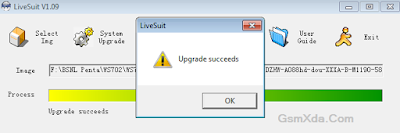
BSNL Penta WS702C Flash done Screenshot and Video :
Available link for download
Wednesday, March 29, 2017
How to Flash Lenovo A536 with SP Flash Tool Tested
How to Flash Lenovo A536 with SP Flash Tool Tested
If any problem in Lenovo A536 use this method really working easy to flash without any error and remember do not try with wrong stock ROM because device will be dead so carefully use this guide really working well, Lenovo A536 in any type issue software related you can easy solve using this method and this is for everyone who new fresher technician or experience technician in android software related, before use remember of must be working well all are required which you can see in this method it below to be mention, different to be error when you try to flash or upgrade first of USB not recognized this error possible when micro USB not working, battery not charged, phone USB socket not working properly so if you fail with this method just write down your comment on below comment box i will soon possible to fix it, first take backup into device if live otherwise dead you cant take backup, this guide you can use when device in dead condition also but must be in software related issue otherwise if any hardware then you can solve that.
If you want to repair your device, you can try to repair it by you. You have to charge your battery with any charger and charged it by 85%. Your data is very important for you so it is good to do a backup of your data it may consist like your contact details,your important messages, your emails or any other important thing which you feel to be the backup in your device. This backup can be done on another device. we have to do the backup because after a format of your device, all your data will be gone and it will not be recovered. For backup in other devices you can use other external device like your hard drive, SD card or any other suitable devices. If you are doing by your own.do it at your own risk as we dont take any responsibility if your device is damaged
When you use this method ?
This method you can use without any box its done from flash tool its also available here, and impotent of must be installed phones driver, you cant flash or upgrade if not installed in your computer or laptop it must be installed and also available in this post, here all are linked that tested and working fine just in one try, you can use this guide when your device in hang on logo, restarting, auto turn on internet connection, auto turn on WiFi connection, auto apk installing, auto gone balance, pattern lock, screen lock etc these type issues you can use this way.
Requisite for Lenovo A536
- Lenovo A536 phone with good battery charged, do not try with low battery
- Lenovo A536 Stock ROM Firmware Tested | Download here
- Lenovo A536 Flash Tool | Download here
- Lenovo A536 USB (Flashing) Driver | Download here
- Computer or Laptop
- Good Quality Micro USB Cable
Procedure for Lenovo A536
- First take files from above link, if link not working just leave your comment on below comment box i will soon fix if possible
- Install WinZip software in your Computer or Laptop, if already installed then ignore
- Extract to desktop or as you like path from the WinZip
- Open SP Flash Tool folder and choose flash_tool.exe file and open it
- Click on Scatter-loading button and choose MT6582_Android_scatter.txt file from the Stock ROM firmware folder
- Click on Download button then Just Insert USB Cable into device
- Wait until driver installed automatically, if not installed auto then just manual update from above links driver
- If device dead or not detect then use Press and hold Volume UP button and Insert USB Cable (Note: You can use Volume Down button for detection)
- Wait until finished process, do not try to unplug while device flashing mode
- Congratulation you are done
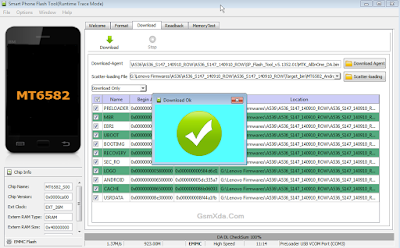
Lenovo A536 Flash done Screenshot:
Available link for download
Saturday, March 25, 2017
HOW TO PROTECT YOURSELF FROM CYBER ATTACKS
HOW TO PROTECT YOURSELF FROM CYBER ATTACKS
HOW TO PROTECT YOURSELF FROM CYBER ATTACKS :

Any time you engage in online activity you potentially open yourself up to cyber attacks. There is a wide range of techniques hackers can use to steal personal information like passwords, tax records, bank account numbers, or even stop the PC from working. Here are five tips to stay safe online:
Strong password
Be smart and create a strong password that is certain to be difficult for the would-be hacker to guess. A strong password uses a combination of special characters, numbers, and upper and lower-case letters. Plus, the difficult to guess password should be at least six characters long. Also, make sure to use a different password for each online account.
Use email sensibly
Stay safe when using email by being careful about the type of information sent to work colleagues, friends, or family. Email is not entirely safe to send personal information. So avoid sending a social security number, credit card information, or similar confidential information in an email message. Plus, avoid opening the unsolicited emails (spam) because they often contain offensive content, viruses, and scams.
Shop wisely
If you are planning on doing some online shopping, make sure the website used is a trusted brand and relies on secure technology. On the checkout or other page that asks for personal details, be sure the browser has a secure address and begins with https:. Also, most online stores will clearly state the website uses the latest security technology to keep their customer details safe and encrypted.
Monitor childrens online activity
Make sure to pay proper attention to the childrens online activity. A preferred place to keep the main computer is in a community area which makes it easier to monitor. Use and install parental control software to ensure the online activity is limited to age-appropriate content. By using the proper software, it is not only possible to block access to the more undesirable content, but it also makes it possible to prevent personal information being share via online programs.
Use security software
Make sure to use a comprehensive suite of software tools to give wide-ranging protection whenever you go online. Whether you are using a premium or free version of the security software, it has the ability to protect the home PC from a variety of cyberspace threats, such as identity theft, spam, adware, spyware, and viruses. Plus, to increase the ability to detect the latest threats it is essential to do regular updates to keep the software working properly.
Available link for download
Monday, March 20, 2017
How to Flash Karbonn A20 Check here with simple method
How to Flash Karbonn A20 Check here with simple method
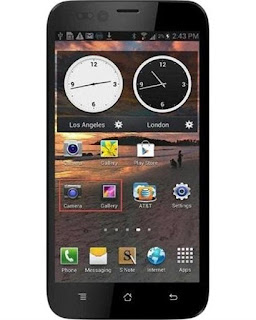
First back to all type data like photos, email, contacts, videos etc because this is factory firmware if dont take backup all then you will lost all type data of above mention.
This flash file tested by me without any error working well, you can use this flash file when your device hang on logo problem, restarting problem, security lock problem, password lock problem, pattern lock problem etc software related problem and you can use this tutorial without any box and this is free for all who know about software in mobile, impotent for flashing first must check your micro usb cable if not good then you cant flash it so check micro usb cable second check your device battery that is impotent for flashing if your device battery low so stop your device between flash so this is impotent for flash, before you flash save your data like contact, photos, videos etc because this is factory flash file so you cant save after full flash so must remember all are impotent notes.
Download Link
Karbonn A20 Firmware Download here
SP_Flash_Tool_v5.1343.01 Download here
Required for flash:
1. Karbonn A20 device with good battery charged
2. Karbonn A20 tested firmware
3. SP Flash Tool
4. Micro usb cable
5. Computer or Laptop
Procedure:
1. Download tested firmware or flash tool from above link
2. Extract to both winrar file into desktop or as you like path (must installed winrar software in your computer or laptop)
3. Open SP_Flash_Tool_v5.1343.01 folder and choose flash_tool.exe file and open it
4. Click on Scatter-loading button and choose MT6572_Android_scatter.txt file
5. Click on Download button
6. Press and hold Volume Up button and insert usb cable (device key or micro usb cable must be working well)
7. Wait until driver install, if driver installed in your computer or laptop then downloading start automatically in your device
8. Wait until full install android os into device
9. You are done
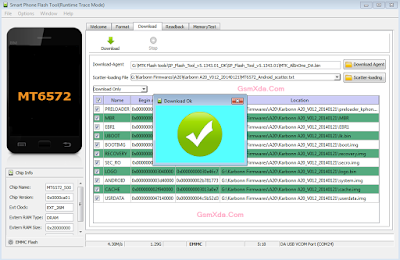
Karbonn A20 flash done with flash tool screenshot:
Karbonn A20 flash done with flash tool video:
Available link for download
How to Flash Intex NEO V Plus with Flash tool tested
How to Flash Intex NEO V Plus with Flash tool tested
This guide to Intex NEO V Plus for phone not starting means hang on logo you can use this easy way for solve problem, and if phone has dead you can this method its simple to use for that need flash file or flash tool tested, you can tested that download from in this post, you can use this flash file when your device hangs on logo problem, restarting problem, security lock problem, password lock problem, pattern lock problem etc software related problem and here no need to any box this job you can done without any box with simple method, before use remember must your phone battery charged and do not try with low battery cause in low battery giving flashing error like USB not recognized and also must installed USB Driver in Computer or Laptop, must be working Micro USB Cable also, now lets go how to flash Intex NEO V Plus with Flash tool ?
Required:
- Intex NEO V Plus phone with good battery charged, do no try with low battery
- Intex NEO V Plus Flash file | Download here
- Intex NEO V Plus Flash tool | Download here
- Intex NEO V Plus USB Driver | Download here
- Good Quality Micro USB Cable
- Computer or Laptop
Procedure:
- Download needed file from the above link, if link broke just leave your comment on below comment box
- UnZip to Desktop or as you like path from the WinZip, must be installed WinRAR or WinZip installed in your Computer or Laptop
- Open ResearchDownload 2.9.7006 (GsmXda) folder and choose ResearchDownload.exe file
- Click on Flash Choose Button and select Intex_Neo V+_V01_WVB_Indian_SER.pac file
- Click on Download button (button are show like Play) just click there
- Press and hold Center key and Insert USB Cable and wait until driver installing, if driver installed then start process automatically if not just install from the above links driver
- Wait until Pass Process, do not disconnect device while in Flashing Mode
- You are done, Congratulation
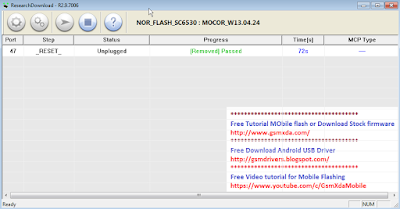
Intex NEO V Plus Flash done with Flash tool Screenshot:
Available link for download
3 Possible Things You Can Do to Repair Hard Drive Bad Sectors
3 Possible Things You Can Do to Repair Hard Drive Bad Sectors
Traditional hard drive carries multiple mechanical parts which degrades over time and affect its standard operation. Hard disk platter is one such equipment which plays the crucial role in saving and transferring the stored data. Due to its magnetic nature, the surface of the platter starts wearing out more often than normal. Once the magnetic area of the hard disk platter becomes damaged, it can’t be used by the system to store further data as well as the existing data become corrupt or damaged. Damaged area on the platters are known as Bad sectors of hard drive which will result in data loss of that particular area.
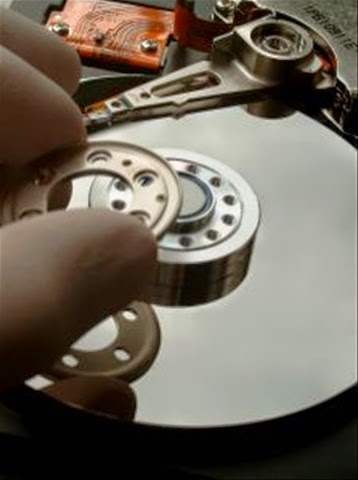
Bad sectors can also surfaced by physical damage delivered by dropping or throwing it on the floor. It is impossible to repair the damaged sectors physically, there are still some way out to repair it if the corruptions are logical (soft bad sectors) by running disk error checking tool in Windows or running disk utility in Mac. These utilities are designed to cooperate bad sectors smoothly so that it won’t hamper the saved data consistency and not damage its nearby sectors.
There are specially two types of bad sectors on the hard disk which may ends up in making your data corrupt or unreadable.
Soft bad sectors: Such problems arises due to software malfunction, read/write head problems which scratched the data area of the hard drive and makes data become unreadable by the operating system. These bad sectors are fairly common and can happen with hard drive of any age. The easiest possible solution to get rid of the soft bad sectors is by completely formatting or erasing the hard drive. Formatting will fill zero bytes on each and every sectors of the hard drive and make it ready to be used once again.
Hard bad sectors: Any mechanical problems with the hard drive itself can result in hard bad sectors. Such bad sectors has tendency to damage its nearby sectors and soon, makes the entire hard drive with loads of bad sectors enough for making it completely failed. Hard bad sectors can’t be repaired and the best bet is to copy/move all your data immediately and purchase another hard drive to continue using your system without any trouble. Using hard drive recovery software will not help at all in such circumstances as the drive already becomes unreable by the BIOS and therefore, recovery software too cant read it anymore.
Investigating Bad Sectors
There are few simple steps to find out whether your hard drive having bad sectors; however we suggest you to follow the extensive method of pin pointing the bad sectors on your hard drive.
Disk error checking: Windows have inbuilt utility that performs detailed analysis for files and folders and check for their consistencies. In case you’re experiencing problem with scan such as crashing, showing error while checking disk, freezing etc. , it might be a sign of failing hard disk as the bad sectors might preventing the normal operation of disk error checking operation.
Surface scan test: This test is performed on the hard drive with suspected with bad sectors symptoms. While checking, it’ll check and mark the bad sectors and use spare sectors to replace them.
SMART Tool:It performs the series of test on the problem hard drive and gives exact record of health status of problem hard drive including the bad sectors count.
Once you found that the hard drive has fairly large number of bad sectors, you should immediately start seeking for alternative options to repair it or replacing the whole hard drive (if your budget allows).
Repairing bad sectors
Bad sectors can result in major disaster and all your hard disk data soon become inaccessible. While it’s almost impossible to get back data from the damaged sectors, you can try repairing the logically damaged bad sectors so it won’t affect the remaining area of the hard drive.
Follow steps carefully mentioned below and see if you can overcome with any or all the bad sectors you may have found during scanning.
#1. Check Disk Utility
Microsoft Windows comes with an inbuilt disk repair utility to fix minor or major problems with the system such as problems with the volume, cross linked files, bad sectors, directory related errors and more.
You can run this utility directly from ‘My Computer’ > Windows Explorer or using elevated command prompt window. Below are the steps to run this utility from ‘My computer’:
- Open ‘My Computer’ by double clicking on it or directly press ‘window’ button + E.
- Right click on desired hard disk volume/partition and choose properties for which, you want to check errors. In case you are not sure which volume to select first, start by selecting any volume and if the problem is not resolved, follow the same procedure to check errors for another volume.
- On the Tools tab, click on Check Now button located under error checking section.
- Pop up window will open and ask you to choose the desired task to perform. Ensure that you’ve check mark the two boxes stating ‘Automatically fix file system errors’ and ‘Scan for and attempt recovery of bad sectors’.
- Click on Start to begin the scanning procedure.
Note: This utility wants exclusive access on the volume you’ve chosen to perform disk error check function. Also, the whole procedure may takes little longer time depending on the size of the targeted volume.
#2. Utilities provided from hard drive manufacturer
Famous hard drive manufacturer such as Western Digital, Seagate or Maxtor provide their own drive check utility such as Data Lifegaurd Diagnostics, Seatools for Windows and PowerMax.
These utilities were designed to perform error check function on the hard drive of only relevant manufacturer except WD Data Lifegaurd Diagnostics which generally detects hard drive from any manufacturers and attempt to repair bad sectors.
These utilities are fairly easy to use and runs in wizard based interface. Users with basic to advanced computer knowledge can efficiently use these tools.
#3. Disk Checkup from PassMark
It is a little different and comparatively easy to use utility which clearly draws barrier between normal and problem hard drive by executing tests based on the series of attributes. It comes with prebuilt SMART diagnostic tool which fetch all the required details from the hard disk and later, compares it with any normal hard drive which has nearly new or in perfect condition.
#2. Utilities provided from hard drive manufacturer
Famous hard drive manufacturer such as Western Digital, Seagate or Maxtor provide their own drive check utility such as Data Lifegaurd Diagnostics, Seatools for Windows and PowerMax.
These utilities were designed to perform error check function on the hard drive of only relevant manufacturer except WD Data Lifegaurd Diagnostics which generally detects hard drive from any manufacturers and attempt to repair bad sectors.
These utilities are fairly easy to use and runs in wizard based interface. Users with basic to advanced computer knowledge can efficiently use these tools.
#3. Disk Checkup from PassMark
It is a little different and comparatively easy to use utility which clearly draws barrier between normal and problem hard drive by executing tests based on the series of attributes. It comes with prebuilt SMART diagnostic tool which fetch all the required details from the hard disk and later, compares it with any normal hard drive which has nearly new or in perfect condition.
Available link for download
Sunday, March 19, 2017
How to Flash Gionee Elife E7 Mini with Flash tool simple way here
How to Flash Gionee Elife E7 Mini with Flash tool simple way here
Gionee Elife E7 very awesome phone and this device for using easy comfortable some time use internet connect in device then many issue comes on display like unfortunately, when you starting device then automatically restart, hang on logo problem any problem of software related this procedure its easy to everyone who working in software related here some impotent of before use this tutorial first read all are content to carefully after step by step using here we are try to very easy solution but if any problem using this tutorial just leave your comment on below comment i will soon with good reply or before using this tutorial please mention on required which are giving below must working well all are requireds if any problem then you cant flash or error on displayed see also mention below content of about firmware
This flash file tested by me without any error working well, you can use this flash file when your device hang on logo problem, restarting problem, security lock problem, password lock problem, pattern lock problem etc software related problem and you can use this tutorial without any box and this is free for all who know about software in mobile, impotent for flashing first must check your micro usb cable if not good then you cant flash it so check micro usb cable second check your device battery that is impotent for flashing if your device battery low so stop your device between flash so this is impotent for flash, before you flash save your data like contact, photos, videos etc because this is factory flash file so you cant save after full flash so must remember all are impotent notes.
Download link
Gionee Elife E7 Mini Stock Rom Firmware Download here
Gionee Elife E7 Mini Flash tool Download here
Gionee Elife E7 Mini USB Driver Download here
Need for Flash:
1. Gionee Elife E7 Mini device with good battery charged
2. Gionee Elife E7 Mini tested Stock ROM
3. Gionee Elife E7 Mini Flash tool
4. Gionee Elife E7 Mini USB Driver (for flashing)
5. Micro usb cable
6. Computer or Laptop
2. Extract to desktop or as you like path (must be installed winrar software in your computer)
3. Open SP flash tool and choose flash_too.exe file and open it
4. Click on Scatter-loading button and choose MT6592_Android_scatter.txt file
5. Now click on Download button and Press and hold Volume Up button and insert usb cable
6. If driver not installed in your computer then update from above link driver
7. Wait until full install (do not disconnect when your device in flashing mode)
8. Congratulation you are done
2. Gionee Elife E7 Mini tested Stock ROM
3. Gionee Elife E7 Mini Flash tool
4. Gionee Elife E7 Mini USB Driver (for flashing)
5. Micro usb cable
6. Computer or Laptop
How to Flash Gionee E7 Mini with flash tool ?
1. Download tested firmware, Flash tool or usb driver from above link2. Extract to desktop or as you like path (must be installed winrar software in your computer)
3. Open SP flash tool and choose flash_too.exe file and open it
4. Click on Scatter-loading button and choose MT6592_Android_scatter.txt file
5. Now click on Download button and Press and hold Volume Up button and insert usb cable
6. If driver not installed in your computer then update from above link driver
7. Wait until full install (do not disconnect when your device in flashing mode)
8. Congratulation you are done
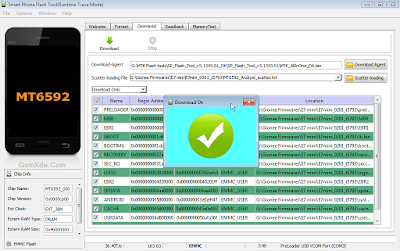
Flash done Screenshot:
Available link for download
Friday, March 17, 2017
How to Flash Karbonn Titanium S4 Plus with Sp Flash Tool Tested
How to Flash Karbonn Titanium S4 Plus with Sp Flash Tool Tested
Actually this guide is no hard to use if you want to Flash or Upgrade Karbonn Titanium S4 Plus phone because this is tested by me without any error Karbonn Titanium S4 Plus in any type issue software related you can easy solve using this method and this is for everyone who new fresher technician or experience technician in android software related, before use remember of must be working well all are required which you can see in this method it below to be mention, different to be error when you try to flash or upgrade first of USB not recognized this error possible when micro USB not working, battery not charged, phone USB socket not working properly so if you fail with this method just write down your comment on below comment box i will soon possible to fix it, first take backup into device if live otherwise dead you cant take backup, this guide you can use when device in dead condition also but must be in software related issue otherwise if any hardware then you can solve that.
Must Follow:
If you want to repair your device, you can try to repair it by you. You have to charge your battery with any charger and charged it by 70%. Your data is very important for you so it is good to do a backup of your data it may consist like your contact details, your important messages, your emails or any other important thing which you feel to be the backup in your device. This backup can be done on another device. we have to do the backup because after a format of your device, all your data will be gone and it will not be recovered. For backup in other devices you can use other external device like your hard drive, SD card or any other suitable devices. If you are doing by your own do it at your own risk as we dont take any responsibility if your device is damaged
Required for Karbonn Titanium S4 Plus:
- Karbonn Titanium S4 Plus device with good battery charged, do not try to flash when battery in low condition
- Karbonn Titanium S4 Plus Stock ROM Firmware | Download here
- Karbonn Titanium S4 Plus Flash Tool | Download here
- Karbonn Titanium S4 Plus USB (Flashing) Driver | Download here
- Micro USB Cable with Good Quality
- Computer or Laptop
Procedure for Karbonn Titanium S4 Plus:
- Install WinZip or WinRAR Software in your Computer or Laptop, already installed ignore this
- Download all are files from above link which required for flash or upgrade, if link broke or not working just leave your comment on below comment box i will fix it soon if possible
- UnZip to all files anywhere you want from the WinZip
- Open SP Flash Tool folder and choose flash_tool.exe file and open it
- Click on Scatter-loading button and choose MT6582_Android_scatter.txt file from the Stock ROM Firmware folder
- Now click on Download button and Insert USB Cable into device, wait until driver automatically installing, if not take auto then manual update driver from the above links
- If device dead and not detect then try to Press and hold Volume Up and Insert USB Cable (Note : You can Try Volume Down Also for Detection if Volume Up button not working)
- After Device Detected then Downloading star automatically into device wait while finished the process (Note : Do not try to unplug while device in flashing mode)
- Congratulation you are done
Karbonn Titanium S4 Plus Flash done Screenshot:

Available link for download
Thursday, March 16, 2017
How to Change the Logon Screen Background in Windows 7
How to Change the Logon Screen Background in Windows 7

1. The image you need to set as the background should be a .jpg file and it’s size should not exceed 245KB.
2. The image resolution can be anything of your choice. However I prefer 1440 x 900 or 1024 x 768. You can use any of the photo editing software such as Photoshop to compress and set the resolution for your image. Once you’re done, save this image as backgroundDefault.jpg.
C:Windowssystem32oobeinfo ackgrounds
You will need to create that path if it does not already exist on your computer.4. Now open the Registry Editor (Start -> Run -> Type regedit) and navigate to the following key
HKLMSoftwareMicrosoftWindowsCurrentVersionAuthentication
LogonUIBackground
LogonUIBackground
If Background does not exist rightclick LogonUI, select New and then Key, and then name itBackground. Now locate OEMBackground (listed on the right side). If it does not exist, right-click Background and select New and then DWORD and name it OEMBackground.
6. Now log-off to see the new logon screen background. If you would like to revert back to the default background, just set the Value Data back to 0.
I hope you like this trick. Just try out and give your feedback!
Available link for download
Tuesday, March 14, 2017
MujhE AnKaR KaR DyE MaGaR Kuch GufTgu To KaR
MujhE AnKaR KaR DyE MaGaR Kuch GufTgu To KaR
MujhE AnKaR KaR DyE MaGaR Kuch GufTgu To KaR....
TeRa KaMosh Sa RehNa MujhE TaKleeF DeTa Hai....

Available link for download
Monday, March 13, 2017
How To Hard Unbricked LG G2 All Variants Fix Qualcomm HS USB QDLoader 9006 mode
How To Hard Unbricked LG G2 All Variants Fix Qualcomm HS USB QDLoader 9006 mode
After Read This Guide You Will Fix These Situations.
No Recovery Mode.
No Download Mode.
No Boot.
Showing Qualcomm HS-USB QDLoader 9006 mode In Device Manager.
Showing Unknown Device In Device Manager.
Require Tools.
Download Latest SRK Tool From Here
Qualcomm Drivers From Here
Now Solve This Problem.
Step 1.
If Your Phone Show Qualcomm HS-USB QDLoader 9006 mode in Device Manager You Can Skip This Step.
If Your Phone Showing Qualcomm HS-USB QDLoader 9008
And Any Another So Enter Your Phone In 9006 Mode By Follow These Instructions.
If Your Phone Are Not On Qualcomm HS-USB QDLoader 9006 mode So Follow These Instructions To Enter Into Qualcomm Mode.
a) Disassemble Your Phone
b) On Motherboard Navigate "eMMC" Chip. You Can See In Picture.
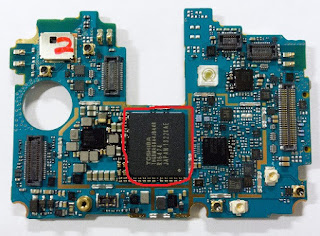
c) Now Connect USB With Battery Short Cut These Points With Cooper Wire That Shown In Picture Under The eMMc Chip.
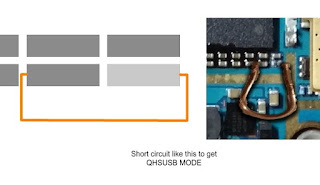
d) Now Your Device Shows In Device Manager As "Unknown Device" Then Install Drivers Which Given In Tools Section.
e) Your Device Will Shows Up.

Step 2.
1 : Download And Extract SRK Tool.
2 : Run SRK Tool.
3 : Press 4 Then 5.
4 : Select Your Device Model Number.
5 : Now Y For Yes, Then Again Y.
6: Then Disk Management Windows Pop-Up Then Select Disk Number Will Shows After Connecting Your Phone.
Note : Select Chose Correct Disk Which Shows lots Of Paritions.
7: Then Enter Disk Number.
8: Then Press Y And Wait
9: After Complete Your Phone Can Boot Into Download Mode.
10 : Then Boot into Download Mode And Flash kdz/tot File.
11 : Finished.... :)
7: Then Enter Disk Number.
8: Then Press Y And Wait
9: After Complete Your Phone Can Boot Into Download Mode.
10 : Then Boot into Download Mode And Flash kdz/tot File.
11 : Finished.... :)
Available link for download
Sunday, March 12, 2017
How to Flash Lava Iris Fuel 50 with Flash Tool Tested
How to Flash Lava Iris Fuel 50 with Flash Tool Tested
This guide very easy to use if you following step by step because this is tested by me without any error, Lava Iris Fuel 50 in restarting problem i decide to flash its first try then done no any error, this guide not for only restarting issue but you can use this when in hang on logo, restarting, auto turn on internet connection, auto turn on wifi connection, auto apk installing, auto gone balance, pattern lock, screen lock. If you want to repair your device, you can try to repair it by you. You have to charge your battery with any charger and charged it by 90%. Your data is very important for you so it is good to do a backup of your data it may consist like your contact details,your important messages, your emails or any other important thing which you feel to be the backup in your device. This backup can be done on another device. we have to do the backup because after a format of your device, all your data will be gone and it will not be recovered. For backup in other devices you can use other external device like your hard drive, SD card or any other suitable devices. If you are doing by your own.do it at your own risk as we dont take any responsibility if your device is damaged
Lava Iris Fuel 50 in any type issue software related you can easy solve using this method and this is for everyone who new fresher technician or experience technician in android software related, before use remember of must be working well all are required which you can see in this method it below to be mention, different to be error when you try to flash or upgrade first of USB not recognized this error possible when micro USB not working, battery not charged, phone USB socket not working properly so if you fail with this method just write down your comment on below comment box i will soon possible to fix it, you can use when device in dead condition also but must be in software related issue otherwise if any hardware then you can solve that, this flash file tested by me without any error working well,
Requisite for Lava Iris Fuel 50:
- Lava Iris Fuel 50 phone with good battery charged, do not try with low battery
- Lava Iris Fuel 50 Stock ROM Firmware (Tested) | Download here
- Lava Iris Fuel 50 SP Flash tool | Download here
- Lava Iris Fuel 50 USB Driver (for Flashing) | Download here
- Good Quality Micro USB Cable (do not try with market low quality USB cable) because some time not detect device
- Computer or Laptop
Method for Lava Iris Fuel 50:
- Download all needed flash files from above link, if link broke or not working just leave your comment on below comment box i will fix soon if possible
- Install WinRAR or WinZIP software in your Computer or Laptop
- Extract all files to anywhere path from WinZIP
- Open SP Flash Tool folder and choose flash_tool.exe file and open it
- Click on Scatter-loading button and choose MT6582_Android_scatter.txt file from the Firmware folder
- Click on Download button and Just Insert Micro USB Cable to device then wait until driver installing automatically
- If driver not installing auto then just manual update from the above links driver from the device manager
- If device dead then not detect with computer or laptop then Press and hold Volume Up button and Insert USB Cable to device, you can use Volume Down button also for detect
- After Installed driver device will be connected with flash tool and process starting, wait until finished process
- Congratulation you are done
Lava Iris Fuel 50 Flash done Screenshot:

Available link for download
Friday, March 10, 2017
How to upgrade Qmobile noir i9 to Kitkat 4 4 2 official
How to upgrade Qmobile noir i9 to Kitkat 4 4 2 official
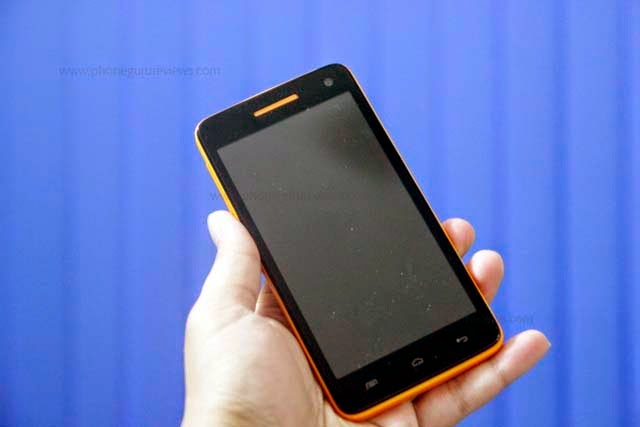
Disclaimer: Flash at your own risk, I added tutorial so if something gone wrong to your phone, dont blame me.
Quote:
IMEI / NVRAM Backup
Method 1:
Before Installing the KitKat Follow These Steps.
1. Download MTK Droid Tool From Here
2. i9 must be rooted and USB debugging must be enabled before you proceed.
3. Attach the cell phone with data cable and run mtk droid tool as admin.
4. When device got loaded press the root button and grant root access on cell phone.
5. Click on IMEI/NVRAM button and click on backup.
6. Now in case after flashing u lost IMEI follow the same steps but now click on restore.
Quote:
QMobile KitKat Release
Before you update Back Up your current rom using custom recovery in case you want to revert back
Smart Phone Flash Tool and Driver
Firmware Download
1. First of all download the required files.
2. Install Tinno Driver.
3. Extract All Zips.
4. Run the Flashing Tool as admin (Right Click on the file and click on run as admin)
5. Download Scatter File From Attachments And Add It In Firmware Folder Now Load It, all files will be loaded now click on the address bar in front of recovery and select the recovery attached below.
6. Select Firmware Upgrade.
7. Power off the cell phone and remove battery.
8. Now click on download and attach the cell phone without battery to data cable.
9. Wait till flash. You are done.

10. Enjoy Official Noir i9 KitKat.
Available link for download
Thursday, March 9, 2017
How to flash Intex Aqua Desire flash with sp flash tool see here with simple method
How to flash Intex Aqua Desire flash with sp flash tool see here with simple method
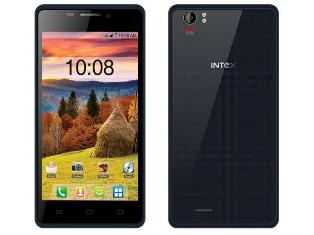
About Firmware or Tutorial:
This is tested firmware or flash tool you can do using this tutorial because this tutorial tested by me any error or issue and also this is simple method for everyone who know about android software related this tutorial use new user technician lets see how to flash intex aqua desire with sp flash tool ?
This flash file tested by me without any error working well, you can use this flash file when your device hang on logo problem, restarting problem, security lock problem, password lock problem, pattern lock problem etc software related problem and you can use this tutorial without any box and this is free for all who know about software in mobile, impotent for flashing first must check your micro usb cable if not good then you cant flash it so check micro usb cable second check your device battery that is impotent for flashing if your device battery low so stop your device between flash so this is impotent for flash, before you flash save your data like contact, photos, videos etc because this is factory flash file so you cant save after full flash so must remember all are impotent notes.
Download Link
Intex Aqua Desire Firmware or Flash tool Download here
Required for flash:
1. Intex Aqua desire device with good battery charged
2. Intex Aqua desire tested firmware or flash tool
3. Micro usb cable
4. Computer or Laptop
Procedure:
1. Download tested firmware or flash tool from above link (if link not working just write down comment on below comment box) 2. Extract winrar file to desktop or as you like path (must installed winrar software in your computer or laptop) 3. Open SP Flash Tool v3.1344.214 flash tool folder and choose flash_tool.exe file and open it 4. Click on Scatter-Loading button and choose MT6572_Android_scatter.txt file 5. Click on Download button and Press and hold Volume Up button and insert usb cable then wait until driver install if driver installed in your computer or laptop then downloading automatically start into android device 6. Wait until full os install in your device (not : do not disconnect device while your device in flashing mode) 7. Congratulation you are done from many problem and problem are mention above description.
Intex Aqua Desire Flash done with sp flash tool screenshot:

Intex Aqua Desire Flash done with sp flash tool video:
Available link for download
How to Set up an FTP Server in Ubuntu Linux
How to Set up an FTP Server in Ubuntu Linux
Steps
- 1Boot up Ubuntu Linux.
- 2Go to Application, then select Accessories and chose Terminal
- 3Enter the following command: “sudo apt-get install vsftpd” (without quotation marks). This will install the FTP server on your system. If you are logged in as the root user, the "sudo" command will not be necessary, since this command is used to give administrative privileges to the user. In this case, you will only need the command "apt-get install vsftpd".
- 4Open the FTP server configuration file. To do so, go to Places and click on Computer.
- 5In the file browser, click the “File System” icon.
- 6Click on the “etc” folder.
- 7Double-click the “vsftpd.conf” icon.
- 8Alter anonymous access. Enter "anonymous_enable=YES" (without quotation marks) to allow anonymous FTP access. The hash (#) at the beginning of each line indicates that this line is commented out and will be ignored. To enable this line, you must remove the hash (#). The parameter "write_enable=YES" (without quotation marks) will allow changes to the filesystem, such as uploading.
- 9Rename the FTP welcome banner. Uncomment it by removing the hash (#), and enter the welcome message. For this example its "ftpd_banner=Welcome to FTP Server!" (without quotation marks).
- 10Click on Save and close the file. (Note: You may need to login as root, then only you will be able to open file in edit mode or else the file will open in read-only mode)
- 11To restart the FTP service, type the following command: “sudo /etc/init.d/vsftpd restart” (without quotation marks). Again, you will only need to use "sudo" if you are no logged as the root user.
- 12Place files on the FTP server. To move files to the server, access the FTP Folder from the command in the image below.


Available link for download
Wednesday, March 8, 2017
How to Flash HTC Desire 820 820MU dual sim by using Fastboot code Tested
How to Flash HTC Desire 820 820MU dual sim by using Fastboot code Tested
HTC Desire 820 Dual Sim to be different Stock ROM Firmware in this method using stock rom model of A31_DTUL, Build : 1.01.709.1, CID : 11111111, HBoot : 3.19.0.0000, MID : 0PE621000, Security : OFF, Region : Super_CID, if you want to use this method first check this mention model number if not then do not try with this Stock ROM Firmware but you can use this guide if you want to correct Stock ROM firmware put on fastboot mode and readinfo using HTX Multi Tool.exe software and this software also available in this guide.
HTC Desire 820 in any type issue software related you can easy solve using this method and this is for everyone who new fresher technician or experience technician in android software related, before use remember of must be working well all are required which you can see in this method it below to be mention, different to be error when you try to flash or upgrade first of USB not recognized this error possible when micro USB not working, battery not charged, phone USB socket not working properly so if you fail with this method just write down your comment on below comment box i will soon possible to fix it, first take backup into device if live otherwise dead you cant take backup, this guide you can use when device in dead condition also but must be in software related issue otherwise if any hardware then you can solve that.
If you want to repair your device, you can try to repair it by you. You have to charge your battery with any charger and charged it by 95%. Your data is very important for you so it is good to do a backup of your data it may consist like your contact details,your important messages, your emails or any other important thing which you feel to be the backup in your device. This backup can be done on another device. we have to do the backup because after a format of your device, all your data will be gone and it will not be recovered. For backup in other devices you can use other external device like your hard drive, SD card or any other suitable devices. If you are doing by your own. do it at your own risk as we dont take any responsibility if your device is damaged
This method you can use without any box its done from flash tool its also available here, and impotent of must be installed phones driver, you cant flash or upgrade if not installed in your computer or laptop it must be installed and also available in this post, here all are linked that tested and working fine just in one try, you can use this guide when your device in hang on logo, restarting, auto turn on internet connection, auto turn on wifi connection, auto apk installing, auto gone balance, pattern lock, screen lock.
Requisite for HTC Desire 820MU
- HTC Desire 820 (820MU) dual sim with well battery charged, do not try with low battery
- HTC Desire 820 (820MU) dual sim Stock ROM tested | Download here
- HTC Desire 820 (820MU) dual sim HTC Fastboot Driver spl | Download here
- HTC HTX Multi Tool | Download here
- HTC Desire 820 (820MU) sual sim fastboot code | Download here
- Good Quality Micro USB Cable
- Computer or Laptop
Procedure for HTC Desire 820 (820MU) dual sim
- Download needed files from above link, if link not working just leave your comment on below comment box i will soon fix it if possible
- Install WinRAR in your Computer or Laptop if already installed ignore this
- UnZip to Desktop or as you like path from the WinRAR
- Install HTC USB (Flashing) Driver already installed ignore this
- Unplug battery socket wait few second and gain Insert battery socket
- Press and hold Volume Down + Power button and choose Fastboot mode and Insert Micro USB Cable into device
- Open RBSoft folder and choose HTX Multi Tool.exe file and open it
- Go to Fastboot Tab and click on Read Boot Info button and wait until full readinfo to your device
- If above mention model to be in your device then use this Stock ROM Firmware, if different readinfo then just write down your info on below comment box i will give you correct stock ROM firmware link
- Rename Stock ROM Firmware 0PE6IMG_A31_DTUL_K44_DESIRE_SENSE60_HTCCN_CHS_CMCC_1.20.1403.1_R6_Radio_01.01.110_U1030481_08.01.1119_F_release_414395_combined_signed to 0PE6IMG and do Copy
- Open htc fastboot driver spl folder and Paste there Stock ROM Firmware
- Right click with Shift key on White area and choose Open command windows here option (see below image)
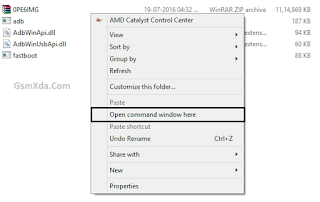
- Write down there first command of "fastboot devices" and press Enter key
- Write down again "fastboot oem rebootRUU" and Press Enter key
- Write down "fastboot flash zip 0PE6IMG.zip" and Press Enter key and wait until full installed Stock ROM Firmware
- After finished Stock ROM Firmware flashing procedure and use last command "fastboot reboot" and Hit Enter key
- Congratulation you are done
Available link for download
Subscribe to:
Posts (Atom)