Showing posts with label mode. Show all posts
Showing posts with label mode. Show all posts
Monday, March 13, 2017
How To Hard Unbricked LG G2 All Variants Fix Qualcomm HS USB QDLoader 9006 mode
How To Hard Unbricked LG G2 All Variants Fix Qualcomm HS USB QDLoader 9006 mode
After Read This Guide You Will Fix These Situations.
No Recovery Mode.
No Download Mode.
No Boot.
Showing Qualcomm HS-USB QDLoader 9006 mode In Device Manager.
Showing Unknown Device In Device Manager.
Require Tools.
Download Latest SRK Tool From Here
Qualcomm Drivers From Here
Now Solve This Problem.
Step 1.
If Your Phone Show Qualcomm HS-USB QDLoader 9006 mode in Device Manager You Can Skip This Step.
If Your Phone Showing Qualcomm HS-USB QDLoader 9008
And Any Another So Enter Your Phone In 9006 Mode By Follow These Instructions.
If Your Phone Are Not On Qualcomm HS-USB QDLoader 9006 mode So Follow These Instructions To Enter Into Qualcomm Mode.
a) Disassemble Your Phone
b) On Motherboard Navigate "eMMC" Chip. You Can See In Picture.
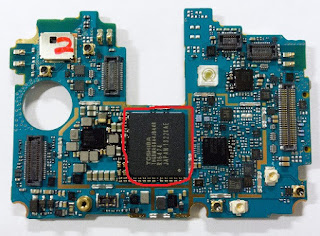
c) Now Connect USB With Battery Short Cut These Points With Cooper Wire That Shown In Picture Under The eMMc Chip.
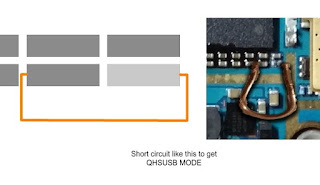
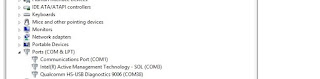
d) Now Your Device Shows In Device Manager As "Unknown Device" Then Install Drivers Which Given In Tools Section.
e) Your Device Will Shows Up.
Step 2.
1 : Download And Extract SRK Tool.
2 : Run SRK Tool.
3 : Press 4 Then 5.
4 : Select Your Device Model Number.
5 : Now Y For Yes, Then Again Y.
6: Then Disk Management Windows Pop-Up Then Select Disk Number Will Shows After Connecting Your Phone.
Note : Select Chose Correct Disk Which Shows lots Of Paritions.
7: Then Enter Disk Number.
8: Then Press Y And Wait
9: After Complete Your Phone Can Boot Into Download Mode.
10 : Then Boot into Download Mode And Flash kdz/tot File.
11 : Finished.... :)
7: Then Enter Disk Number.
8: Then Press Y And Wait
9: After Complete Your Phone Can Boot Into Download Mode.
10 : Then Boot into Download Mode And Flash kdz/tot File.
11 : Finished.... :)
Available link for download

Saturday, February 25, 2017
Lenovo K4 Note A7010a48 FRP Reset or Fix DL Mode done tested
Lenovo K4 Note A7010a48 FRP Reset or Fix DL Mode done tested
What is FRP Lock ?
This is new feature in all new modes when you new purchase device then first starting then asking enter your own gmail account and this account enter one time so remember it because in future device reset or upgrade then first asking device to enter your own gmail account or password after that go ahead otherwise device still but dont worry if forgot gmail account or password here solution for bypass gmail id its very simple if you better understand to this tutorial before use first charged device battery if low then device not properly working like restarting problem or other software related.
About Miracle box:
This tutorial done in miracle box if you have box then you can easy done but this dont have so you can use other box but option to be required in box.
About USB Driver:
For this tutorial must you have to usb driver for connect device with computer or laptop if not install then you cant connect if not connect so you cant done this job so must be installed in your computer or laptop, if you dont have driver so you can download from this post and update or install in your computer or laptop.
About Micro USB Cable:
Must be working well Micro usb cable this is also impotent of part for bypass gmail account (FRP reset) when micro usb cable not working then error like usb not recognized this error also if your device battery low means both reason of usb not recognized and also check device usb socket its must be working well if any problem in that then you cant connect with this box.
Download Link
Lenovo K4 Note A7010a48 Driver Download
Need for Gmail Account bypass:
1. Lenovo K4 Note A7010a48 device
2. Miracle box
3. Lenovo K4 Note A7010a48 usb driver
4. Micro usb cable
5. Computer or Laptop
How to Bypass Gmail Account in Lenovo A7010a48 ?
1. Download usb driver from above link (if link dead just leave your comment)
2. Extract to desktop or as you like path (must be installed winrar software)
3. Install usb driver if there .exe file
4. Open Miracle box
5. Go to MTK Tab and choose Unlock/Fix tab
6. Choose Clear Setting/Frp option
7. Select Boot : 8th Boot(MT65xx & MT67XX/8127) option
8. Tick on USBCable option
9. Click on Start button and Press and hold Volume Up button and insert usb cable
10. Wait until driver install, if driver installed then process start automatically
11. Congratulation you are done
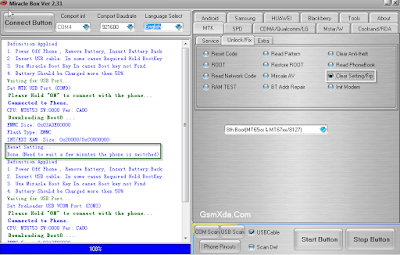
FRP Reset done Screenshot:
How to Fix DL Mode in MTK device ?
1. Download usb driver from above link (if link dead just leave your comment)2. Extract to desktop or as you like path (must be installed winrar software)
3. Install usb driver if there .exe file
4. Open Miracle box
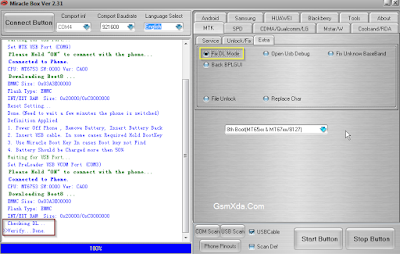
5. Go to MTK Tab and choose Extra tab
6. Choose Fix DL Mode option
7. Select Boot : 8th Boot(MT65xx & MT67XX/8127) option
8. Tick on USBCable option
9. Click on Start button and Press and hold Volume Up button and insert usb cable
10. Wait until driver install, if driver installed then process start automatically
11. Congratulation you are done
Fix DL Mode Screenshot:
Available link for download
Subscribe to:
Posts (Atom)