Showing posts with label sectors. Show all posts
Showing posts with label sectors. Show all posts
Monday, March 20, 2017
3 Possible Things You Can Do to Repair Hard Drive Bad Sectors
3 Possible Things You Can Do to Repair Hard Drive Bad Sectors
Traditional hard drive carries multiple mechanical parts which degrades over time and affect its standard operation. Hard disk platter is one such equipment which plays the crucial role in saving and transferring the stored data. Due to its magnetic nature, the surface of the platter starts wearing out more often than normal. Once the magnetic area of the hard disk platter becomes damaged, it can’t be used by the system to store further data as well as the existing data become corrupt or damaged. Damaged area on the platters are known as Bad sectors of hard drive which will result in data loss of that particular area.
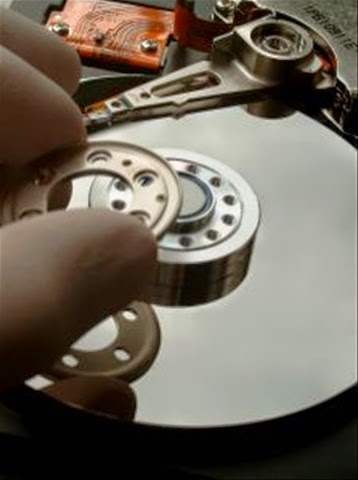
Bad sectors can also surfaced by physical damage delivered by dropping or throwing it on the floor. It is impossible to repair the damaged sectors physically, there are still some way out to repair it if the corruptions are logical (soft bad sectors) by running disk error checking tool in Windows or running disk utility in Mac. These utilities are designed to cooperate bad sectors smoothly so that it won’t hamper the saved data consistency and not damage its nearby sectors.
There are specially two types of bad sectors on the hard disk which may ends up in making your data corrupt or unreadable.
Soft bad sectors: Such problems arises due to software malfunction, read/write head problems which scratched the data area of the hard drive and makes data become unreadable by the operating system. These bad sectors are fairly common and can happen with hard drive of any age. The easiest possible solution to get rid of the soft bad sectors is by completely formatting or erasing the hard drive. Formatting will fill zero bytes on each and every sectors of the hard drive and make it ready to be used once again.
Hard bad sectors: Any mechanical problems with the hard drive itself can result in hard bad sectors. Such bad sectors has tendency to damage its nearby sectors and soon, makes the entire hard drive with loads of bad sectors enough for making it completely failed. Hard bad sectors can’t be repaired and the best bet is to copy/move all your data immediately and purchase another hard drive to continue using your system without any trouble. Using hard drive recovery software will not help at all in such circumstances as the drive already becomes unreable by the BIOS and therefore, recovery software too cant read it anymore.
Investigating Bad Sectors
There are few simple steps to find out whether your hard drive having bad sectors; however we suggest you to follow the extensive method of pin pointing the bad sectors on your hard drive.
Disk error checking: Windows have inbuilt utility that performs detailed analysis for files and folders and check for their consistencies. In case you’re experiencing problem with scan such as crashing, showing error while checking disk, freezing etc. , it might be a sign of failing hard disk as the bad sectors might preventing the normal operation of disk error checking operation.
Surface scan test: This test is performed on the hard drive with suspected with bad sectors symptoms. While checking, it’ll check and mark the bad sectors and use spare sectors to replace them.
SMART Tool:It performs the series of test on the problem hard drive and gives exact record of health status of problem hard drive including the bad sectors count.
Once you found that the hard drive has fairly large number of bad sectors, you should immediately start seeking for alternative options to repair it or replacing the whole hard drive (if your budget allows).
Repairing bad sectors
Bad sectors can result in major disaster and all your hard disk data soon become inaccessible. While it’s almost impossible to get back data from the damaged sectors, you can try repairing the logically damaged bad sectors so it won’t affect the remaining area of the hard drive.
Follow steps carefully mentioned below and see if you can overcome with any or all the bad sectors you may have found during scanning.
#1. Check Disk Utility
Microsoft Windows comes with an inbuilt disk repair utility to fix minor or major problems with the system such as problems with the volume, cross linked files, bad sectors, directory related errors and more.
You can run this utility directly from ‘My Computer’ > Windows Explorer or using elevated command prompt window. Below are the steps to run this utility from ‘My computer’:
- Open ‘My Computer’ by double clicking on it or directly press ‘window’ button + E.
- Right click on desired hard disk volume/partition and choose properties for which, you want to check errors. In case you are not sure which volume to select first, start by selecting any volume and if the problem is not resolved, follow the same procedure to check errors for another volume.
- On the Tools tab, click on Check Now button located under error checking section.
- Pop up window will open and ask you to choose the desired task to perform. Ensure that you’ve check mark the two boxes stating ‘Automatically fix file system errors’ and ‘Scan for and attempt recovery of bad sectors’.
- Click on Start to begin the scanning procedure.
Note: This utility wants exclusive access on the volume you’ve chosen to perform disk error check function. Also, the whole procedure may takes little longer time depending on the size of the targeted volume.
#2. Utilities provided from hard drive manufacturer
Famous hard drive manufacturer such as Western Digital, Seagate or Maxtor provide their own drive check utility such as Data Lifegaurd Diagnostics, Seatools for Windows and PowerMax.
These utilities were designed to perform error check function on the hard drive of only relevant manufacturer except WD Data Lifegaurd Diagnostics which generally detects hard drive from any manufacturers and attempt to repair bad sectors.
These utilities are fairly easy to use and runs in wizard based interface. Users with basic to advanced computer knowledge can efficiently use these tools.
#3. Disk Checkup from PassMark
It is a little different and comparatively easy to use utility which clearly draws barrier between normal and problem hard drive by executing tests based on the series of attributes. It comes with prebuilt SMART diagnostic tool which fetch all the required details from the hard disk and later, compares it with any normal hard drive which has nearly new or in perfect condition.
#2. Utilities provided from hard drive manufacturer
Famous hard drive manufacturer such as Western Digital, Seagate or Maxtor provide their own drive check utility such as Data Lifegaurd Diagnostics, Seatools for Windows and PowerMax.
These utilities were designed to perform error check function on the hard drive of only relevant manufacturer except WD Data Lifegaurd Diagnostics which generally detects hard drive from any manufacturers and attempt to repair bad sectors.
These utilities are fairly easy to use and runs in wizard based interface. Users with basic to advanced computer knowledge can efficiently use these tools.
#3. Disk Checkup from PassMark
It is a little different and comparatively easy to use utility which clearly draws barrier between normal and problem hard drive by executing tests based on the series of attributes. It comes with prebuilt SMART diagnostic tool which fetch all the required details from the hard disk and later, compares it with any normal hard drive which has nearly new or in perfect condition.
Available link for download

Friday, November 11, 2016
Causes Fixes Prevention of Bad Sectors in Your Hard Drive
Causes Fixes Prevention of Bad Sectors in Your Hard Drive
A sector in a hard drive platter is a small cluster or area where actual data is stored. Normal hard drive can have from 1 to 6 platters and a single platter can have over millions of sectors. Including platter, any hard drive will also have heads, spindle motor, firmware, PCB etc. responsible for its smooth functioning. However, being an electronic device, hard drive may have one or more failing mechanical equipments which gives birth to data inaccessibility, permanent hard drive failure or system startup failure etc. After which, one may not able to retrieve the stored content as well as permanently looses accessibility to their system.
Bad sectors on the hard drive platter could be developed throughout its lifespan which may make OS unable to read or write information on that particular section. Moreover, bad sector would stress the read/write head of hard drive and causes subsequent delays in accessing the memory/information. As a result, hard drive will start failing, throwing system freezes or sometime gives black or blue screen of death (BSOD).
What causes bad sectors?
Sector is usually a block of information stored on the hard disk and having standard size of 512 bytes. These sectors can easily become bad due to imperfections of this real world. Though, you can found some most common causes which contributes heavily towards building bad sectors and blocks on the hard drive platter,
Bad sectors on the hard drive platter could be developed throughout its lifespan which may make OS unable to read or write information on that particular section. Moreover, bad sector would stress the read/write head of hard drive and causes subsequent delays in accessing the memory/information. As a result, hard drive will start failing, throwing system freezes or sometime gives black or blue screen of death (BSOD).
What causes bad sectors?
Sector is usually a block of information stored on the hard disk and having standard size of 512 bytes. These sectors can easily become bad due to imperfections of this real world. Though, you can found some most common causes which contributes heavily towards building bad sectors and blocks on the hard drive platter,
- System infected with Virus / Trojan / Malware – Any malicious computer program can physically harm your computer and damage surfaces of the platter or inject wrong information on the sector. However, Some DOS attacks were used to misguide operating system to treat sector as bad even if they werent.
- Abnormal Shutdown: Not properly shutting down the PC may results in wrong positioning of read/write head which tends to move around the platters when system is running. Sometime, sudden system shutdown due to power failure could make platters to get in contact with the read/write arm and damage that area called sectors.
- Power Surge: Improper power supply or not using the reliable electricity medium causes hard drive equipments to be overheated sometime and thus, damages the magnetic area around the hard drive platter.
- Aging Equipments: Being an electronic device, hard drive equipments may start wearing out and bad sectors were created over time. As this process seems bit natural and depends on the overall hard drive age, these cases are least considered but worth checking.
- Faulty Heads: Heads plays crucial role in retrieving or storing information on/from the platter. It keeps rotating over platter without making contacts to the platter but when it does, produces bad sectors. Shaking or moving hard drive while any ongoing operation could make the head to get in contact with the platter and again, produces bad sectors.
- Manufacturer faults: Bad supplier or low quality manufacturer could deliver hard drive with poor quality equipments which reduces overall lifespan of your hard drive. Bad sectors were developed quite frequently on hard drive with bad equipments. Most often, bad sectors were already created when the drive is first manufactured.
Once the bad sector is developed, it starts damaging nearby sectors and soon make your whole hard drive with thousands of bad sectors. You can use various hard disk checker utility like S.M.A.R.T. To check hard drive for bad sectors as well as other crucial parameters like spin rotation, heat, equipments status and many more.
Type of Bad Sectors
There are usually two types of bad sectors took place in modern as well as traditional hard drives:
Hard or Mechanical or Physical are the one caused by heads after coming in contact with platter surface of the hard drive. For ex, if the computer is bumped or dropped while reading/writing data from/to the disk would make hard drive heads to crash or damage the area. Extreme heat, faulty heads, dust or other ageing equipments could also contributes heavily towards hard bad sectors.
Once the hard bad sectors is created, it can only be prevented, neither removed or reformed. Best bet is copy/save all your important stuff into another hard drive and replace the drive as soon as possible to stay away from various catastrophic data loss situations.
Though, if your hard drive fails due to hard bad sectors and youve lost any or all your important data, using data recovery services would be the last hope. Highly cleaned room with skilled equipments where special treatments were used to carefully open hard drive equipments and recover data from the storage area.
Soft or logical bad sectors are less drastic and delivers minimum harm to your PC or the stored data. It is created when an error correction code of a sector cant verify the content of the same sector due to virus/threats injection on the BIOS section, improper system shutdown or directory structure corruption.
Soft bad sectors can be repaired by using low level formatting (quick format) or disk check/repair tools which fills zeros in all the soft bad sectors. Disk wiping process is pretty effective and completely removes soft bad sectors around the hard drive, however you might permanently lose the stored data and data recovery isnt possible even by using professional recovery program.
How to repair bad sectors?
There are choices to repair bad sectors by using either inbuilt utility or software provided from third party. As there is no guarantee of repairing bad sectors, you can still try any of the options mentioned below.
Using Inbuilt Utility
Various inbuilt check disk utility is available to check hard drive health status or any running issues and repair them immediately. Microsoft provided this utility for free of cost with Windows to help troubleshoot file system errors, scan and fix bad sectors found around the hard drive.
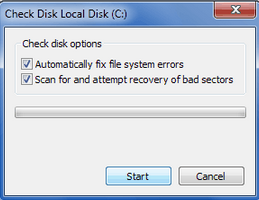
Running check disk utility is completely safe and doesnt harm overall functioning of your PC. As check disk utility will perform scan and recovery concurrently, this process might takes time little longer than usual.
Heres how you can start check disk utility in your PC:
Type of Bad Sectors
There are usually two types of bad sectors took place in modern as well as traditional hard drives:
Hard or Mechanical or Physical are the one caused by heads after coming in contact with platter surface of the hard drive. For ex, if the computer is bumped or dropped while reading/writing data from/to the disk would make hard drive heads to crash or damage the area. Extreme heat, faulty heads, dust or other ageing equipments could also contributes heavily towards hard bad sectors.
Once the hard bad sectors is created, it can only be prevented, neither removed or reformed. Best bet is copy/save all your important stuff into another hard drive and replace the drive as soon as possible to stay away from various catastrophic data loss situations.
Though, if your hard drive fails due to hard bad sectors and youve lost any or all your important data, using data recovery services would be the last hope. Highly cleaned room with skilled equipments where special treatments were used to carefully open hard drive equipments and recover data from the storage area.
Soft or logical bad sectors are less drastic and delivers minimum harm to your PC or the stored data. It is created when an error correction code of a sector cant verify the content of the same sector due to virus/threats injection on the BIOS section, improper system shutdown or directory structure corruption.
Soft bad sectors can be repaired by using low level formatting (quick format) or disk check/repair tools which fills zeros in all the soft bad sectors. Disk wiping process is pretty effective and completely removes soft bad sectors around the hard drive, however you might permanently lose the stored data and data recovery isnt possible even by using professional recovery program.
How to repair bad sectors?
There are choices to repair bad sectors by using either inbuilt utility or software provided from third party. As there is no guarantee of repairing bad sectors, you can still try any of the options mentioned below.
Using Inbuilt Utility
Various inbuilt check disk utility is available to check hard drive health status or any running issues and repair them immediately. Microsoft provided this utility for free of cost with Windows to help troubleshoot file system errors, scan and fix bad sectors found around the hard drive.
Running check disk utility is completely safe and doesnt harm overall functioning of your PC. As check disk utility will perform scan and recovery concurrently, this process might takes time little longer than usual.
Heres how you can start check disk utility in your PC:
- Double click on My Computer from the desktop or press window button + E.
- Right click on the desired drive you want to check and choose properties. Note:You cant check and repair all the drive at once.
- From the opened properties window, select Tools tab and click on Check Now.
- Check disk box will open containing options like Automatically fix file system errors and Scan for and attempt recovery of bad sectors. Mark both the options or can leave the first one only if you wants to check only hard drive for bad sectors and repair it.
- Click on Start to initiate check disk operation.
- Enter administrator password if requested and click OK.
- Wait for sometime and then restart PC once the operation is completed successfully.
Using third party software
Spinrite is a professional hard disk check and repair utility suitable for all the latest Windows operating system and works effectively on FAT, NTFS and Linux formatted volume. The software is self explanatory and requires simple steps to boot from DOS environment and repair almost any kind of bad sectors.
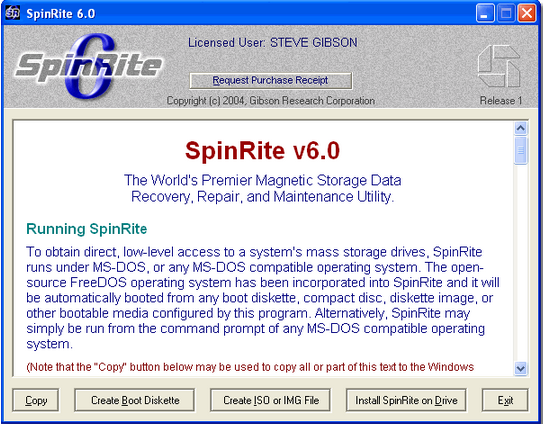
Note: Spinrite could costs your around $ 89 USD.
Preventing bad sectors in future
Below are the precautions steps you could take to avoid bad sectors from being developed around your hard drive,
- Use inbuilt disk defragmenter utility to stabilize operations and reduces stress from heads. Run this utility at least once or twice in a month or schedule it to run periodically. It also helps in managing disk spaces and thus, reducing overall burden from the heads.
- Always use, professional and recommend anti virus software to keep your system clean and malware free.
- Avoid bumping or throwing during ongoing operations.
- Use system in cooled and dust free environment.
- Use standard cables or connecting media for longer durability.
- Use proper shutdown or standard way to turn your system off. Use UPS or similar power backup devices to make sure that you always have enough time to safely shutdown your PC when the power is absent.
- Running OS repair utility could also shorten the occurrences of bad sectors around the hard drive.
Have you found bad sectors in your hard drive or planning to check, what utility youre using or the way youll recommend to repair bad sectors? Dont forget sounds all this using the comment form below.
Available link for download
Subscribe to:
Posts (Atom)