Showing posts with label corrupted. Show all posts
Showing posts with label corrupted. Show all posts
Sunday, January 15, 2017
How To Recover Data From Corrupted Hard Disk USB Drive
How To Recover Data From Corrupted Hard Disk USB Drive
Requirements
MiniTool Power Data Recovery
Download From HERE
For Instruction Follow This WebSite
https://www.powerdatarecovery.com/powe
Dear sir/madam,
Thank you for participation. Following is the license code
======================================================================
Product name: MiniTool Power Data Recovery
License Code:
OGQxMTQwZmItZTJlNjFlNmYtZGM5ZTUzNWEtNWMwZGFiNjMtZDdlNDI4MmUtZDJmN2IyZDQtZTIzZjkxYTI=
License type: Personal License
Available link for download

Saturday, January 7, 2017
Fix External Hard Drive Error The Disk Structure is Corrupted or Unreadable in Windows 7
Fix External Hard Drive Error The Disk Structure is Corrupted or Unreadable in Windows 7
External hard drive are more popular these days because of their portability and availability in verity of sizes (still growing). It offers flexibility to carry large amount of data as well as helps you restore data if the primary location becomes inactive or seriously damaged. However, at times, external hard drive itself becomes inaccessible or prevent users to access the stored files. Be it virus infection, directory structure corruption, file system damages etc.
Once such external hard drives holding GB’s of valuable stuff, you may become panicked and frustrated as you’d have no idea about how to deal with such problems. Disk Structure corruption is yet another common error that comes whenever you tries to access your external hard drive and prevent users to access or copy the stored files.
As all of your files were stored there, formatting will permanently wipes your important files and make it permanent non recoverable even by using professional recovery tools. We’ll go through series of steps mentioned in this tutorial to fix this error easily (if you are lucky) and retrieve all of your important files as well as make the external drive usable again.
Below are the common error types you’ll see once similar situation strikes to your external hard drive:
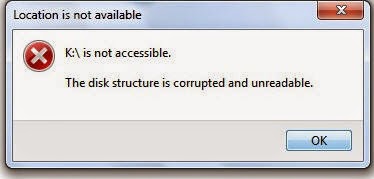
Error 0x80070571 : The disk structure is corrupted or unreadable
This disk in the drive is damaged
Please format this disk!!
The Drive isn’t accessible
The disk in drive is not formatted. Do you want to format it now?
Common reasons behind this error
External hard drive is created using moving mechanical moving parts which will may fails either sooner or later. Some unavoidable instances makes these drive inaccessible or damaged immediately and makes user data beyond the reach of known recovery software. Below are the some common reasons responsible for this situation:
- Improperly connecting or removing the drive
- The file system itself become damaged cannot be used to access the drive
- File system has become RAW which cannot be used any longer to access, manage or format the drive. In most instances, those drives becomes completely unusable.
- Large number of bad sectors and blocks has been emerged which prevents externally drive to perform normally. You’ll get freezing, hanging, corrupt files or similar issues when bad sectors took place on your drive.
Troubleshooting steps
As the drive is going through serious damages, there is no guarantee that any specific or subsequent steps could help you fixing the problem. However, let’s follow the standard procedure to deal with this error and see if we may able to resolve it:
- Right click on My Computer and choose Manage.
- Enter administrative details if asked and hit enter
- Go to Disk Management located under Storage at the left hand side menus.
- From the image below, check and make sure that any or all the volumes is listed along with the drive that’s connected externally. If you’ve recently faced the above mentioned error, you’ll see the volume status as RAW or offline
- Right click on that drive and choose to format it. As stated earlier, formatting will permanently wipes off all your important files and folders and your hope to get it back ever.
- Alternatively, you can right click on the external drive from Windows explorer interface and go to its properties.
- Choose the Tools tab and hit enter after selecting the check box stating ‘Check this disk for errors’.
- Once the operation completed successfully, try restarting your system and see if the error resolved.
Nothing helps, still can’t able to retrieve files?
Many times, the error will continue to persist even after following all the troubleshooting steps carefully. Additionally, nothing matters except your precious files that still clicking somewhere on your hard drive, right?? Don’t worry, as we are covering up some really useful utility that helps windows enthusiasts in getting back their data from various crucial situations of data loss like above.
Stellar Phoenix Partition Recovery is a life savior utility that can easily detect drives (both internal and external) going through serious damages and later, allows you to safely restore all your important files. Download the software from here and install it on your PC. Once installed, start the software from the desktop or installed software location. Make sure the drive is connected properly and shown in the software interface.
This tool offers powerful recovery options to recover data even from the severely damaged or inaccessible drives. As talked in the situation above and if the problem drive status is shown as RAW, you’ll still be able to recover data from RAW drives using this efficient partition recovery tool.
Many times, the error will continue to persist even after following all the troubleshooting steps carefully. Additionally, nothing matters except your precious files that still clicking somewhere on your hard drive, right?? Don’t worry, as we are covering up some really useful utility that helps windows enthusiasts in getting back their data from various crucial situations of data loss like above.
Stellar Phoenix Partition Recovery is a life savior utility that can easily detect drives (both internal and external) going through serious damages and later, allows you to safely restore all your important files. Download the software from here and install it on your PC. Once installed, start the software from the desktop or installed software location. Make sure the drive is connected properly and shown in the software interface.
This tool offers powerful recovery options to recover data even from the severely damaged or inaccessible drives. As talked in the situation above and if the problem drive status is shown as RAW, you’ll still be able to recover data from RAW drives using this efficient partition recovery tool.
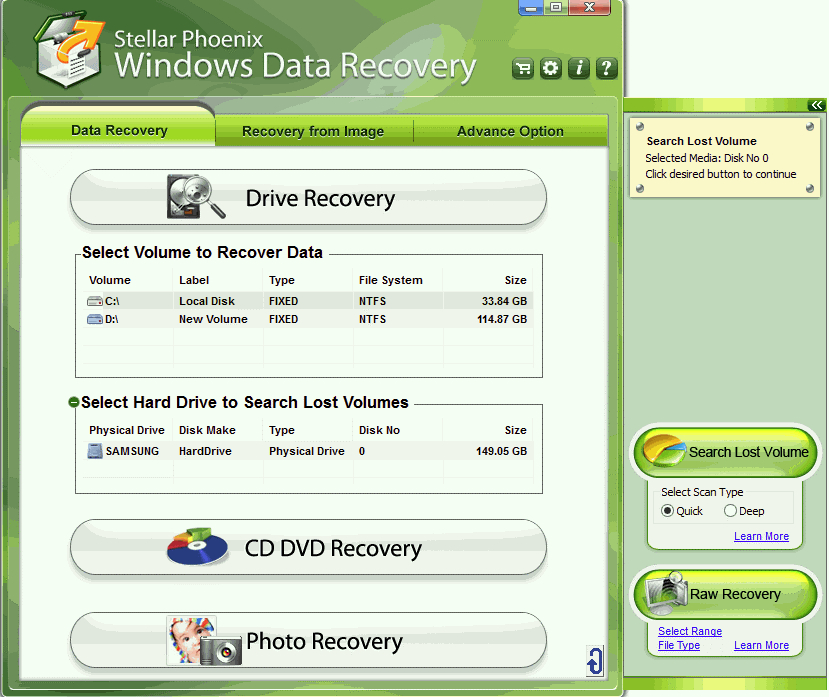
Click on the problem drive, listed under ‘Data Recovery’ > ‘Drive Recovery’ tab. The subsequent recovery methods will pop up as soon as you click on any particular drive or volume. Choose ‘Advanced Recovery’ from the available methods and let the software scans your drive completely (do not stop scanning at mid). Don’t panic if the software is taking too long to scan your problem drive. It may also possible that sometime the whole system freezes and needs you to restart the it. That’s because of the data recovery tools limitations and drive nature (RAW status) which takes really tough luck to getting detected on the system and recover data off the drive.
Once the scanning is completed, you’ll be able to see preview of any or all the recoverable files and folders using the preview pane, located at the top right corner. Chose or select desired files for recovery and click on Recovery button. Make sure that you’ve activated the software before start recovering your files as saving is disabled in demo version.
Do let us know your feedback or your particular situation if the error still persists!!
Available link for download
Friday, October 21, 2016
Repairing Corrupted USB Pen Drives with HP Format Utility
Repairing Corrupted USB Pen Drives with HP Format Utility
Recently one of my USB pen drive got corrupted. Windows 7 built in format utility was unable to format it. I tested it windows vista and windows xp. But it seems all kind of Windows operating systems are unable to handle this issue. The USB flash is Kingston manufacturer and it was 128GB that might be an expensive gadget for a lot of people these days. It was about 120 US $ when purchased, so loosing this device would be a not easy option for me, I started searching over google how to repair this kind of corrupted USB or how to repair corrupted usb pen drive.
In the mean time I also tested it via Ubuntu linux but it didn’t work for me. A lot of people recommended me right click my computer icon in windows and choose Manage option. Then go to disk management and delete the partition, change drive letter and then re format it, it didn’t work also. Another blog recommended me to check for file system errors in drive properties, that I was trying all day long and it didn’t work too. Then I found a recommendation by Martin Brinkmann at ghacks.net
The format utility was available at PC-World and Cnet downloads with the name SP27608.exe HP USB Disk Storage Format Too
HP USB Disk Storage Format Tool
I downloaded it and tried to format my USB drive with it and finally this utility worked and solved my problem. So if you are in same case and want to format your USB drive that cannot be formatted with ordinary windows tools, try this. I hope it helps.
The process of using this utility is very simple. Just launch the utility with Administrator rights, a window like above will appear that will automatically select the pen drive that is connected to your computer at that moment. First try with quick format option. It will take few minutes depending on the size of your USB flash disk, if this process don’t work, try the second option by un-checking “Quick format”. Now it will take more time but you will get a better probability of success.
Available link for download
Subscribe to:
Posts (Atom)