Showing posts with label method. Show all posts
Showing posts with label method. Show all posts
Monday, March 20, 2017
How to Flash Karbonn A20 Check here with simple method
How to Flash Karbonn A20 Check here with simple method
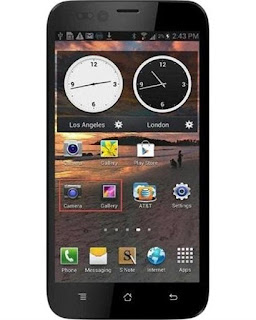
First back to all type data like photos, email, contacts, videos etc because this is factory firmware if dont take backup all then you will lost all type data of above mention.
This flash file tested by me without any error working well, you can use this flash file when your device hang on logo problem, restarting problem, security lock problem, password lock problem, pattern lock problem etc software related problem and you can use this tutorial without any box and this is free for all who know about software in mobile, impotent for flashing first must check your micro usb cable if not good then you cant flash it so check micro usb cable second check your device battery that is impotent for flashing if your device battery low so stop your device between flash so this is impotent for flash, before you flash save your data like contact, photos, videos etc because this is factory flash file so you cant save after full flash so must remember all are impotent notes.
Download Link
Karbonn A20 Firmware Download here
SP_Flash_Tool_v5.1343.01 Download here
Required for flash:
1. Karbonn A20 device with good battery charged
2. Karbonn A20 tested firmware
3. SP Flash Tool
4. Micro usb cable
5. Computer or Laptop
Procedure:
1. Download tested firmware or flash tool from above link
2. Extract to both winrar file into desktop or as you like path (must installed winrar software in your computer or laptop)
3. Open SP_Flash_Tool_v5.1343.01 folder and choose flash_tool.exe file and open it
4. Click on Scatter-loading button and choose MT6572_Android_scatter.txt file
5. Click on Download button
6. Press and hold Volume Up button and insert usb cable (device key or micro usb cable must be working well)
7. Wait until driver install, if driver installed in your computer or laptop then downloading start automatically in your device
8. Wait until full install android os into device
9. You are done
Karbonn A20 flash done with flash tool screenshot:
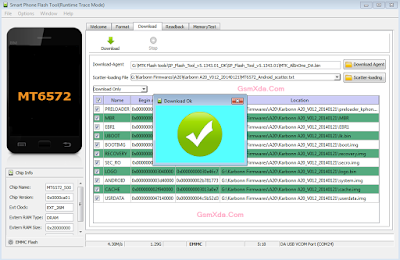
Karbonn A20 flash done with flash tool video:
Available link for download

Thursday, March 9, 2017
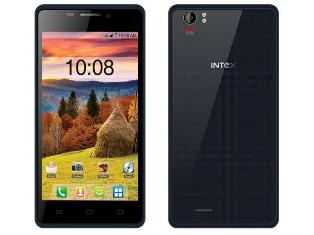
How to flash Intex Aqua Desire flash with sp flash tool see here with simple method
How to flash Intex Aqua Desire flash with sp flash tool see here with simple method
About Firmware or Tutorial:
This is tested firmware or flash tool you can do using this tutorial because this tutorial tested by me any error or issue and also this is simple method for everyone who know about android software related this tutorial use new user technician lets see how to flash intex aqua desire with sp flash tool ?
This flash file tested by me without any error working well, you can use this flash file when your device hang on logo problem, restarting problem, security lock problem, password lock problem, pattern lock problem etc software related problem and you can use this tutorial without any box and this is free for all who know about software in mobile, impotent for flashing first must check your micro usb cable if not good then you cant flash it so check micro usb cable second check your device battery that is impotent for flashing if your device battery low so stop your device between flash so this is impotent for flash, before you flash save your data like contact, photos, videos etc because this is factory flash file so you cant save after full flash so must remember all are impotent notes.
Download Link
Intex Aqua Desire Firmware or Flash tool Download here
Required for flash:
1. Intex Aqua desire device with good battery charged
2. Intex Aqua desire tested firmware or flash tool
3. Micro usb cable
4. Computer or Laptop
Procedure:
1. Download tested firmware or flash tool from above link (if link not working just write down comment on below comment box) 2. Extract winrar file to desktop or as you like path (must installed winrar software in your computer or laptop) 3. Open SP Flash Tool v3.1344.214 flash tool folder and choose flash_tool.exe file and open it 4. Click on Scatter-Loading button and choose MT6572_Android_scatter.txt file 5. Click on Download button and Press and hold Volume Up button and insert usb cable then wait until driver install if driver installed in your computer or laptop then downloading automatically start into android device 6. Wait until full os install in your device (not : do not disconnect device while your device in flashing mode) 7. Congratulation you are done from many problem and problem are mention above description.
Intex Aqua Desire Flash done with sp flash tool screenshot:

Intex Aqua Desire Flash done with sp flash tool video:
Available link for download
Friday, December 9, 2016
How to Flash Intex Aqua I 4 Plus with flash tool check here with simple method
How to Flash Intex Aqua I 4 Plus with flash tool check here with simple method

First back to all type data like photos, email, contacts, videos etc because this is factory firmware if dont take backup all then you will lost all type data of above mention.
This flash file tested by me without any error working well, you can use this flash file when your device hang on logo problem, restarting problem, security lock problem, password lock problem, pattern lock problem etc software related problem and you can use this tutorial without any box and this is free for all who know about software in mobile, impotent for flashing first must check your micro usb cable if not good then you cant flash it so check micro usb cable second check your device battery that is impotent for flashing if your device battery low so stop your device between flash so this is impotent for flash, before you flash save your data like contact, photos, videos etc because this is factory flash file so you cant save after full flash so must remember all are impotent notes.
Download Link
Intex Aqua I-4 Plus firmware download here
SP_Flash_Tool_v3.1328.0.183 download here
Required for flash:
1. Intex Aqua I-4 Plus device with well battery charged
2. Tested firmware or flash tool
3. Micro usb cable
4. Computer or Laptop
Procedure:
1. Download tested firmware or flash tool from above link (if link not working just write down comment on below comment box)
2. Extract to desktop or as you like path (must be installed winrar software in your computer or laptop)
3. Open SP Flash tool folder and choose flash_tool.exe file and open it
4. Click on Scatter-loading button and choose MT6572_Android_scatter.txt file
5. Now click on Download button
6. Press and hold Volume Up and insert micro usb cable
7. Wait until driver install, if driver installed in your computer or laptop then downloading automatically start into device
8. Wait until full install android os
9. You are done
Intex Aqua I-4 Plus flash done with flash tool screenshot:

Intex Aqua I-4 Plus flash done with flash tool video:
Available link for download
Monday, September 5, 2016
How to flash Lava Iris 356 flash with flash tool see here simple method
How to flash Lava Iris 356 flash with flash tool see here simple method

About this firmware or tutorial:
Some time different issue into device which one hang on logo, restarting issue, pattern lock, display lock etc so how to solve that ? bu dont worry if you have this type problem in this device then you can use this tutorial but some impotent for that first of full carefully read tutorial after you can following this tutorial because you can do easy done without any issue or error.
This flash file tested by me without any error working well, you can use this flash file when your device hang on logo problem, restarting problem, security lock problem, password lock problem, pattern lock problem etc software related problem and you can use this tutorial without any box and this is free for all who know about software in mobile, impotent for flashing first must check your micro usb cable if not good then you cant flash it so check micro usb cable second check your device battery that is impotent for flashing if your device battery low so stop your device between flash so this is impotent for flash, before you flash save your data like contact, photos, videos etc because this is factory flash file so you cant save after full flash so must remember all are impotent notes.
Download Link
Lava Iris 356 Firmware or flash tool download here
Required for flash:
1. LAVA Iris 356 device with good battery charged
2. LAVA Iris 356 tested firmware or flash tool
3. Micro usb cable
4. Computer or Laptop
Procedure:
1. Take tested firmware or flash tool from above link (if link not working just write down comment on below comment box)
2. Extract to desktop or as you like path (must installed winrar software in your computer or laptop if not installed winrar then you cant open firmware)
3. Open SP Flash Tool v3.1344.214 folder and open flash_tool.exe file
4. Click on Scatter-loading button and choose MT6572_Android_scatter.txt file (wait until load OS)
5. Now click on Download button
6. Press and hold Volume Up button and insert usb cable (must be working well device key or micro usb cable)
7. Wait until driver install, if driver installed in your computer or laptop then downloading automatically start in to device
8. Wait until full install OS (do not disconnect while device in flashing mode)
9. Congratulation you are done
Lava Iris 356 flash with flash tool screenshot:

Lava Iris 356 flash with flash tool video:
Available link for download
Subscribe to:
Comments (Atom)